

Table of Contents
Teams Expiration Policy Removes Inactive Teams
The Groups expiration policy allows organizations to set an expiration period for Microsoft 365 groups and teams. If the groups remain in active use (based on certain Graph signals), Azure AD automatically extends their expiration date. In 2020, Microsoft reported that 79% of groups subject to the expiration policy met the bar for auto-renewal. The other 21% were either deleted by Azure AD or retained because a group owner responded to a prompt to renew. Many Microsoft 365 Groups in use today are teams-enabled and the likelihood is that most of the groups subject to the expiration policy are used with teams.
Unless administrators keep a close eye, it’s possible that Azure AD will remove an important group because the group owner failed to request renewal. For example, when a team comes within 30 days of its expiration date, owners receive notifications in their activity feed that they can use to renew the team (Figure 1).


It’s worth noting that team owners also receive notifications via email to warn about impending expiration. The messages come from msgroupsteam@microsoft.com (the bring your own domain feature for service messages doesn’t cover these emails) and arrive 30 days, 15 days, and one day before Azure AD removes the group. It’s possible for team owners to overlook these messages if they don’t use email.
A New Insight for Teams Administrators
All of which brings me to Microsoft 365 message center notification MC542836, posted on April 17. The announcement covers changes to the Teams admin center (TAC) to give administrators more visibility into the set of teams approaching expiration and the teams already deleted.
To see teams approaching expiration, apply a filter to the set of teams to look for teams expiring in the next 7, 14, or 30 days (Figure 2).


After TAC applies the filter to the set of teams, you can renew selected teams (Figure 3). The expiration date for a renewed teams is set at today plus the expiration period set in the policy. My tenant uses a two-year (730 day) expiration period, which I think is a good compromise between keeping inactive groups forever and expiring groups too soon.


Restoring Deleted Teams
It’s not a disaster when Azure AD removes an expired group because it’s easy to list and restore deleted groups using the Microsoft Entra admin center or PowerShell. However, if an administrator doesn’t restore a deleted group before the 30-day deletion period lapses, Azure AD permanently removes the group and all its connected resources. Monitoring the set of soon-to-be deleted groups is therefore sensible, perhaps using a PowerShell script to report groups and their expiration status.
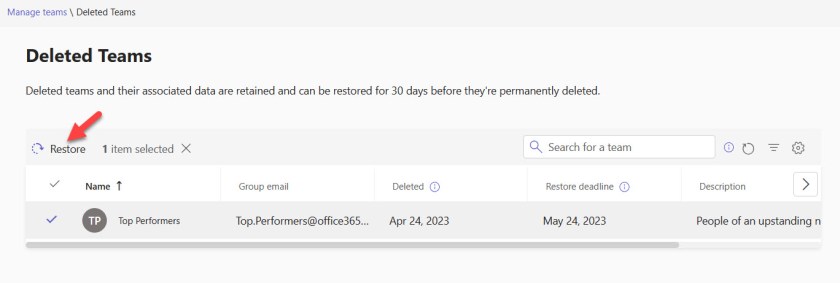
To make management of deleted teams easier, the second extension to TAC is the addition of an option to View deleted teams to the Actions menu. The Deleted groups option in the Entra admin center lists all kinds of deleted groups while TAC restricts the set of deleted groups it displays to team-enabled groups. A shown in Figure 4, you can select and restore a deleted team at any time during its 30-day deletion retention period.

No Magic in New Options
There’s no magic behind the two new TAC options. Microsoft has taken options available elsewhere and adapted them to work solely with teams. There’s nothing wrong with that approach as it makes sense to provide the functionality to renew and restore teams in the tools people use. And anyway, if you don’t like performing these actions in a GUI, there’s always PowerShell.
Support the work of the Office 365 for IT Pros team by subscribing to the Office 365 for IT Pros eBook. Your support pays for the time we need to track, analyze, and document the changing world of Microsoft 365 and Office 365.