

Table of Contents
Poor UI Design, Especially for Large Groups
Vasil Michev, the technical editor of the Office 365 for IT Pros eBook, is quick to spot a problem that we should pay attention to, which is why he highlighted a concern about the Microsoft 365 admin center UI used for group membership maintenance. In a nutshell, George McDonald, the author of the Microsoft Technical Community post, thinks the UI sucks dirty canal water, saying:
“The Members Lists are no longer displayed in a drop-down list, with check boxes preceding each entry, instead now members are clumped together in what can be best described as a single text box, further compounded by the fact that this clump of members is NOT in Alphabetical Order. So if you have anything more than 20 users in the clump, your eyes have to scan every entry carefully to find the required user to remove, then hit an X mark suffix to their name to remove membership. Ridiculous and irritating user experience is putting it politely, make no mistake.
Figure 1 shows the problem. In this case, the group has 57 members and is just about manageable in the format chosen by Microsoft to display group members (as reported below, this UI is now replaced).


With a larger group, the problems in the UI would soon become apparent because:
- The group is sorted in the order in which members are added. In other words, the first member added to the group is at the top and the most recent member is at the bottom. This doesn’t make sense. Alphabetical sorting would be better, including the ability to sort both A-Z and Z-A. It would also be good to be able to filter members based on properties like location in an advanced search.
- The list shows the display names of the members. This is fine and people can be identified if duplicate display names don’t exist. For example, what happens if seven people named John Smith or Jane Ng are members? You can’t assume that organizations will apply suffixes to differentiate group members.
- The initials in circles might look pretty, especially in multiple colors, but they don’t help. In this example, user photos are available for many members, but even if the list included the photo instead of user initials, it probably would not help because the images would be too small.
- You can search for people to add to the group, but you can’t search the existing members to find someone. The membership limit for Teams is now 25,000. Imagine scanning such a list to find and remove a member.
- The default display looks as if all members are selected and that any action, like a removal, will be applied to all.
Microsoft Updates the Group Management UI
As proven in Sod’s law, as soon as something is published about a cloud detail, Microsoft ships an update. In this case, they refreshed the group membership management UI (Figure 2) to address some of the more grievous sins evident in the previous UI. The new approach is clearer and better, but it still suffers from some issues.

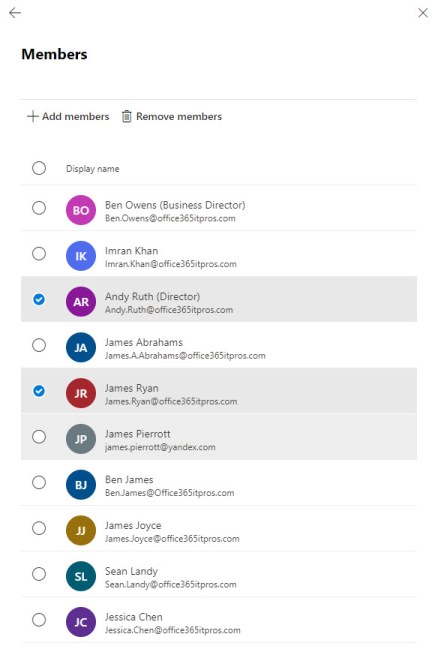
- There’s still no ability to sort or filter.
- Limited information is shown about each user. Again, this is fine for a small organization but less good once the number of accounts increases.
- User photos are not shown (if available).
Another example of poor “fit and finish” is when displaying the members of a team-enabled group. Thoughtfully, Microsoft displays an icon to show that a group member is “Teams enabled” (Figure 3). But what does this mean? After all, the members are in a team, so by definition they are Teams-enabled (I guess they could be new members waiting to receive a Teams license through an auto-claim policy). But what then for guest users? These are Teams enabled because they are a member of a team, but they don’t need licenses to access Teams in another tenant. It’s all very confusing.


I also hate the way that the Add members screen insists on loading and displaying mail contacts first. Although it’s possible that an administrator will want to add a mail contact to a group, it’s more likely that they will want to add a tenant account. Some control should be given to allow administrators to choose the order in which mail recipients load when adding new members to a group.
In summary, the Microsoft 365 admin center UI needs a makeover to improve its ability to handle the membership of large groups, provide better search features, and show more information about each member to differentiate individuals.
OWA Group Management is Better
It can be argued that the UI of the Microsoft 365 admin center is intended to help inexperienced administrators and that experienced people will use other tools, like PowerShell (which I would use to remove members from large groups). However, Microsoft uses an inconsistent array of UI designs for group membership management, some of which exhibit characteristics the admin center could adopt. For example, OWA’s UI for managing a group displays fewer members (initially), but more information is available about each member (including their photo), and you can search for members (Figure 4). There’s no filtering or ability to sort, but OWA’s is a better UI.


The Art of the UI
I’m sure Microsoft has heaps of UI experts on staff. Sometimes they get it right, like the recent change to the SharePoint Online sharing control, and sometimes they get it wrong, like the group management UI described above. Perhaps some knowledgeable eyes could look at the different ways to manage group membership surfaced across Microsoft 365 apps with a view to coming up with a common approach that works well for both small and large groups. Wouldn’t that be nice?