

Table of Contents
New options to Set What You Want to See
Teams recently moved away from a model where users “follow” a channel when they want to receive notifications about new posts and replies in the channel to the ability to control the notifications received on a general basis and for individual channels. The clients are now being updated to reveal Channel notifications as an option in the […] menu for a channel (see this support article).
General Notification Settings
In general, the notifications a user sees for new posts, replies, and mentions in channels of teams they belong to are controlled by settings in the Mentions and Messages sections under Notifications in their Teams settings (Figure 1). For example, under Mentions, we see a setting controlling how Channel mentions are handled. If Teams can’t find a user setting for a channel, it applies their general settings.


Channel Notification Settings
To control notifications for a channel, select the channel and then click the […] menu. Channel notifications are the top option and reveal the screen shown in Figure 2.

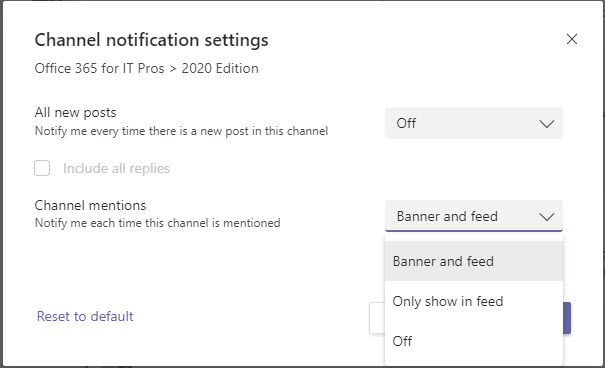
Assuming you want to be notified when people post to the channel, the options are:
- Send notifications for all posts to the channel.
- Send notifications for all posts and replies to the channel.
- Send notifications for @[channel name] mentions.
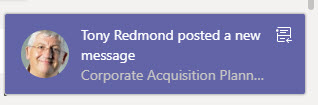
With notifications enabled, you can choose to have Teams post notifications to the activity feed, or to the feed and as a “banner” (pop-up notification, sometimes called a “toast”). A banner notification looks like Figure 3:

Obviously, if you participate in some ultra-busy channels, you might not like to see notifications appear for everything. In these cases, I usually opt for activity feed notifications only unless I’m waiting for something to happen and want to see the pop-up.
For more information about Teams, read the chapters in the Office 365 for IT Pros eBook.