


Table of Contents
Rename SharePoint Site Address Answers a Long-Overdue Customer Request
Refreshed on 14 November to reflect new UI in SharePoint Admin Center.
Site owners have been able to change many properties of their sites (like logos, display names, and so on), but they haven’t been able to change site URLs. But now, the modern SharePoint Admin Center includes the ability to update the address (URL) and display name for a site. You still can’t change the tenant’s domain name (the tenant.sharepoint.com part of the URL); only the site name part can be renamed.
SharePoint administrators can rename on-premises sites with PowerShell (here’s one example). One workaround used is to create a new site and copy everything from the old to the new. This works, but it isn’t a recommended approach when sites belong to Office 365 Groups (including Teams) because the properties of the group objects include pointers to the SharePoint sites. For example:
Get-UnifiedGroup -Identity "Marketing Gurus" | Format-List SharePoint*

SharePointSiteUrl      : https://tenant.sharepoint.com/sites/marketinggurus
SharePointDocumentsUrl : https://tenant.sharepoint.com/sites/marketinggurus/Shared Documents
SharePointNotebookUrl
The SharePointNotebookURL is blank if the shared OneNote notebook has never been used by the group.
Renaming a site is Office 365 roadmap item 56205. It first appeared as a preview feature in May 2019. Office 365 notification MC193275 on 16 October revealed that the feature rolled out to customers in mid-October 2019.
Different Nature of SharePoint Online
All of this proves that SharePoint Online is a more complex environment than SharePoint on-premises. Apart from working inside the multi-tenant Office 365 ecosystem, SharePoint Online is a provider of document management services to other apps while on-premises SharePoint Server is the center of its own ecosystem.
Office 365 tenants have asked Microsoft to allow the rename of sites for many years. When an Office 365 group or team is created, the SharePoint site is named after the group or team. You can rename an Office 365 group or team later to reflect changing circumstances (for example, a project used to be called “Alpha Contoso” and now is “Better Products”), but you couldn’t rename the site.
Rename SharePoint Site Address – SharePoint Admin Center
To rename a site, log on as a tenant global administrator, launch the SharePoint Admin Center, go to Active Sites, and select the site you want to rename, and open the properties pane. If you see the banner in Figure 1, it means that the selected site comes within the scope of an Office 365 retention policy or eDiscovery hold. You can’t change the site URL if these conditions exist. If you decide that you really need to change the URL, you’ll have to remove the site from the policy or hold.


Click the Edit link under the URL to begin the rename process. Now overtype the current name of the site to enter a new name. SharePoint checks that the new name is available and if everything’s OK, click Save to rename the site. SharePoint also asks if you want to rename the site (to keep it aligned with the new site URLs). You don’t have to do this, but it is a good idea.


After saving the new site address, you’ll be asked if you want to update the display name for the site too. Although this isn’t mandatory, it’s wise to have the display name match the new site address.
Processing the request to update the site address takes a little time to complete and the site is locked during this period. Once done, SharePoint returns to the Active Sites list. To check that everything works as expected, you can select the site, open the properties pane, and click on the site URL. If the site is connected to an Office 365 group, you can also run the Get-UnifiedGroup cmdlet to check that the URLs are adjusted as expected.
It’s important to understand that renaming a group-connected site does not affect any of the other group properties such as its display name, alias, or email address. If you want to change these properties, do this by running the Set-UnifiedGroup cmdlet.
Sharing Links are Upgraded after Rename
Sharing links are sent by site members to share documents with other people. The sharing links contain a reference to the site. Testing reveals it takes SharePoint a couple of minutes to create a redirection site in its namespace (you see a Server 500 error during this time). Once the redirect is in place, old sharing links work and bring users to the newly renamed site. OneDrive synchronization also continues to work after site renames.
See this page to learn how to query the redirects known to SharePoint and remove them if necessary.
Rename SharePoint Site Address – PowerShell
The latest version of the PowerShell module for SharePoint Online includes the Start-SPOSiteRename cmdlet. Here’s an example of renaming a site with PowerShell:
# Rename a SharePoint Site
Start-SPOSiteRename -Identity https://tenant.sharepoint.com/sites/europeanoffice365engage -NewSiteUrl https://tenant.sharepoint.com/sites/euroOffice365Engage

Confirm
Are you sure you want to perform this action?
This operation will change the URL for site
https://tenant.sharepoint.com/sites/europeanoffice365engage to
https://tenant.sharepoint.com/sites/euroOffice365Engage. Do you want to continue? Y/N
[Y] Yes  [A] Yes to All  [N] No  [L] No to All  [S] Suspend  [?] Help (default is "Y"): y

CurrentSiteUrl : https://tenant.sharepoint.com/sites/europeanoffice365engage
NewSiteUrl     : https://tenant.sharepoint.com/sites/euroOffice365Engage
NewSiteTitle   :
RenameID       : bad6b1ae-8995-77ae-9d01-2cac19bfb7bd
State          : InProgress
TriggeredBy    : SPO-administrator@office365itpros.com
Audit Records Generated for Rename SharePoint Site Addresses
When you rename a site, SharePoint captures details of the action in a SiteRenameScheduled audit record. After a short period, the audit record is ingested into the Office 365 audit log and is available for review (Figure 3).

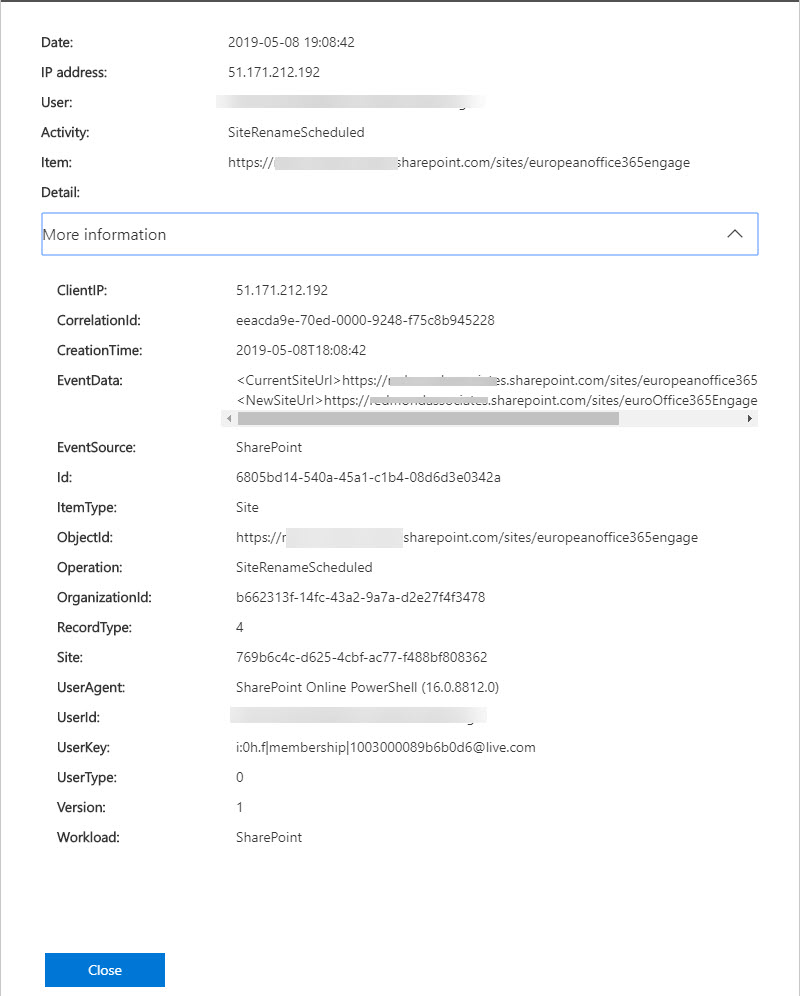
The Search-UnifiedAuditLog cmdlet can also be used to find these records:
# Look for SharePoint Site Rename Records
Search-UnifiedAuditLog -Operations SiteRenameScheduled -StartDate 1-May-2019 -EndDate 10-May-2019 -SessionControl ReturnLargeSet -ResultSize 5000 | Format-Table Creationdate, Operations, Userids

CreationDate        Operations          UserIds
 ------------        ----------          -------
 8 May 2019 18:08:42 SiteRenameScheduled SPO-Administrator@office365itpros.com
 3 May 2019 11:05:04 SiteRenameScheduled Jan.Smith@office365itpros.com
 2 May 2019 12:33:40 SiteRenameScheduled Alan.Smith@Office365itpros.com
 2 May 2019 12:24:58 SiteRenameScheduled Ian.Best@Office365itpros.com
 1 May 2019 13:53:57 SiteRenameScheduled Jan.Akers@office365itpros.com
The information about the site being renamed and its new name are found in the AuditData property of the audit records. This property is in JSON format and must be unpacked to extract the information. You can learn how in Chapter 21 of the Office 365 for IT Pros eBook.
Understand the Side Effects of Rename SharePoint Site Address
Before rushing to rename a site, make sure that you read and understand the side effects of the action documented by Microsoft. Some of these, like losing items in the site recycle bin, are quite destructive.
Update: January 2, 2020: Renaming a site used to have an effect on the connection between Teams (via the Files channel tab) and SharePoint. Microsoft has fixed the problem and you shouldn’t have any problems with Teams now.
One side effect that isn’t documented is that if you have explicitly included or excluded a site in an Office 365 retention policy or eDiscovery hold, you should remove the site reference from the policy or hold before you update the URL. The reason is that the URLs of included or excluded sites are stored in the properties of the policy or hold. If you rename the site, the properties of the policy or hold are not changed to reflect the new URL, which then causes errors when Office 365 tries to apply the policy or hold against the old URL.
We cover SharePoint Online in Chapter 8 of the Office 365 for IT Pros eBook. We also cover a lot of PowerShell for Office 365 Groups and Teams in Chapter 14!