

Table of Contents
Not a Word Expert By Any Means
I am a dedicated rather than expert Word user. The editor is something I’ve used most days since I first opened Word 2.0 in 1993 and concluded it was a better word processor than DECwrite, an editor that ran on VAX workstations at the time. Word 2.0 ran on a 286 PC with 4 MB of memory, so it’s fair to say that it was a lot cheaper to use than its VMS counterpart.
Word is Like an Old Slipper
Over the best part of three decades I have grown comfortable with Word. Most of the time, I use the same features and don’t go looking for new functionality unless I need to perform a task. Recently, I found that Word (click to run or Office 365 ProPlus, now horribly renamed as Microsoft 365 Enterprise Apps suite) combines @mentions in comments with the ability to share documents. The feature is useful when you collaborate to create documents, which I need to do often.
Comment or @Mention
Using version 2004 (build 12730.20150) of Word, I noticed that the old insert comment command is now Comment or @Mention. Clicking the command brings up the usual dialog to enter a comment (for example, “what horrible text – you need to change this!”) with the added option to insert an @mention.
Type @ and the first few characters of someone’s display name. Word checks to find the person to mention. It looks like Word uses Outlook’s auto-complete list of email addresses because I noticed names from outside the tenant that I had previously emailed (Figure 1).


You can also add an @mention comment from the right-click insert menu.
Sharing for @Mentions
For good reason, @mentioning someone only works for documents stored in SharePoint Online or OneDrive for Business. After selecting the name, you can enter the comment. If that person doesn’t currently have access to the document, Word offers to give them access (share) so that they can open and view the comment and the associated text (Figure 2).

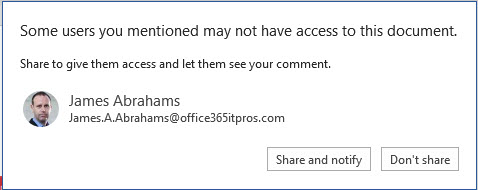
The standard sharing mechanism available in OneDrive for Business or SharePoint Online is used, so the document must be stored in Office 365. If you open the document properties, you can see the share access granted to the @mentioned person (Figure 3).


Email Notifications for @Mentions
People @mentioned in a comment receive an email notification to tell them that they should go to the document to respond. The notifications sent by Office 365 applications are becoming smarter. OWA users can respond to Yammer conversations without leaving the client, and the Teams missed activity messages are a different take on the same idea. @Mention notifications contain information to help the recipient decide how quickly they need to respond by including the context of the comment (Figure 4). And when the time comes to respond, the link opens the document in the browser positioned at the comment.


Updated Comments
Once you involve other people in a document, it is likely that multiple people will edit the document concurrently. Collaborative co-authoring is not new, but I was pleased to see how responses to comments appeared in documents soon after they were added. Updates are not immediate because they depend on the autosave mechanism to capture and distribute changes to everyone who has a document open, but responses show up quicker than they would in a document circulated by email.
@Mentions for All
According to this Microsoft support article, PowerPoint, Word, and Excel are supposed to have the same @mention capabilities. This is certainly true of the online versions of the apps, but I only see @mentions in the desktop versions of Word and PowerPoint. Adding the feature to the desktop version of Excel might be a little more complicated.
The Office 365 for IT Pros eBook does not cover the desktop or online apps. However, we use Word to write the book and this feature exploits the Office 365 sharing mechanism, so we thought you’d like to know about it.