

Table of Contents
Another Way for Tenant Administrators to Know When Incidents HappenI
MC211619 was one of the Office 365 notifications that passed me by without making much of an impression. Announced on June 16, it’s about a new right-hand notification panel in Outlook for Windows (click to run, aka Microsoft 365 enterprise apps). The panel appears when an incident happens that affects tenant users and the idea is that administrators get a heads-up before users start to complain that something isn’t working. The update is associated with Microsoft 365 roadmap item 58085.
One reason why I didn’t pay much attention to this change is that relatively few incidents have recently happened that affect my tenant. I guess I’ve been luck. Although incidents occur all the time inside Office 365, the sheer scale of the service and the way that tenants receive service from a network of datacenters mean that some tenants never notice problems while others experience issues.
The Outlook Notifications Panel Opens
Last night, Outlook (version 2006, build 13001.20384) opened the notification panel for the first time to display details of a problem with OneDrive. As you can see in Figure 1, notifications also include when problems are resolved. As it happens, the two incidents are related (navigation in the browser clients for SharePoint Online and OneDrive for Business). Clicking the See more link under a notification opens the Service health section of the Microsoft 365 admin center to display details of the problem.


I’m not sure how quickly Outlook removes notifications. The service health dashboard shows both problems as resolved at 9:37pm UTC on July 14 while the notifications remain visible some 36 hours later.
Outlook Help Includes Admin Notifications
The notification panel is designed to open automatically, which is what I saw. You can check for incidents at any time by going to Outlook’s help section (Figure 2).


Disabling Incident Notifications
If you don’t want to see incident notifications, you can disable their display in Outlook Options. Go to Advanced and scroll to the bottom to reveal the checkbox to disable incident notifications intended for administrators (Figure 3).


Outlook Build 2009 or later also includes the option to turn off notifications (Figure 4).

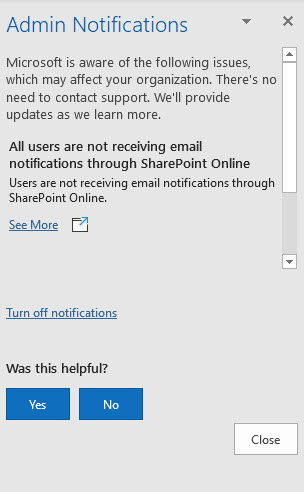
Microsoft doesn’t define what users Outlook considers to be an administrator. It seems like the panel is available to any account holding a role which allows them to access service health data, such as global administrators and global readers. This would make sense as these roles can access details of advisories and incidents in the Microsoft 365 admin center. I don’t believe that it works for accounts holding other roles like SharePoint administrator or Teams administrator.
Service Notifications by Email
You can configure service health dashboard preferences in the Microsoft 365 admin center to have incident notification sent by email to up to two users. Oddly, I didn’t receive notifications for the incidents flagged by Outlook, even though I’d chosen to receive emails for incidents and advisories related to SharePoint Online and OneDrive for Business. As I assume both Outlook and the admin center use the same service communications API to know when new incidents occur, it’s hard to explain why this happened. Maybe it’s just another small disconnect in the cloud.
Uncertain Need for the Feature
I’m unconvinced that a need existed for Outlook to surface incident reports to administrators. There’s already many ways to find out when problems exist, including the email mentioned above, using a third-party monitoring product, or building your own solution using the API. Besides, users let you know faster than any probe when things aren’t working, and your favorite social media feed will highlight problems when they are widespread across Office 365.
Overall, it seems like Outlook could focus on other areas of functionality like the top items in Outlook user voice instead of admin notifications, but hey, what would I know…
Need more information about how to run an Office 365 tenant? We have a few ideas in the Office 365 for IT Pros eBook…