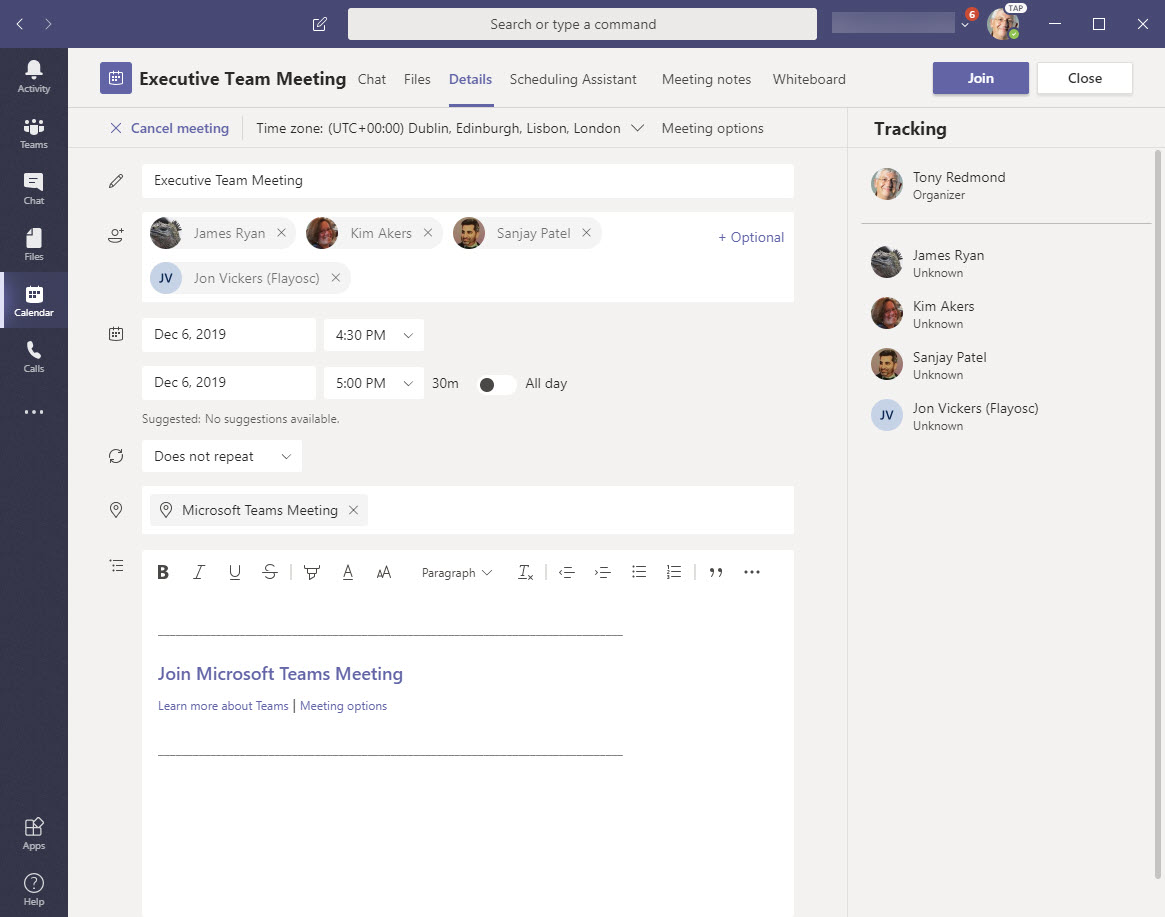
Teams depends on Microsoft 365 groups. You can add groups as meeting attendees and expect that members of those groups will receive meeting invitations. But they won’t unless you update group settings to force Office 365 to send invitations to all members. The job is easily done with PowerShell, and we show how in this post.
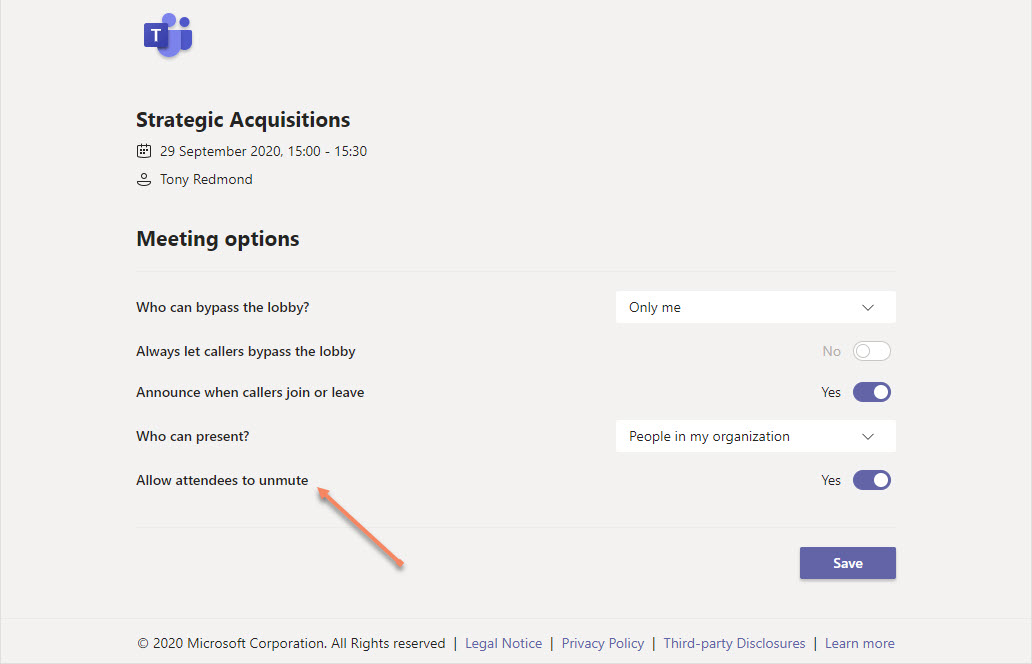
Microsoft Teams allows meeting organizers to control if attendees can unmute themselves during meetings with a new control introduced in October 2020. The new control is likely to be more popular in education settings than in the corporate world, but sometimes it’s nice to be able to take control and stop someone speaking.
Microsoft announced that Teams meetings will support breakout rooms in Q4 2020 for commercial, education, and GCC Office 365 tenants. The new feature allows up to 50 sub-meetings (breakout rooms) to be created from a meeting. The meeting organizer can then assign people to rooms, which then host discussions. The rooms can be started and closed as needed, and participants in each room can share information with each other just like a regular Teams meeting.
Microsoft has spruced up the Teams meeting pre-join screen to gather all the settings that participants can use to configure their audio and video for a meeting. The browser interface is slightly different because browsers don’t support background effects. The new screens are better than before and are a good example of how to apply rationalization and simplification to UX design.
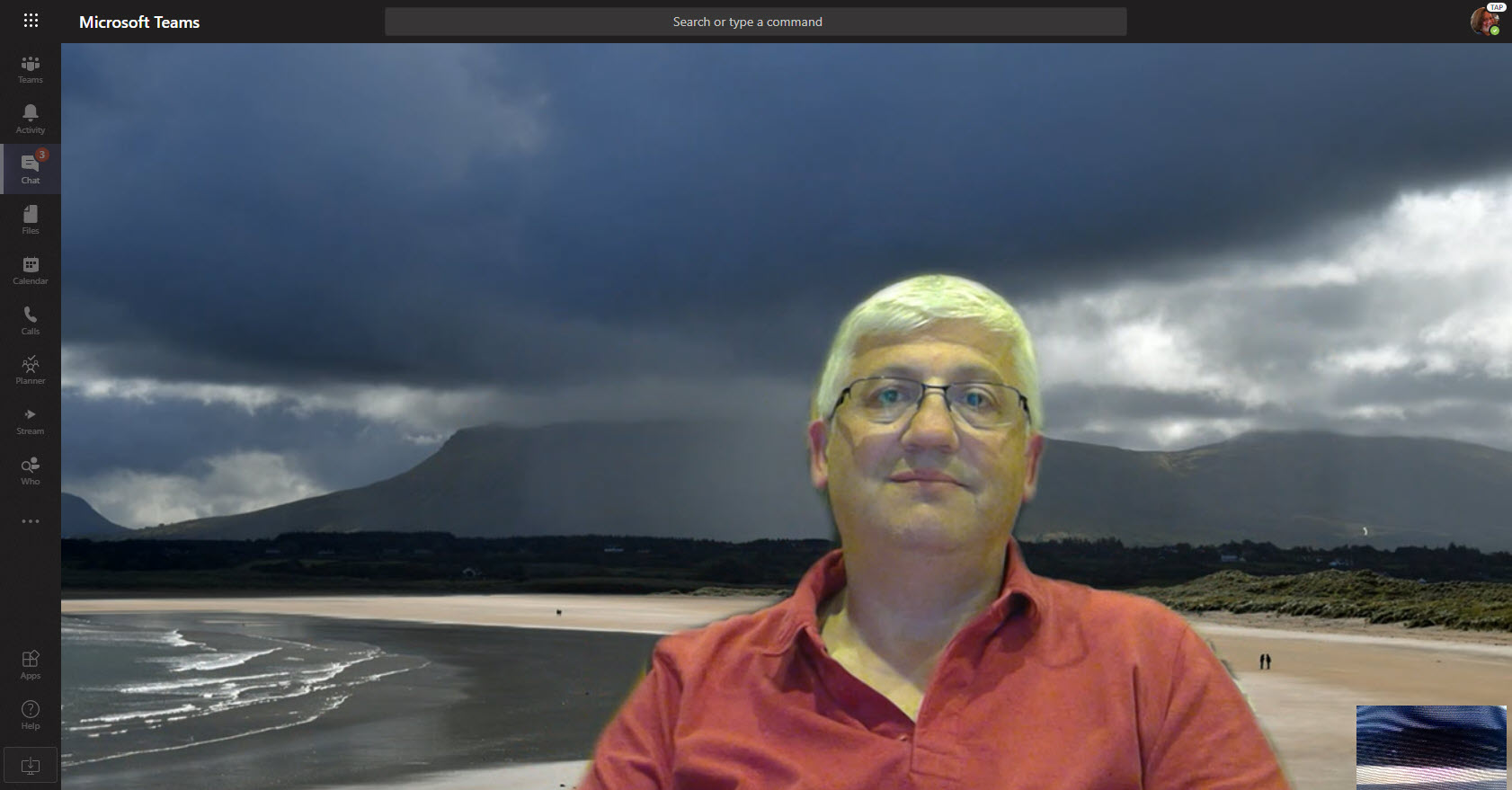
In a surprise update, Microsoft announced that Teams meetings now use persistent background effects. Once you choose an effect, Teams will use it in meetings when video is enabled. It’s a small but nice change that will help users. We need more of this kind of update across Office 365.
Teams meeting organizers can download a participant report to note who attends a meeting and when they were present. If you forget to download a report while the meeting is active, you’ll have to make up the attendance roster, and that would be a bad thing.
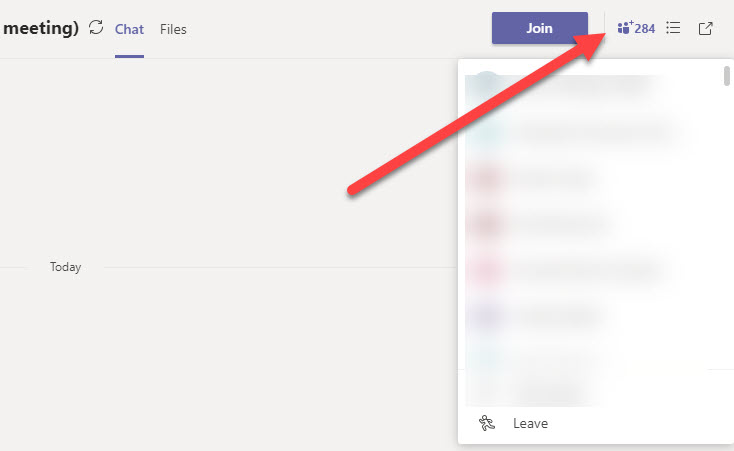
Microsoft is raising the limit for Teams meetings and group chats to 350 participants. The group chat limit was increased to 250 in early May. The new increase is temporary and Microsoft will review it in September to decide whether to keep it at 350. The update is already rolling out and should be available worldwide in mid June.
Microsoft is updating the Teams default meeting policy to enforce lobby entry for external users. Sounds good, but what does this mean? This post explains what happens and how Microsoft is able to update the default meeting policy for many tenants while not affecting the tenants who have customized their default meeting policy.
Need to be noticed in a Teams meeting? You can now raise your hand (virtually) to attract the attention of meeting participants. No one might notice, but at least you’ve tried. To some, this might be a small feature. To others, like teachers facing large classes, it might be a real boon.
Recent developments sees the ability to stop Teams users updating their photos by enforcing controls in OWA mailbox policies. Organizers can stop Teams meetings without waiting for everyone to leave with a new End meeting option in the meeting menu. Both changes are rolling out.
Teams supports the selection of an image to use as the background for meetings. For now, you can choose from a set of images selected by Microsoft, but soon users will be able to upload their own images and use them in Teams meetings. While we wait for Microsoft to complete some work on admin framework to control image upload, a workaround is available to use custom images today.
Despite many hints that Teams will soon be able to use custom backgrounds in meetings, Microsoft hasn’t shipped the feature yet. Some users are trying out software like Snap Camera, and the experience is highlighting some issues that companies might face if employees use custom filters without guidance.
Microsoft Teams now supports roles for meetings. You can assign the presenter role to specific participants, who then have rights to present and other actions, like recording the meeting. Everyone who’s not a presenter is an attendee. These folk stay nice and quiet and listen to what’s going on and all the good information shared by the presenters.
Would background blurring make a real difference to your video meetings? If it does, then try it out in Teams meetings, but only if you have a recent PC that supports AVX2.