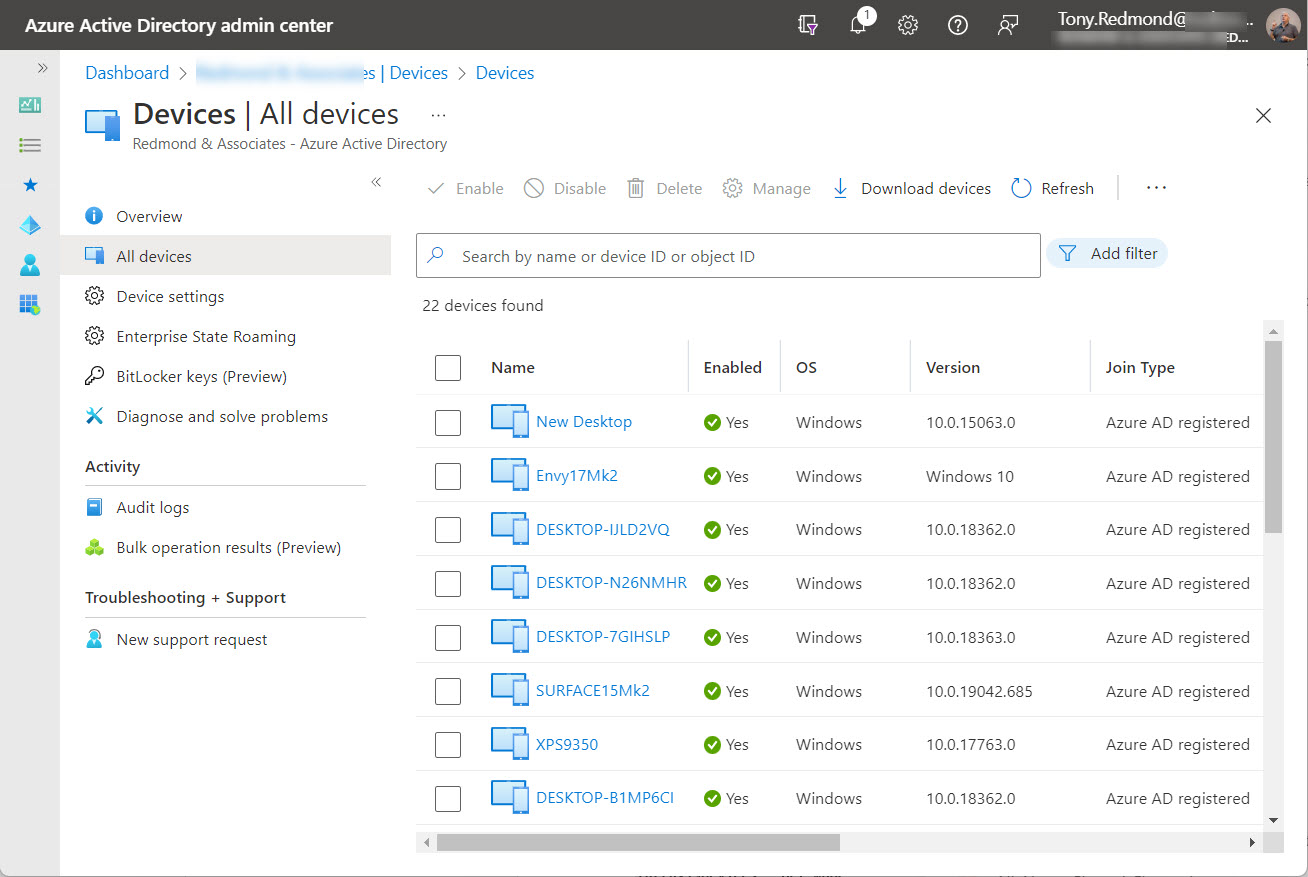
Entra ID registered devices store some information about the operating system and version used when registration occurs. Although this information changes over time and isn’t updated by Azure AD, it might be of some interest and use to tenant administrators, so we show how to report it here. If you want accurate information, you’ll need to use Intune.
As developers update PowerShell scripts in preparation for the deprecation of the Azure AD and MSOL modules, they might need to insert new code to retrieve the membership of Entra ID groups for specific accounts. We cover that topic here, including the interesting case of the AdditionalProperties property returned by several Microsoft Graph PowerShell SDK cmdlets and the valuable information found there.
The Microsoft 365 Groups Report (membership of groups and teams) originally used the Azure AD and Exchange Online PowerShell modules. Now its code uses only cmdlets from the Microsoft Graph PowerShell SDK. It’s an example of the kind of update that many organizations are going through due to the upcoming deprecation of the Azure AD and MSOL modules.
Entra ID Guest Accounts have a habit of becoming stale or obsolete as time progresses. Guest accounts created to share documents or to be a member of a long-forgotten team or group remain in Azure AD until someone comes to clean them up. This article explains how we refreshed a popular script to use cmdlets from the Microsoft Graph PowerShell SDK to report guest accounts with different degrees of staleness.
This article explains how to use PowerShell to enable Exchange Online archive mailboxes after primary mailboxes reach a certain size. Some simple PowerShell code checks the mailbox size and if it’s too large, enables the archive and assigns a mailbox retention policy containing a default move to archive tag to move items from the primary to the archive mailbox. Some Azure Automation would make sure that the script runs periodically to keep mailboxes in good health.
Microsoft has released the first public preview of the Microsoft Graph PowerShell SDK V2.0. Although the new version delivers some welcome functionality, it contains some contentious proposals such as dividing the SDK into V1.0 and beta modules and using different names for the beta cmdlets. It would be nice if Microsoft fixed some of the basic group and user cmdlets before they imposed more work on PowerShell developers.
Microsoft has announced that Exchange Online will block Remote PowerShell connections from October 1, 2023. Taken in isolation, this is excellent news and it will contribute to the move to use modern authentication for all client connections to Exchange Online. However, things aren’t quite so good when you realize that the final deprecation of the Azure AD and MSOL PowerShell modules take place at the same time. Lots of work to do to upgrade scripts!
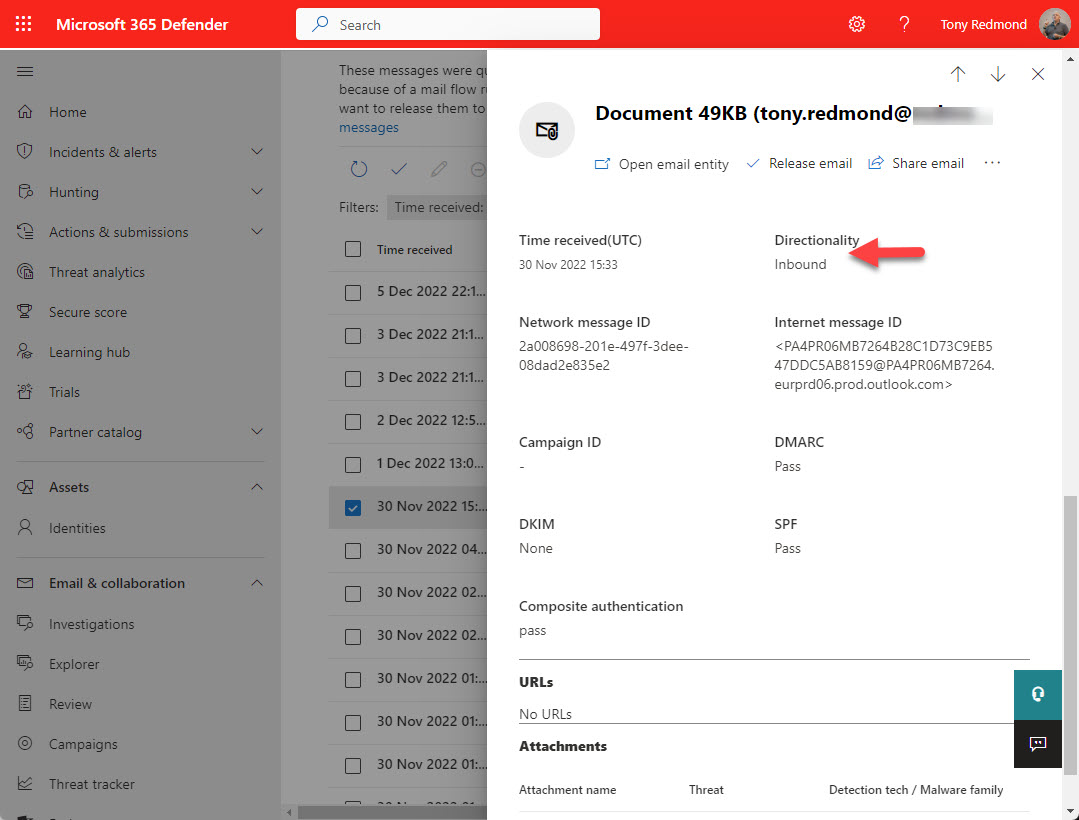
On the surface, it seems easy to report when someone releases a quarantined message. As it turns out, things aren’t quite as easy as it first seems. Audit events are available in the unified audit log, but they don’t tell the full story. But by putting that data together with information about messages in quarantine, we can create a composite view that’s closer to what’s needed.
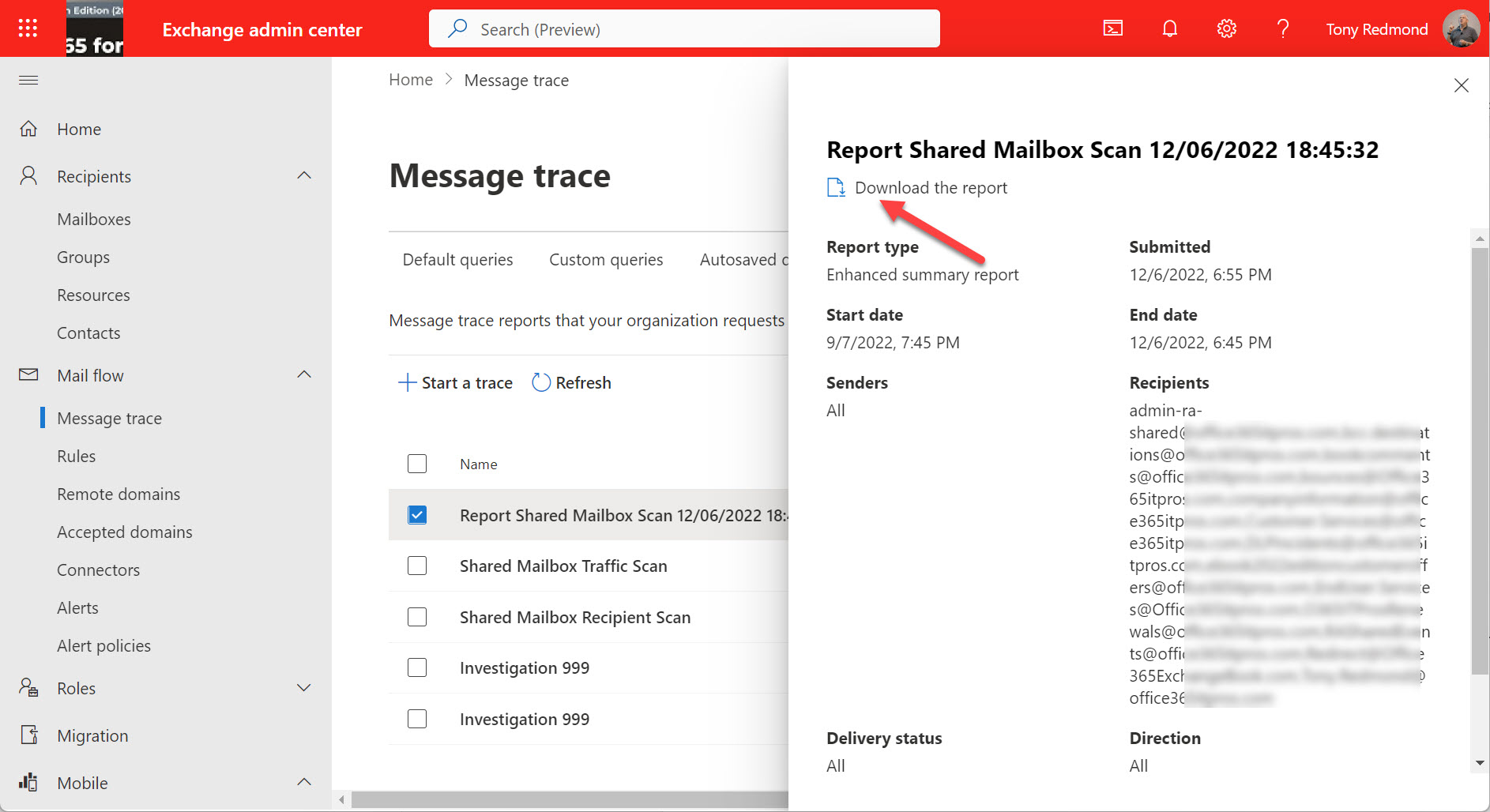
A question was asked about the best way to find out if shared mailboxes received email from certain domains over the past 60 days. Exchange Online historical message traces can extract trace data to allow us to check, but the process of running the message trace and then analyzing the data is just a little disconnected.
Microsoft will deprecate the Azure AD and MSOL PowerShell modules in June 2023. It’s time to convert scripts that use cmdlets from these modules and the Microsoft Graph PowerShell SDK is probably the best answer. This article explains how to generate a report of Exchange Online distribution list memberships, a task often handled in the past with Azure AD cmdlets.
Several methods exist to add new user accounts to groups automatically. Dynamic group membership is an obvious option, but other choices exist, including org-wide teams (if your organization is under 10,000 accounts) and using PowerShell to manage the automatic addition of new members to a standard distribution list or Microsoft 365 group. This article examines the various methods. Once you understand what’s possible, you can make the right choice.
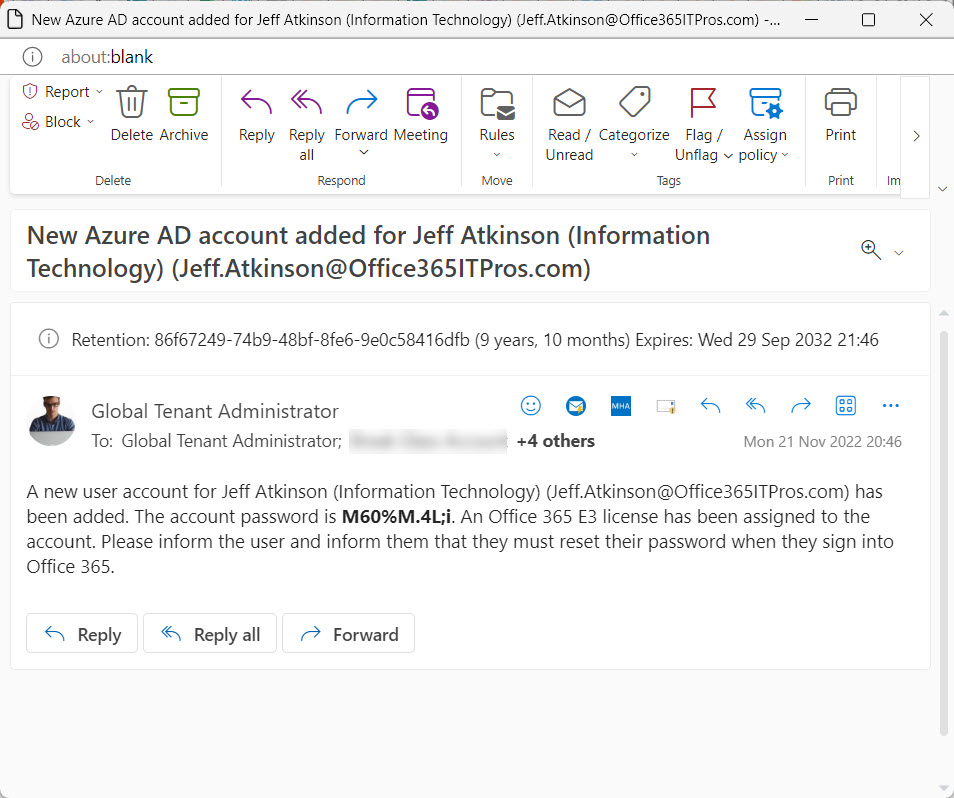
The automation of Azure AD account creation and password updates are straightforward using the Microsoft Graph PowerShell SDK. A little preparation always helps, but once you have all the necessary information, it’s easy to code up the necessary script to generate a new password and add the account – or set of accounts.
Azure AD custom security attributes can mark user and service principal objects for special processing, which is how the app filter for conditional access policies works. It’s nice to be able to interact with data through PowerShell and the Microsoft Graph PowerShell SDK cmdlets support setting, updating, and retrieval of Azure AD custom security attributes. Everything works, but it’s a pity that it’s a little clunky.
Microsoft Teams doesn’t come with a Teams Directory, so it’s hard to know if a suitable team already exists when people ask for a new team. This fact contributions to teams sprawl where multiple teams exist to serve the same purpose. Teams sprawl creates an obstacle to effective collaboration and runs the danger that some important information is tucked away inside teams that no one ever goes near. Creating a Teams Directory helps team owners and users know what teams already exist inside a tenant. It’s an idea that just makes sense.
A reader asks how to monitor membership changes for some specific high-profile groups. You can buy a commercial product to do the job or use PowerShell to exploit the information held in the Office 365 audit log. A combination of a custom attribute assigned to the sensitive groups and an audit log search does the job.
This article explains how to make Teams policy assignments using an Azure Automation runbook and some of the modernized cmdlets available in the Teams PowerShell module. Not everything worked as smoothly as we’d like, but like most PowerShell scenarios, there’s usually a workaround available to get the job done. It just needs to be found.
In most situations, it’s a good idea to enable Azure AD accounts for SSPR (self-service password reset) to avoid the need for administrators to update user accounts when things go wrong. This article explains how to report accounts that are not yet set up to use SSPR. It’s a check that should happen regularly, perhaps with the aid of Azure Automation.
Before an app or an Azure Automation account can use the Teams PowerShell cmdlets in a script or runbook, it must have the permission to act as an administrator. In this article, we cover how to assign the necessary role to a service principal.
This article explains how to use PowerShell and the Office 365 audit log to report Azure AD license assignments. The output isn’t pretty, but it works. The code works by finding two different audit events for each license assignment and combining information from both events to create a view of what happened. It’s rough and ready and can be improved, but the principal is proven and that’s what I set out to do.
This article describes how to use the Exchange.ManageAsApp permission to allow Azure AD apps to run Exchange Online PowerShell cmdlets. You can do this in the Azure AD admin center for registered apps, but when the time comes to allow Azure Automation runbooks to sign into Exchange Online with a managed identity, you must assign the permission to the automation account with PowerShell. Easy when you know how, hard when you don’t!
A script written by a Microsoft program manager to remove authentication methods from an Azure AD account caused me to write a script to capture all the authentication methods used in a tenant. I have other similar scripts, but this one records some additional detail for each method. And I have a moan about why the Microsoft Graph PowerShell SDK includes so many cmdlets for interacting with authentication methods. Some consolidation would be nice.
Microsoft is moving the listing of archived mailboxes from the Purview Compliance portal to its natural home in the Exchange Admin Center. In this post, we look at how you can report the current status of archive mailboxes (both user and shared mailboxes) in a Microsoft 365 tenant.
Hidden membership is supported for Microsoft 365 Groups and distribution lists. Hidden membership means that no one except members and admins can see who’s in a group. It’s a useful feature if you don’t want people poking around to find out who’s in a group or distribution list. One thing to be aware of is that once a Microsoft 365 group has hidden membership, it has it forever. Distribution lists on the other hand can flip between hidden and visible membership.
This article describes how to adapt the Microsoft 365 licensing report script to highlight Azure AD accounts that haven’t signed in for a long time. Because Microsoft charges for licenses on a monthly basis, every month that goes by racks up cost for underused accounts. The new version of the script tells you what accounts to check to help you focus on driving down licensing costs.
Every time someone reacts to a message in a team chat or channel conversation, Teams captures an audit record and sends it to the Office 365 audit log. The Teams reactions audit records are an interesting source of information. In this article, we show how to use PowerShell to interpret the contents of the reactions, and how to use the data to find the underlying messages.
Entra ID registered devices have 15 extension attributes that tenants can use for their own purposes. In this article, we explore how to use the Microsoft Graph PowerShell SDK to update extension attributes for registered devices, and even better, access the content in the extension attributes afterward.
I’ve spent some time investigating Azure Automation PowerShell recently. In this article, I discuss three learnings that might be of interest to others. Debugging, cost, and tracking the use of Azure Automation PowerShell might not interest everyone, but they’ve certainly helped me to understand how the platform works.
No Microsoft 365 admin portal will tell you about the set of email addresses assigned to Teams channels. Fortunately, it’s relatively easy to create a report with PowerShell and just a little Graph magic.
Document label mismatches happen when users create, upload, or update Office documents in SharePoint sites and give the documents a higher-priority sensitivity label than the one assigned to the site. When this happens, SharePoint Online creates a DocumentSensitivityMismatchDetected audit event. Unhappily, that event doesn’t tell us who caused the mismatch, but some work with PowerShell reveals all.
Exchange Online shared mailboxes only need licenses if they have an archive, exceed 50 GB in size, or are on litigation hold. The rules are there, but how many tenants check their shared mailboxes to make sure that they’re in compliance. This article explains how to use PowerShell to detect shared mailboxes that need licenses.
In this article, we explain how to create a report about the Teams private channels found in a tenant together with the members and owners of each channel. The PowerShell script is relatively straightforward and once the data is extracted from Teams, it can be sliced and diced in different ways.
A previous article explains how to use an Azure Automation runbook to write information to a SharePoint Online site and Teams channel. At the time, I used a stored credential to authenticate and access SharePoint and Teams. Azure Key Vault offers another way to store secrets (bits of information) securely. This article explores how to store secrets in Azure Key Vault and retrieve and use the secrets in a runbook script and interactive PowerShell.
The Get-AssociatedTeam cmdlet is part of V4.6 of the Microsoft Teams PowerShell module. It reports the membership a user account has in teams, including where the account has direct membership of shared channels. The cmdlet makes it easy to generate a report of teams membership, and the PSWriteHTML module makes it easy to output nice PDF reports.
This article explains how to populate the membership of a Teams shared channel using PowerShell. The idea is to create a shared channel that’s used for organization-wide communications, like a HR questions and answers channel. Alternatives like using a dynamic Azure AD group with a filter to find Teams users are also considered.
A new version of the Microsoft 365 user activity report PowerShell script is available. This version extends the activity lookback period to 180 days, which is helpful when assessing if user accounts are active when people might be on parental leave or sabbaticals.
Version 4.6 of the Microsoft Teams PowerShell module includes the Get-TeamAllChannel cmdlet. As the name implies, the cmdlet returns details of all channels in a team (regular, private, and shared). To see what it does, we wrote a script to report all the channels in teams in a tenant.
There are many versions of PowerShell scripts to report SharePoint external users online. Most don’t handle team-connected sites, so we take the time to explain the oddities of the Get-SPOExternalUser cmdlet and create some data that we can report using the PSWriteHTML module. All in day’s work with Microsoft 365.
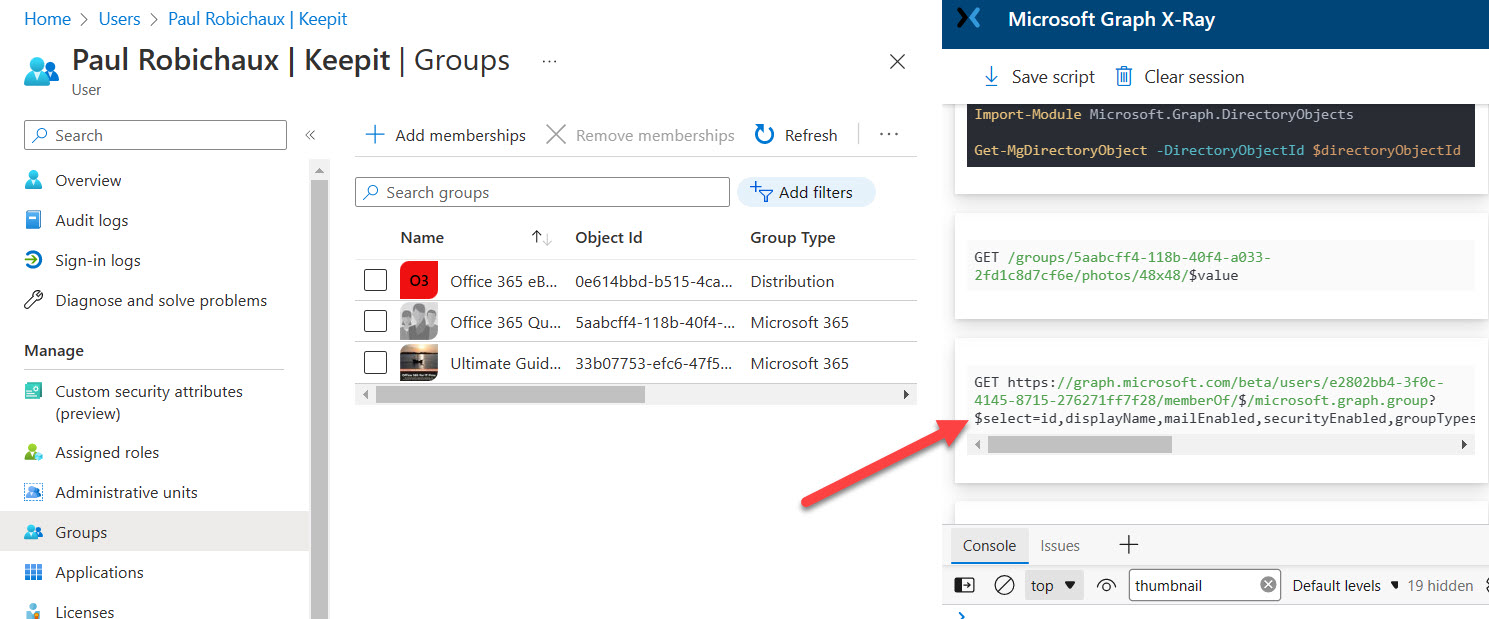
Cmdlets in the Microsoft Graph PowerShell SDK module can interact with many types of Microsoft 365 data using Graph API requests. Adding the Debug parameter gives you an insight into what happens when SDK cmdlets run Graph requests. The knowledge can help you write better code and avoid mistakes, and that’s always a good thing.
Many example PowerShell scripts exist to report Azure AD accounts and their MFA status. Most of the scripts use the old MSOL module. Now we can use the Microsoft Graph PowerShell SDK and some Graph API requests to do the same job, This article explains how, including how to highlight unprotected Azure AD accounts that hold administrative roles.
Time is ebbing away and the date when the Azure AD PowerShell modules will start not to work is approaching. Microsoft wants customers to upgrade to the Microsoft Graph PowerShell SDK or Graph API requests. That’s fine, but a knowledge gap exists because most of the examples – including in Microsoft’s own documentation – for how to interact with Azure AD via PowerShell use the old modules. And then every other blog on the planet (with some notable exceptions) does the same. So we have work to do to bridge the knowledge gap and help people to make the transition.