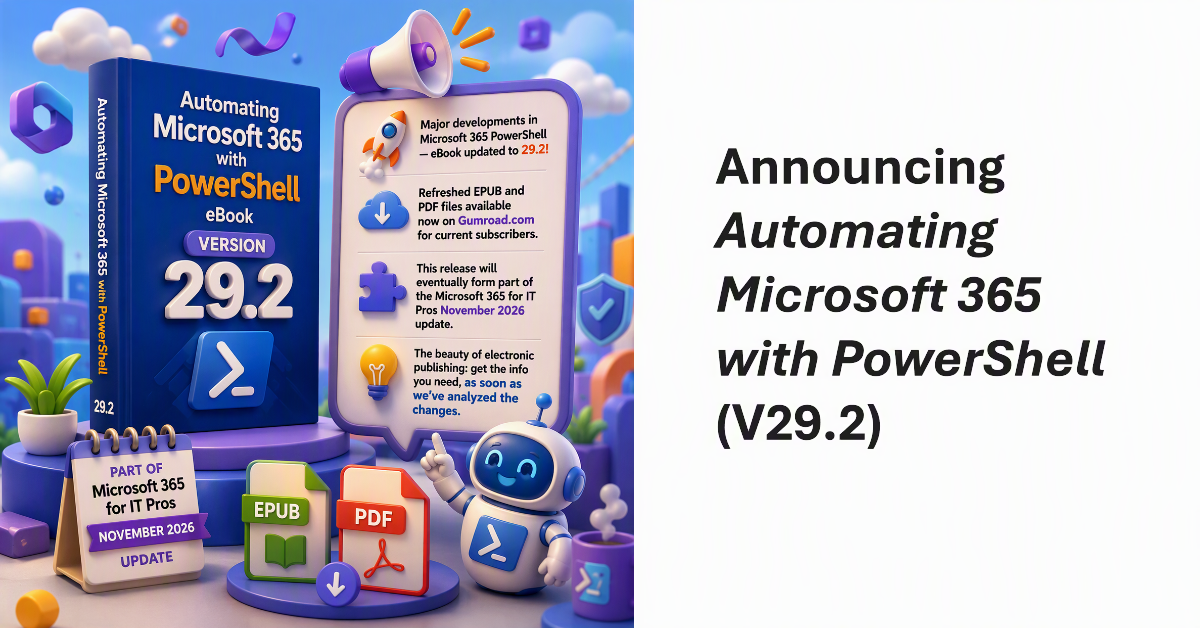
After some major developments in the world of Microsoft 365 PowerShell, we’ve updated the Automating Microsoft 365 with PowerShell eBook to version 29.2. Refreshed EPUB and PDF files are available for current subscribers to download from Gumroad.com. This release will eventually form part of the Microsoft 365 for IT Pros November 2026 update. The nice thing about electronic publishing is that we can put information in our readers’ hands as soon as we’ve had time to analyze changes.
Microsoft Purview supports retention policies for Planner tasks and that’s the supported way to remove old tasks from plans. But you can also remove old Planner tasks with PowerShell. Just for fun, we show how to find and delete old tasks using the Microsoft Graph PowerShell SDK. Cleaning out obsolete tasks that have been hanging around plans for years speeds up client access. It’s a form of colonic irrigation for plans!
After the discussion about the licensing gap prompts shown in the Entra admin center, here’s a PowerShell script to compute the set of user accounts that should have Entra P1 licenses. The information comes from the conditions property of conditional access policies with group and directory role membership expanded to find individual accounts. The set is checked against the set of users licensed for Entra P1 to find the accounts that need to be licensed.
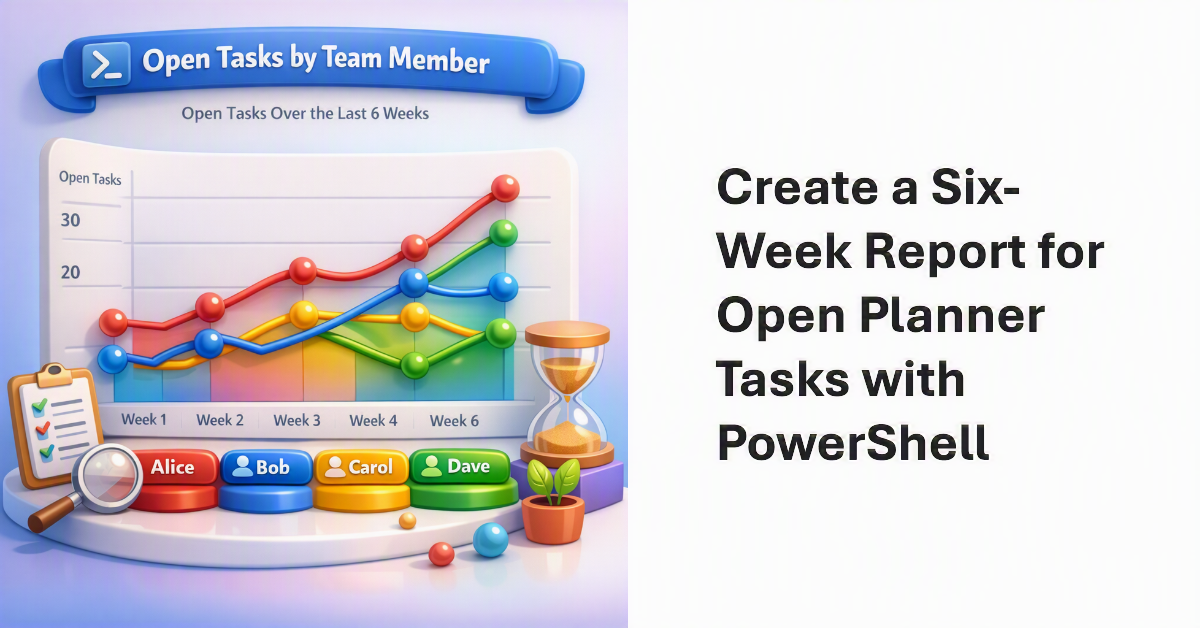
Accumulating statistics for open tasks in a Planner plan is helpful to understand how active team members are in clearing assigned tasks. Creating a report showing how the number of open tasks vary by team member over a six-week period delivers another type of insight. It’s the kind of thing that PowerShell is very good at. If data is available, we can report it in different ways!
Microsoft rushed out version 3.10.1 of the Exchange Online management PowerShell module to fix a problem with certificate-based authentication. It seems like a change in an internal Microsoft identity platform caused the tokens issued after a successful connection to Exchange Online to not authorize the execution of further cmdlets. To their credit, Microsoft fixed the issue, but is this the kind of thing that should be caught in testing?
Teams released a new version of their PowerShell module on July 19. The new module contains WAM support and cmdlets to limit federated chat for specific users and tenants. The new controls are welcome, but it’s a sad state of affairs that to configure the settings you must install a new version of a module that doesn’t work so well alongside other Microsoft 365 modules.
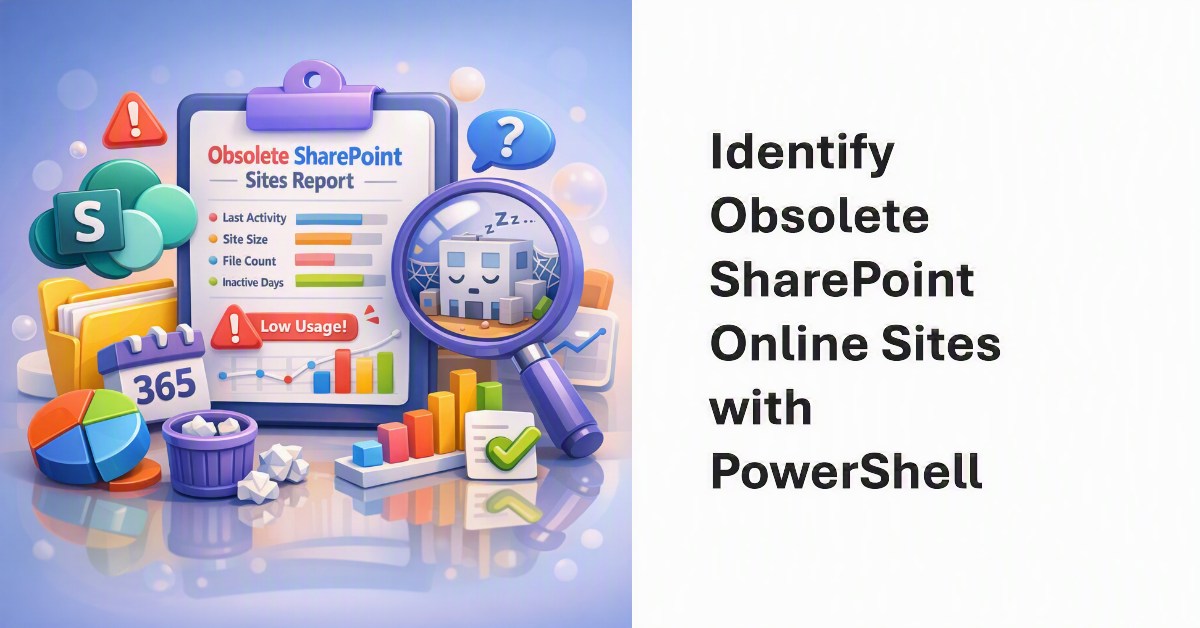
Microsoft 365 has been around for many years, and it’s likely that a tenant has some obsolete SharePoint Online sites. This article explains how to identify obsolete sites based on usage data extracted from the Microsoft Graph. Combining the usage data with basic site properties taken from SharePoint creates a report that should help administrators to figure out what sites they should consider removing.
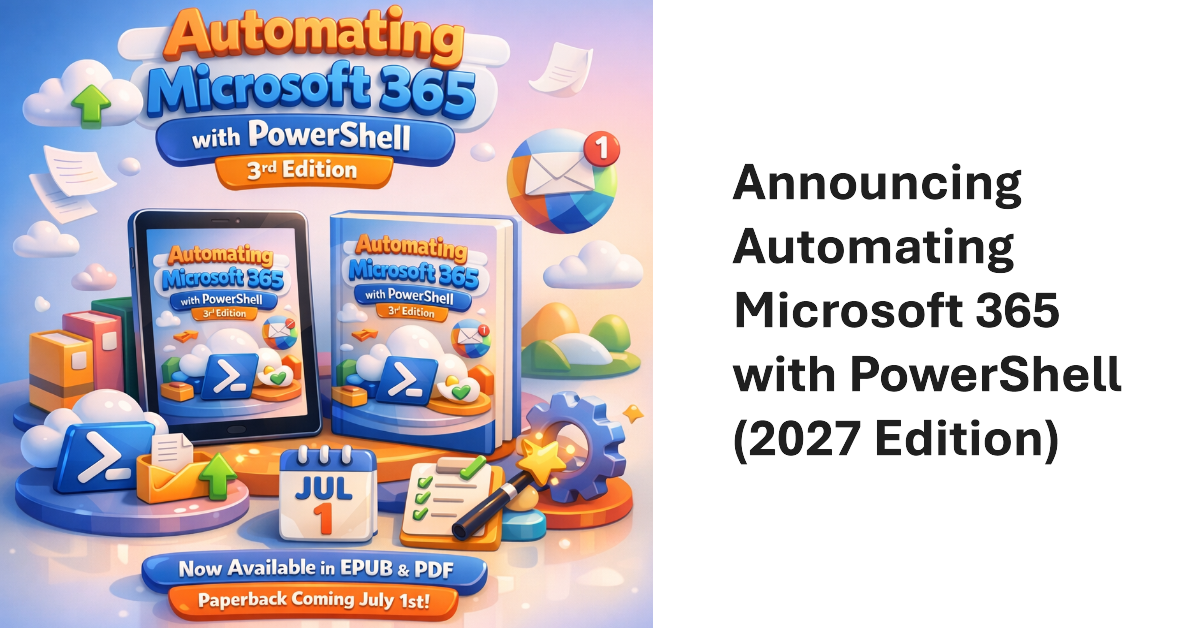
The third edition of the Automating Microsoft 365 with PowerShell eBook is now available in EPUB and PDF formats. The paperback version will be available on July 1. This 430-page eBook offers the most comprehensive coverage of automating tenant management operations for Microsoft 365 and includes a swathe of practical, worked-out examples to help tenant administrators build scripts to automate tasks.
A new version of the Microsoft Graph PowerShell SDK (V2.38) is available, as is a new version of the Exchange Online Management module. They don’t work well together. It’s annoying and beyond frustrating that two critical PowerShell modules in the Microsoft 365 ecosystem cannot work together. If anything, the situation is getting worse. On the upside, I found out about two cmdlets that I might never use – but who knows!
July 1, 2026, sees a bunch of monthly price increases that will affect Microsoft 365 tenants. How much will the increases cost your tenant? One way to find out is to use PowerShell to retrieve the licenses assigned to users which are affected by the price increases and compute the effect of the monthly increase (which varies across products). It’s a great example of how flexible PowerShell is for tenant management.
A recent discussion about reporting changes to Microsoft 365 groups provoked the question about how to report distribution list changes. The answer is that the same structure can be taken in a PowerShell script to fetch and report data, including the audit records containing the information about the changes, but the actual code is very different. Distribution lists Exchange Online objects and not Entra ID groups…
Some days ago, I wrote about creating a new employee welcome email with ICS files for corporate events. As it turns out, Inviting employees to attend those events by updating the participant list with PowerShell is an easier and better approach. This article explains how to find calendar events, update participant lists, and update events with the Microsoft Graph PowerShell SDK.
ICS files are a useful method to send information about calendar events between different IT systems. This article discusses creating ICS files for Teams Online meetings as part of a project to send welcome messages to new employees that contain information about upcoming corporate events that the new people might like to attend. Suffice to say that formatting the ICS files to Outlook’s satisfaction takes some effort.
Understanding what Graph permissions are required by apps can be challenging. In this article we discuss how the Group.Read.All and GroupMember.Real.All permissions work and why you should choose one permission over the other and respect the principle of least permission when it comes to assigning Graph permissions to your apps and PowerShell scripts.
In 2024, I wrote a script explaining how to report details of Teams online meetings, including participants. Now someone wants to report single-user meetings. Their reason is that company management believe that some remote workers schedule online meetings that only they attend with the intention of appearing active if anyone checks. It’s an odd ask, but we can do the job with PowerShell.
The May 2026 update for the Automating Microsoft 365 with PowerShell eBook is available. Current subscribers can download new PDF and EPUB files. The paperback edition of the book (available on demand from Amazon) is also updated. With over 400 pages of content, including twice that number of practical examples of using PowerShell to interact with Microsoft 365, the book is going from strength to strength.
A reader wanted a weekly incomplete task digest to send details of Planner tasks to people with outstanding work to do. We used PowerShell to scan for incomplete tasks for people who are members of a group, perform some analysis on the data, and create and send email. Despite some deficiencies in the Planner Graph API, the code is pretty straightforward.
The April 2026 update for the Automating Microsoft 365 with PowerShell eBook is now available for subscribers to download. Refreshed EPUB and PDF files can be downloaded from Gumroad.com. The Kindle and paperback editions are also updated. This month we reflect on V2.36.1 of the Microsoft Graph PowerShell SDK and why so little has changed in this important component.
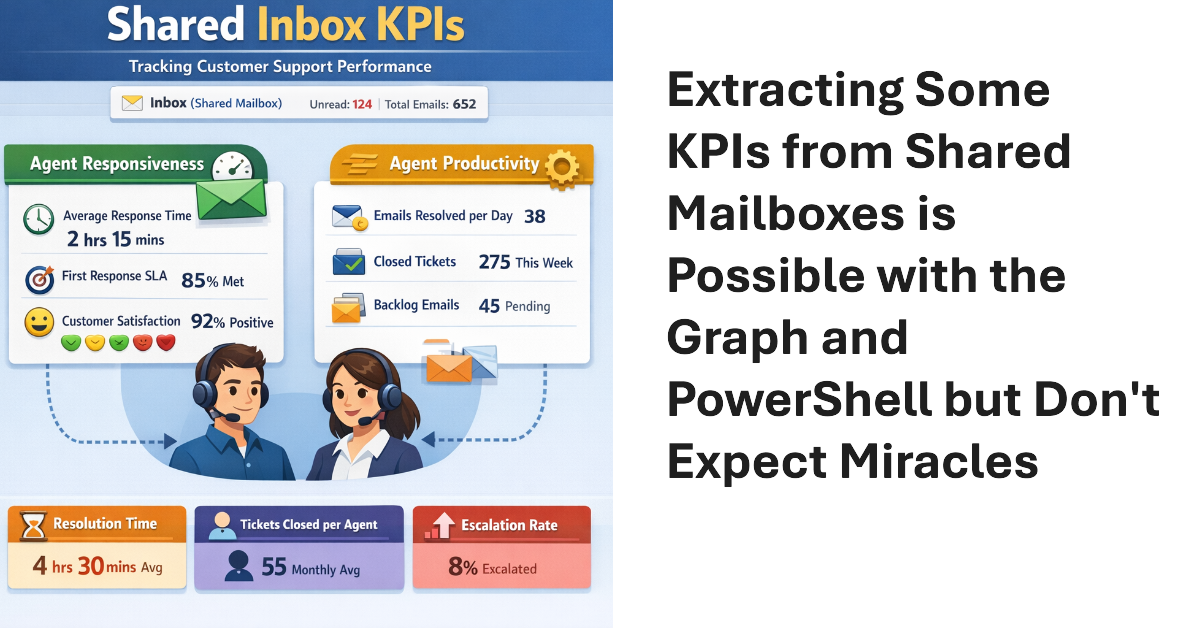
Shared mailboxes are not CRM systems. However, many Microsoft 365 tenants use shared mailboxes to handle customer queries and then want to measure KPIs such as agent responsiveness to customer queries or the number of queries handled per agent in a month. As explored in this article, it’s possible to use the Microsoft Graph to extract some KPI-like data from shared mailboxes.
This article explains how to use scoped Graph permissions to restrict app access to lists and list items in SharePoint Online and OneDrive for Business sites. It’s a follow-up to other articles covering how to restrict app access to SharePoint Online sites and files. Scoping app access to specific objects is important because otherwise apps can access everything in SharePoint Online, and that isn’t good.
Update #21 for the Automating Microsoft 365 with PowerShell eBook is now available for current subscribers to download from Gumroad.com. Refreshed PDF and EPUB files are available and the paperback version available from Amazon.com is also updated. Automating Microsoft 365 with PowerShell is packed with practical ready-to-use examples of working with apps, sites, mailboxes, teams, plans, and other data. Every Microsoft 365 administrator should have this book!
Dev Proxy is a Microsoft tool built to help developers figure out the most effective way of using Microsoft Graph API requests. On the surface, Dev Proxy doesn’t seem like a tool that would interest people who use the Microsoft Graph PowerShell SDK to write scripts for Microsoft 365. But all tools have some use, and Dev Proxy can help.
The temptation to use the Mail.Send application permission in scripts can lead PowerShell developers into trouble because the permission allows access to all mailboxes, including sensitive executive and financial mailboxes. Fortunately, RBAC for Applications allows tenants to control the access that apps have to mailboxes and other Exchange content. All explained here with an example script to test RBAC of Applications.
On February 12, Microsoft announced the deprecation of the Credential parameter for the Connect-ExchangeOnline cmdlet in the Exchange Online PowerShell module. The deprecation won’t affect interactive sessions (which should all be protected by MFA), but it might stop some background jobs running when Microsoft retires the server components that currently support the ROPC authentication flow. Time to check scripts!
Update #19 of the Automating Microsoft 365 with PowerShell eBook is now available. Subscribers can download the updated PDF and EPUB files from Gumroad.com. A paperback version is also available, but we can’t update the print characters. In any case, a new SharePoint create Site API is in beta, and a new version of the Microsoft Graph PowerShell SDK is available. Both have their moments, as we discuss here.
Shared mailboxes might need Microsoft Defender for Office 365 licenses, but how do you identify how many licenses? We use PowerShell to do the job by analyzing external email sent to shared mailboxes. If a mailbox receives external email, then by definition the mailbox receives benefit from MDO, and that’s the test for requiring a license.
The December 2025 update (version 18) of the Automating Microsoft 365 with PowerShell eBook is now available to download. Current subscribers can fetch the updated EPUB and PDF files from Gumroad.com using the link in their account (or receipt), but we can’t do much for the paperback edition except consider using scissors, paste, and Tippex, just like the old days.
The Entra ID Governance solution includes a workflow to detect and remove inactive user accounts. Sounds good, but the same can be done with PowerShell if you want to avoid the cost of Entra ID Governance licenses or want to create a bespoke workflow that’s better suited to the business needs of the organization. Azure Automation would be a good way to process this workflow.
If you can’t use managed identities, credential resources are a way to manage username and password credentials for Azure Automation runbooks. The Secret Management module is an alternative, and it’s a good option to manage credentials that are shared between interactive scripts and automation runbooks. This article describes how to use the Secret Management PowerShell module to fetch credentials stored in Azure Key Vault for use in an automation runbook.
An assembly clash happens when a PowerShell module attempts to load a .NET assembly only to find that a different version is already loaded in the session. Unhappily, this kind of thing happens far too often with Microsoft 365 modules, which implies that there isn’t a great deal of coordination between different development groups. All you can do is to load modules in the right order.
A change to a Graph beta API meant that some data used to create the user password and authentication report was no longer available. A script update was required. The experience underlines the truth that developers should not rely on the Graph beta APIs because the APIs are prone to change at any time as Microsoft moves them along to become production-ready.
The Office 365 for IT Pros team is happy to announce the availability of the October 2025 update for the Automating Microsoft 365 with PowerShell eBook. Subscribers can download the latest PDF and EPUB files from Gumroad.com. In other news, a new eBook about Exchange Server Subscription Edition (SE) is available. It’s always nice to see new sources of knowledge open up!
The Office 365 for IT Pros eBook team is proud to announce the availability of update 15 for the Automating Microsoft 365 with PowerShell eBook. The book includes extensive coverage of how to work with Microsoft 365 workloads through standard modules, Graph APIs, and the Microsoft Graph PowerShell SDK, including hundreds of practical examples over 350-plus pages. No fluff, just real-world code.
After being asked whether licenses are needed to include shared mailboxes in Microsoft 365 retention policies, I investigated and found that licenses are not. This led to a consideration of the steps needed to create a special retention policy for shared mailboxes (with PowerShell, naturally) and how to avoid retention setting collisions with other policies. All explained in detail here.
Deleting an Entra ID user account can result in ownerless groups if the account being removed is the only group owner. Before deleting accounts, it’s a good idea to proactively replace group owners. This article explains how to replace group owners in the fastest and most scalable manner using the Microsoft Graph PowerShell SDK.
After many twists and turns since August 2021, the MSOnline module retirement will happen in April 2025. The AzureAD module will then retire in the 3rd quarter. It’s way past time to upgrade PowerShell scripts. The question is whether to use the Entra module or the Microsoft Graph PowerShell SDK. I know which option is best and say why in this article.
The Office365ITPros GitHub repository holds over 370 PowerShell scripts showing how to interact with Microsoft 365 and Entra ID. Anyone can contribute to Office365ITPros by forking the code to a copy of the repository and making changes to scripts there. If you want, you can push the changes back to us so that we can consider their inclusion in Office365ITPros. It’s a great example of community in action.
The latest technology initiative from Microsoft comes in the form of Teams custom emojis, designed to bring light and happiness to Microsoft 365 tenants. Of course, the light and happiness will only happen if tenants don’t disable the settings in Teams messaging policies that allow users to upload custom emojis. A tenant can support up to 5,000 Teams custom emojis. That’s a lot of room for people to get inventive.
This article explains how to use PowerShell to create dynamic Microsoft 365 groups (and teams) based on the departments assigned to Entra ID user accounts. Creating a new group is easy. The trick in team-enablement is to wait for the synchronization between Entra ID and Teams to finish before you go ahead. After that, it’s plain sailing.
A reader asked how they could create dynamic administrative units for every department in their directory. A PowerShell script does the job, even if some constraints in how Entra ID processes membership rules means that the rules can’t be quite as precise as I would like them to be.