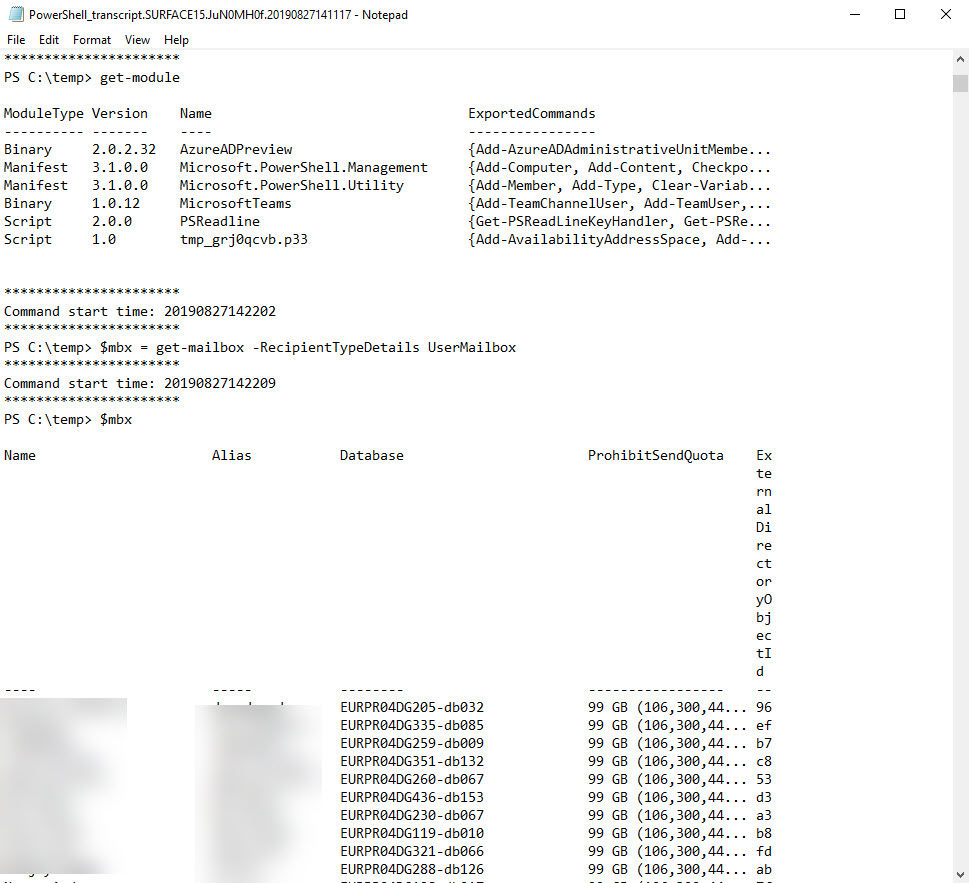
Some new and updated cmdlets in a new version of the Teams PowerShell module are available to support private channels. The cmdlets and parameters are pretty straightforward for anyone used to working with Teams through PowerShell. Remember to read up and understand all about private channels before trying to work with them through PowerShell.
Nine new REST-based PowerShell cmdlets are available for Exchange Online. They offer the prospect of better performance and reliability. Here are the code samples we used to test the new cmdlets for a theater session delivered at the Microsoft Ignite 2019 conference. Anyone wanting to explore the new cmdlets can use these examples to get going.
Microsoft 365 applications create many Entra ID guest accounts. Here’s how to find old accounts and check their membership of Microsoft 365 groups. If you know the accounts that are old and stale and aren’t members of any Microsoft 365 group, you can consider removing them from your tenant.
The Office 365 Admin Center includes reports of licenses assigned to users. The same information can be extracted with PowerShell, which means that you can analyze license assignments anyway you wish. The script is quick and easy, mostly because its error handling is non-existent, but it’s enough to get going.
It used to be more difficult to generate a report about the storage used by OneDrive for Business sites in an Office 365 tenant. Now it takes just a few lines of PowerShell. Here’s an example of a simple but powerful script to do the job.
Some Exchange Online mailboxes are quite small (2 GB for frontline users). Tenant administrators might want to monitor mailbox usage to make sure that quotas aren’t unexpectedly exhausted. This post explains how to use a PowerShell script to calculate the percentage of mailbox quota used and highlight the problem if a threshold is passed.
Microsoft has announced that basic authentication for multiple email connection protocols won’t be supported after October 13, 2020. You won’t be able to connect with EWS, EAS, IMAP4, POP3, or Remote PowerShell unless you use modern authentication. There’s just over a year to prepare, but there’s some work to be done.
Microsoft is now rolling out MyAnalytics access to Office 365 accounts with an Exchange Online license.The first sign that anyone gets is when they receive one of MyAnalytics’s well-intended messages to help them organize their work life smarter. Funnily enough, some people don’t like the idea of Office 365 analyzing and reporting their work habits, which is why you might need to disable MyAnalytics for some mailboxes.
If you want to include SharePoint Online and OneDrive for Business locations in an Office 365 content search, you need to know the URLs of the target sites. Finding the URLs can be problematic, but here’s some easy ways to do the job. PowerShell, as usual, comes up trumps…
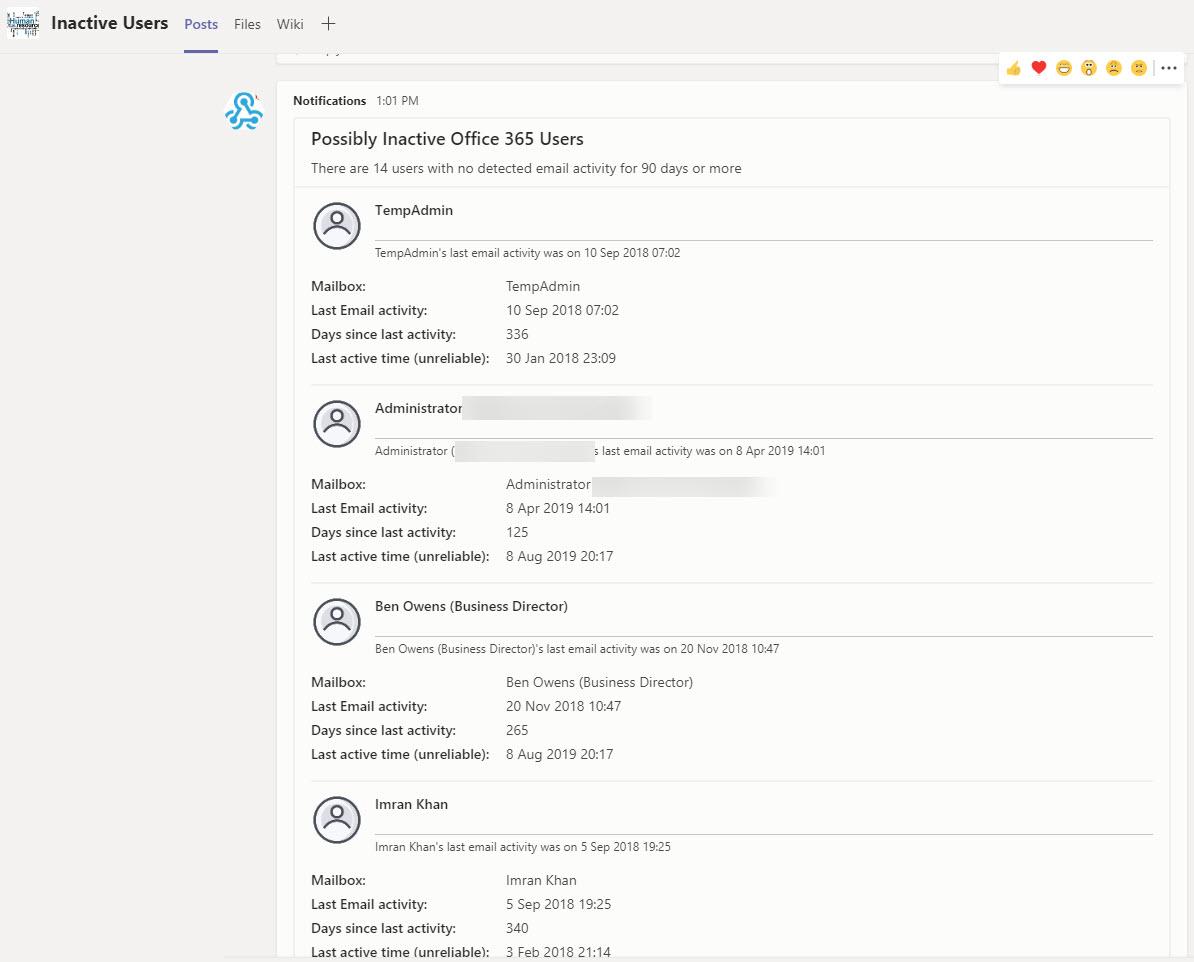
Being able to generate a report of mailbox activity is nice, but being able to filter the report to find potentially inactive mailboxes and post that information to Teams is even better. A recent Petri.com article explains how to generate the report; in this post we explain how to extract information from the report to and post updates about inactive users to Teams.
Office 365 tenant administrators often make extensive use of PowerShell. It’s a great tool to get work done across all the Office 365 workloads. However, hackers like PowerShell too, and it could be used to attack your tenant. If that happens, having PowerShell logs will allow you to find out exactly what the attacker did and where. With this in mind, shouldn’t you enable PowerShell logging?
It’s easy to create a list of group-enabled SharePoint Online sites using the Get-SPOSite cmdlet. But it’s much more interesting to probe a little deeper to uncover extra information about the group using the GroupId property returned if you specify the Detailed parameter. This post explains a PowerShell script written to examine the possibilities, including how to highlight sites belonging to deleted groups that are kept by retention policies.
Teams App Permissions policies allow Office 365 tenants to exert a fine degree of control over the apps users are allowed to install. You can amend the default policy or create new policies and assign the policies to user accounts through the Teams Admin Center or with PowerShell.
Microsoft has announced the deprecation of the PowerShell module for the Azure Active Directory Rights Management service (AADRM). But don’t worry; it’s replaced by the Azure Information Protection (AIPService) module. Deprecation happens in July 2020, so you’ve lots of time to revise any scripts that use AADRM cmdlets.
Microsoft announced the roll-out of the Site Swap feature for SharePoint Online. You can only do this with PowerShell, but the process is quick and easy and works well (assuming your new site is ready to go). Who doesn’t like one-line PowerShell commands that do a lot of work with minimum effort!
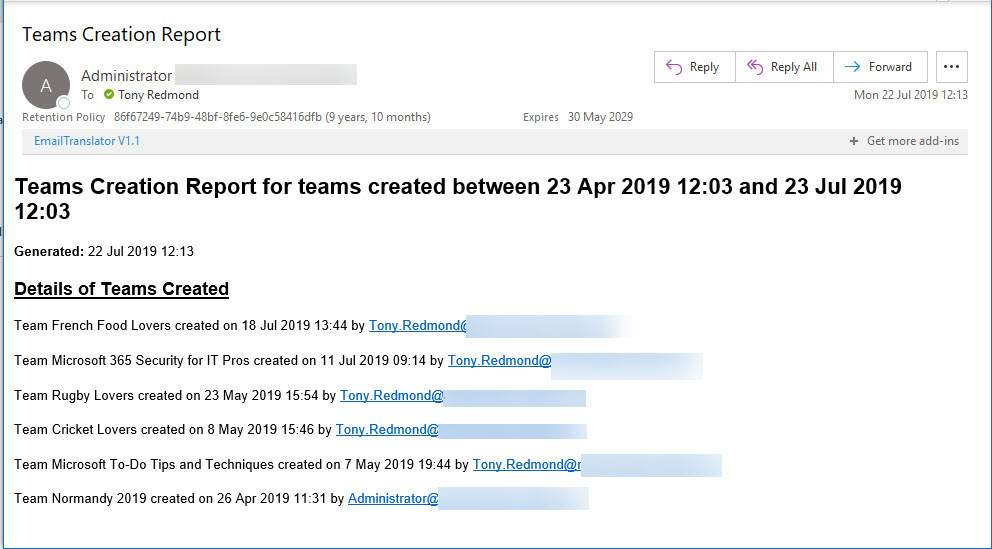
Office 365 Activity Alerts don’t seem to be working too well these days. At least, that’s what we found when we tried to create an alert for Teams creation events. Never mind, PowerShell will do the job as we can quickly whip up a PowerShell script to find audit records for team creations and put them into an email.
A question about how best to set auto-replies for Exchange Online shared mailboxes to respond to messages arriving during a public holiday gives another chance for PowerShell to show how useful it is. You could do the work with Flow, but PowerShell is more flexible and capable when dealing with multiple shared mailboxes.
Exchange Online writes audit records into the Office 365 audit log when messages are deleted by delegates and administrative action. We can analyze the audit records to find out who deleted a specific message. Some challenges exist to interpret the audit records for admin-generated deletions (for example, when you run Search-Mailbox), but it’s easy enough to code the necessary checks in PowerShell.
Microsoft makes a strong case that all Azure Active Directory accounts should be protected with multi-factor authentication (MFA). That’s a great aspiration, but the immediate priority is to check accounts holding administrative roles. This post explains how to use PowerShell to find and report those accounts.
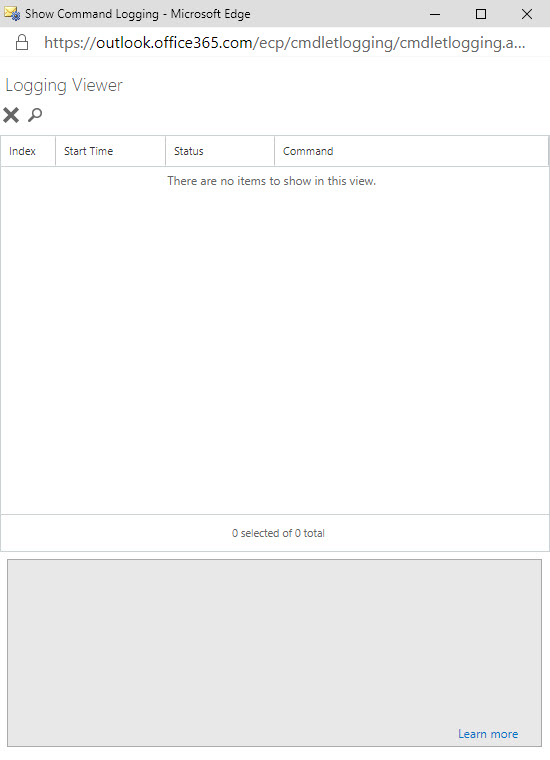
The ability to see the PowerShell commands executed by Exchange administrative centers has existed since Exchange 2007. Now something has changed in Exchange Online and the command log is blank. It’s sad because many administrators learned to use PowerShell by examining how Microsoft used it to manage Exchange. Let’s hope that Microsoft fixes this bug soon.
Teams does a good job of storing compliance records in Exchange Online mailboxes so that the data is available for Office 365 eDiscovery. But the number of records can impact the mailbox quotas of frontline workers, especially if they send graphics in personal and group chats. Here’s some PowerShell to help discover how much mailbox quota is being absorbed by compliance records.
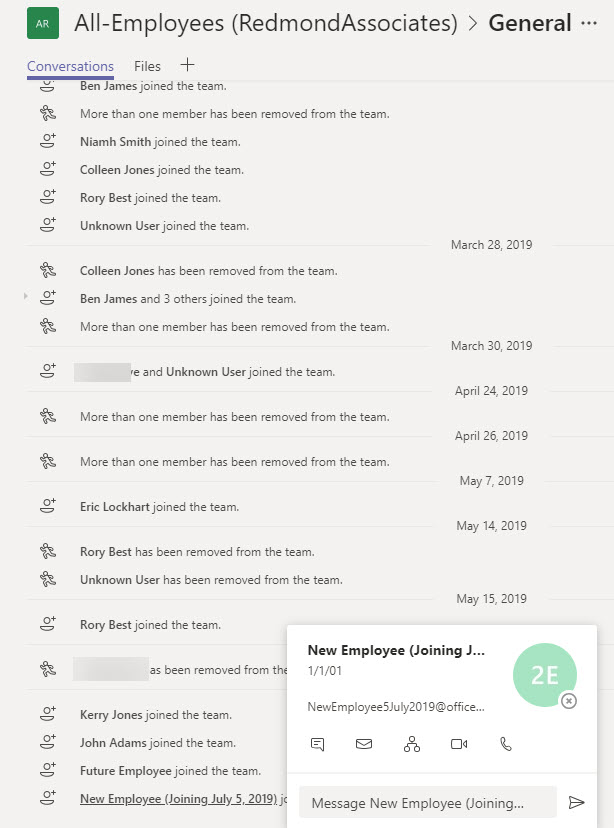
Org-wide teams are great because they feature automatic membership management. But sometimes you don’t want new Office 365 accounts showing up in org-wide teams. The solution is to create the account with some dummy details to mask the identity of the real person and update the account after they join the company.
A reader wants the benefits of dynamic Office 365 groups without having to pay for Azure AD premium licenses. It’s relatively straightforward to maintain the membership of a group with PowerShell. That is, if your directory is accurately populated and the right results are returned when you look for who the set of group members should be.
Exchange Online supports inactive mailboxes as a way to keep mailbox data online after Office 365 accounts are removed. Inactive mailboxes are available as long as a hold exists on them. You can update mailbox properties to exclude all or some org-wide holds. If you exclude holds from a mailbox, you run the risk that Exchange will permanently remove the mailbox. If that’s what you want, all is well, but if it’s not, then you might not be so happy.
How best to add every team in your tenant to the Office 365 Groups Expiration Policy? Well, one way is to check all groups for Teams. Another is to use Get-Team to return the set of teams and process those. But then you should think about how to mark the teams that are in the policy in such a way that you don’t process them again. It’s easy to do this with one of the Exchange Online custom attributes.
Every Office 365 group (and team) has a SharePoint site. But how to find the URLs of all the sites used by teams in a tenant. One PowerShell answer came from Syskit, but it’s an old technique and we can do better now by fetching a list of teams in the tenant and then retrieving the URL for each team-enabled group.
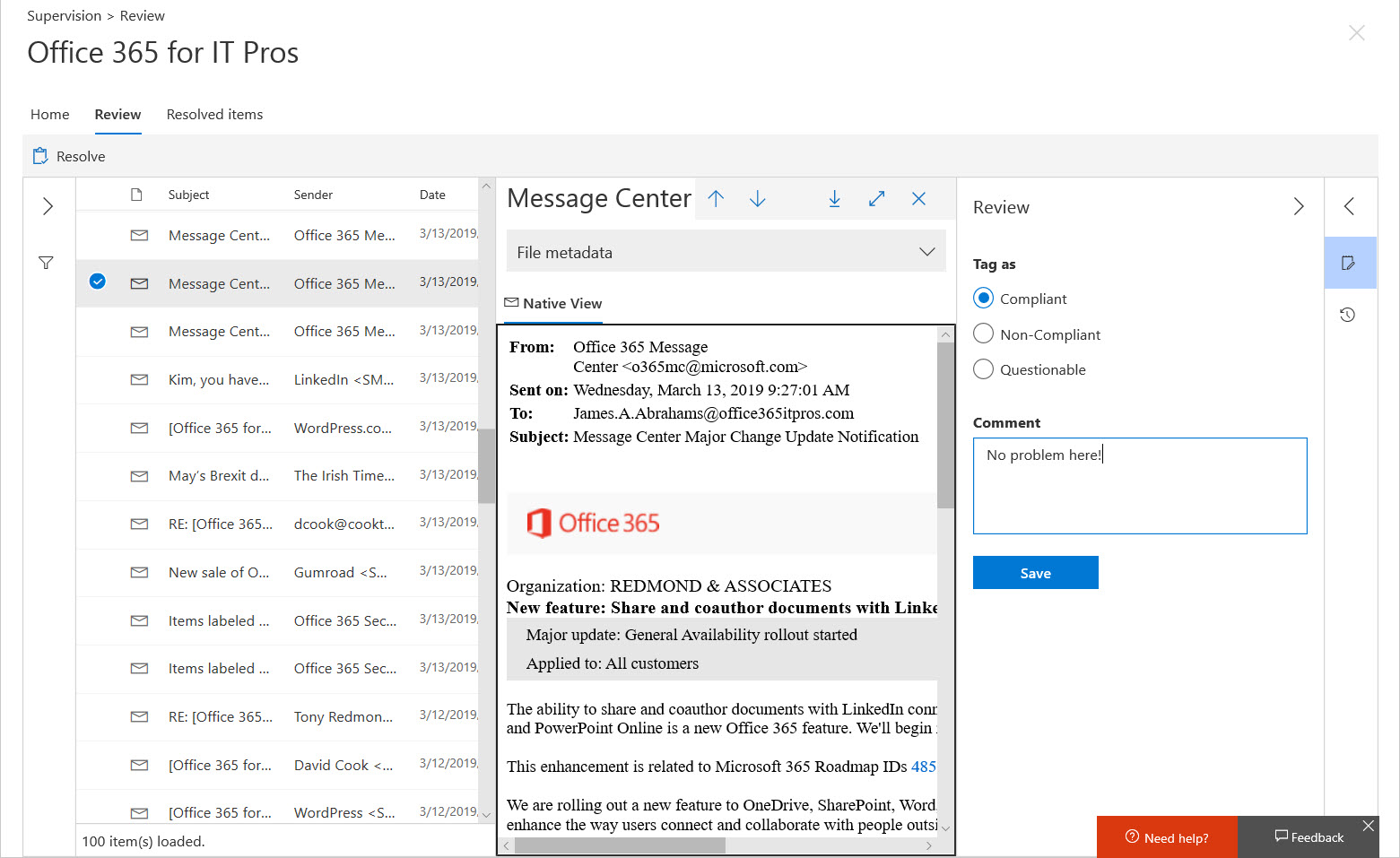
Although Office 365 supervision policies are intended to monitor a subset of user communications, usually involving specific groups of people, you might want to use a policy to monitor all email. In that case, how do you make sure that your policy has everyone in scope? The problem is that supervision policies don’t support dynamic distribution lists, so you need to do some work to build and maintain a distribution list containing all user mailboxes.
If you work with Office 365 through PowerShell, you probably have your own script to connect to the various services. If you don’t want to write your own script, you can download one from GitHub or the TechNet Gallery. This article covers two that you might like to try, including one with a GUI to choose which Office 365 services it should connect to.
PowerShell is hugely useful when the time comes to automate Office 365 processes. Other tools exist that can help, including Flow. Maybe it’s the right time to consider Flow, especially when it is highly capable of knitting together different Office 365 components to get work done.
The Search-Mailbox cmdlet is a very powerful weapon for Exchange administrators. It has some quirks, but the Invoke-Command cmdlet helps us get around one, which is how to use a different search query for each mailbox processed in a set of mailboxes.
Microsoft has released details of an Exchange Online transport rule to encrypt outbound email containing sensitive data types like credit card numbers. The rule works (after fixing the PowerShell), but needs to be reviewed and possibly adjusted to meet the needs of Office 365 tenants.
A recent article prompted a check to see whether a PowerShell recommendation made sense and delivered better performance when executing a command to extract the membership of Office 365 Groups performance. As it turns out, the recommendation is valid, but whether you notice any difference is arguable.
It’s easy to create a webhook connector to post information to a team channel or an Microsoft 365 group. What might not be quite so easy is formatting the JSON payload. Here’s how to use a template card to simplify the process.
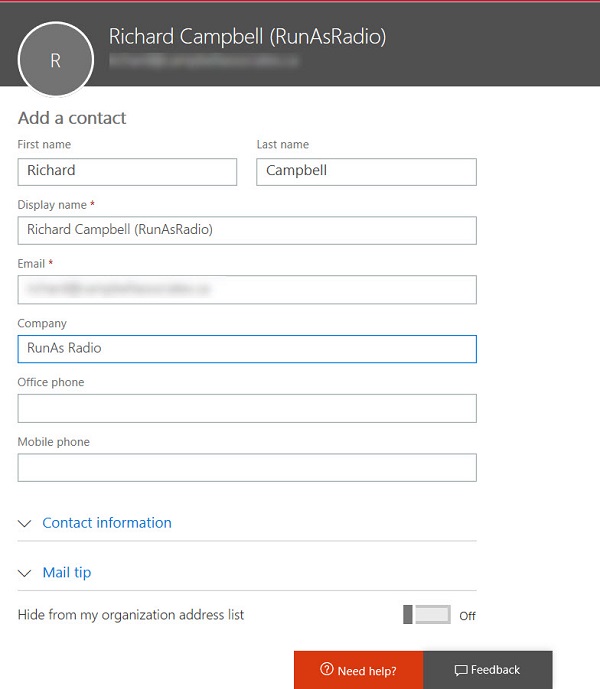
You can use a public folder to store and share global email contacts, but a better approach is to use Exchange mail contacts. These objects show up in the Exchange GAL and OAB and are available to all Outlook clients (and some third-party clients too).
Knowing how retention policies process Office 365 data can be hard to understand, especially if multiple policies are involved. Office 365 doesn’t give a global view of how retention policies affect workloads, but here’s how to use PowerShell to find out what policies process the sites in a tenant.
Microsoft has refreshed the Outlook Mobile architecture (now called “Microsoft Sync Technology”). They suggest that you run some PowerShell to report clients connecting via the old and new architectures. Their code works, but we think ours is better.
Teams has released version 0.9.6 of its PowerShell module. You should upgrade to the new module because it fixes some bugs and allows administrators to manage any team, even when they’re not a team owner.
The availability of Azure Information Protection and Office 365 sensitivity labels allow tenants to protect important and confidential files. That’s nice, but it’s even better when you know what files are protected. Here’s how to use PowerShell to create a report about those files.
A recent correspondent asked how to find inactive distribution lists in Exchange Online. We didn’t have a good answer in the book, so here’s some PowerShell code to do the trick.
Office 365 doesn’t include a way to export a list of Teams in a form that can be imported by Power BI, but PowerShell makes it an easy task to accomplish. Here’s a script to help solve the problem.