Microsoft Stream doesn’t support Office 365 retention policies, so you can’t make sure that videos are kept for eDiscovery or compliance purposes. But a little lateral thinking and some PowerShell code quickly gives us a solution based on events from the Office 365 audit log, including emailing the report to someone designated to review videos before final deletion.
You can apply an Office 365 Sensitivity Label to control different aspects of Groups, Teams, and Sites. One of the settings controls whether guest users are allowed in group membership. We explain how to use PowerShell to search groups assigned a label to block guest access for existing guests, just in case you want to remove them.
The combination of Exchange Online and PowerShell allows Office 365 admins to send messages for all manner of reasons. These scripts depend on SMTP AUTH connections and change is coming in this area with the deprecation of basic authentication. It’s a good idea to take an inventory of scripts that send email, including those that use the .NET classes to do the job.
Microsoft Stream will tell you how much of the tenant storage allocation has been consumed by uploaded videos, but not who’s uploading the videos. You can find out by looking for video upload events in the Office 365 audit log. Once found, it’s a matter of processing the events to extract useful information!
I’ve written many articles to explain how to use the Office 365 audit log to report different aspects of the platform. But taking action is much better than just reporting. In this post, we explain how to take a report generated from the Office 365 audit log and use it to drive some actions. In this case, removing the SendAs permission from people who aren’t using it.
SharePoint Online generates a lot of events in the Office 365 audit log. You can interrogate the log with PowerShell to create per-user reports of their activities. The Search-UnifiedAuditLog cmdlet finds all the necessary data; after that it’s just a matter of filtering and refining the data and then creating the reports.
Microsoft has updated the Teams meeting policy to introduce a new control over video filters in Teams meetings. The VideoFiltersMode setting controls if people can use background blur and background effects, including the ability to upload custom images. A client update is needed to respect the new setting. It will come at the end of May.
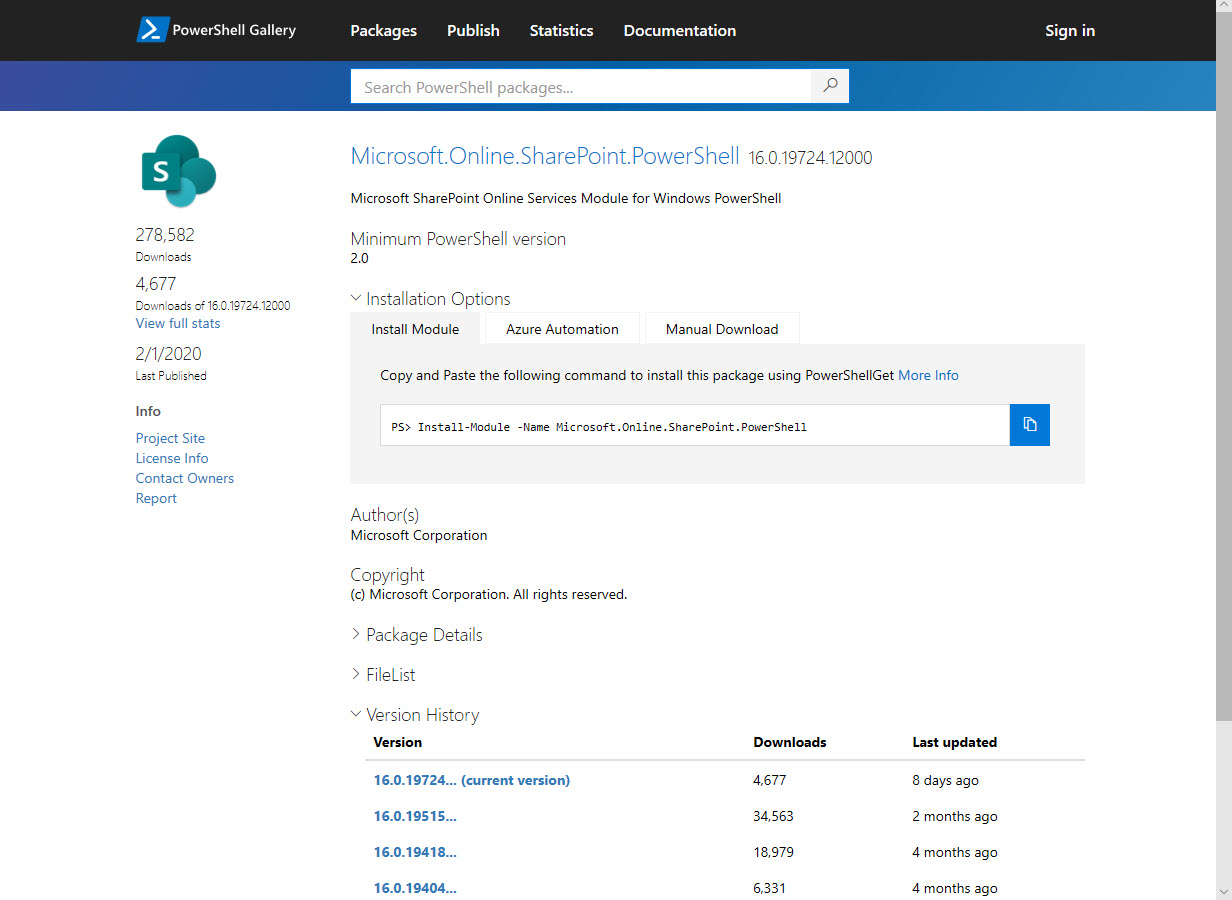
Microsoft has published updates for the Exchange Online management and SharePoint Online PowerShell modules. Generally it’s a good idea to install the latest version of PowerShell modules for the different Office 365 products, but beware of some gotchas that await the unwary…
Do you need to find out who updated a SharePoint Online or OneDrive for Business document? Use PowerShell to search the Office 365 audit log for document events and the complete history is available. Well, at least the last 90 days’ history – or 365 days if you have the necessary licenses.
It’s easy to retrieve storage data for SharePoint Online sites with PowerShell, but it’s faster with the Graph. Some disadvantages do exist, but it’s nice to have a choice. TheGraph is faster, especially with large tenants, but the SharePoint Online PowerShell cmdlets can deliver more data.
PowerShell modules are often updated regularly to add new features and functionality. When the time came to update the Azure Active Directory preview module to 2.0.2.89, things didn’t work so smoothly because the files for the previous version of the module had ended up in OneDrive for Business. The moral of the story is that there’s a reason why the Scope parameter exists for the Install-Module cmdlet.
If an Office 365 tenant goes to the bother of creating nice OWA autosignatures for users, shouldn’t we also removed the ability to edit the signatures in OWA settings? RBAC seems like the right way to do the job, but in this case, the way RBAC restricts options by removing the right to run cmdlets or parameters means that the block affects other OWA settings. Fortunately, the Exchange developers thought of this and provide an option in OWA mailbox policies to save the day.
PowerShell is a great way to get work done with Office 365 data. The downside is that PowerShell can sometimes be slow, which is why we look for ways to speed things up, especially when dealing with some of the “heavier” cmdlets like Get-UnifiedGroup. The good news is that switching loops to use the ForEach method can speed things up. The bad is that you might only squeeze an extra 5% performance out of your code. Is that enough to bother? Your call…
The SendAs audit event is logged when someone uses the send as permission to send a message from an Exchange Online mailbox. The events are stored in the Office 365 audit log and can be found there with an audit log search. However, things aren’t as straightforward as they are on-premises because some other types of delegated messages turn up in searches. Fortunately, we have a script to help.
Covid-19 dealt a blow to Microsoft’s plans to remove basic authentication from 5 connection protocols for Exchange Online and forced them to postpone the removal from October 13, 2020 to sometime in the second quarter of 2021. The news is disappointing because basic authentication is a weakness exploited by many hackers. But you can’t plan for a pandemic and Office 365 tenants need more time to be ready for the deprecation.
Exchange Online mailboxes support SendAs, Send on Behalf Of, and FullAccess permissions. A previous script focused on the FullAccess permission. This version covers all three. It’s also a good example of how you need to pay attention to property sets when writing PowerShell code to use the new Exchange Online REST-based cmdlets.
SharePoint Online comes with a reasonable amount of free storage, but it’s surprising how quickly that storage can be consumed, especially if you use Office 365 retention policies. With that thought in mind, it’s a good idea to check what sites are consuming your SharePoint storage. This post covers how to write a PowerShell script to report SharePoint Online site storage, complete with a couple of bells and whistles.
In addition to mailbox permissions, Exchange Online supports folder-level delegated permissions. Users can create folder delegations through Outlook desktop. Like mailbox permissions, it’s a good idea for tenants to check folder-level delegations to ensure that people don’t keep permissions for longer than they should. We explain how to create a PowerShell script to generate such a report.
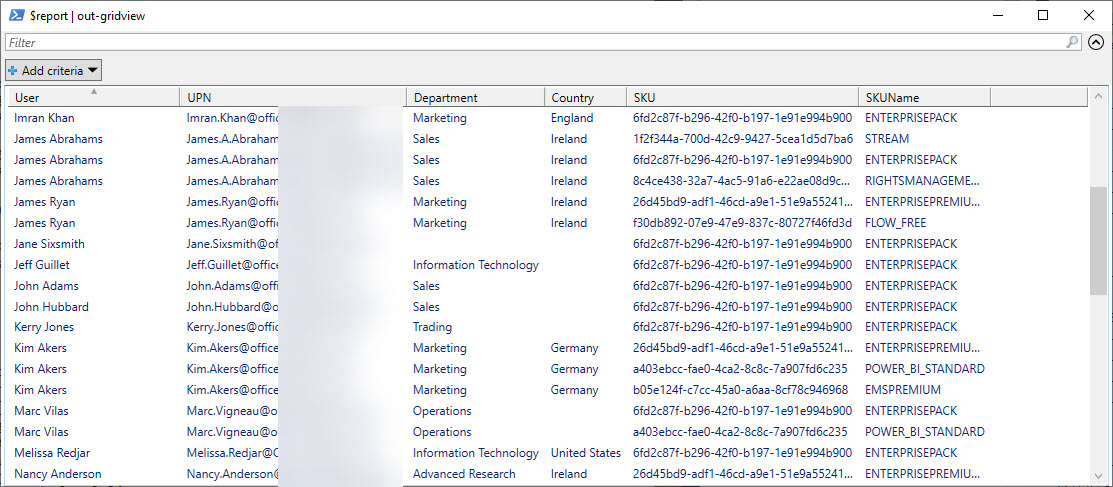
Office 365 licenses can seem complex, especially when you descend to the level of multi-product license plans. PowerShell makes it easy to generate a quick and simple report of who’s been assigned which license. And best of all, because the code is PowerShell, you can amend it to your heart’s content.
Exchange Online makes it easy to assign delegated permissions for user and shared mailboxes. But permissions assigned to people might not be still necessary, so it’s good to do a periodic check. In this post, we describe a script to scan for permissions on Exchange Online user and shared mailboxes and highlight non-standard permissions in a report generated as a CSV file.
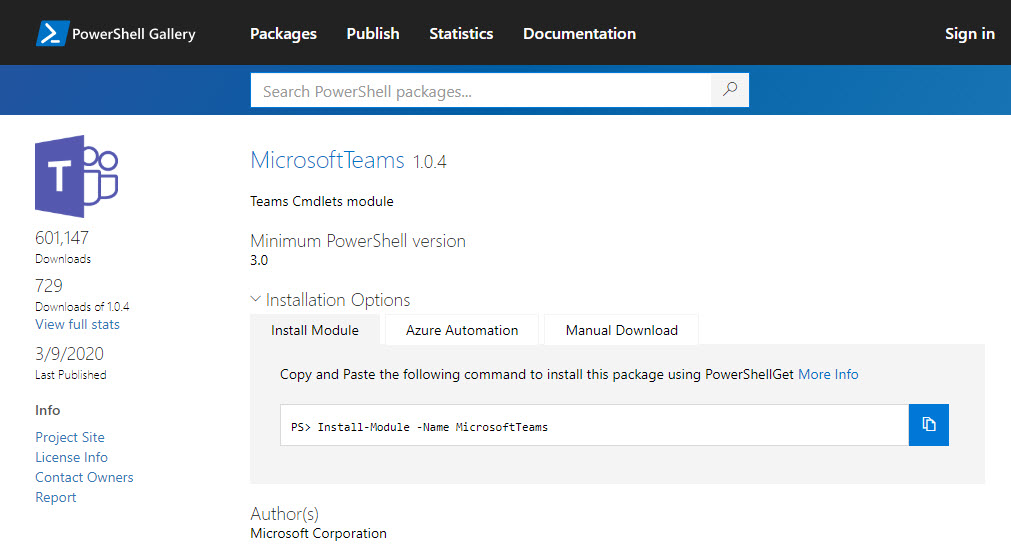
Microsoft released Version 1.0.4 of the Teams PowerShell module on March 9. The new module comes with some useful updates and is recommended for anyone working with Teams through PowerShell. And if cmdlets don’t do the job for you, there’s always the Microsoft Graph as you can combine PowerShell and the Graph to solve even more problems.
Large Office 365 tenants with more than 10,000 seats can now use the SharePoint Online site swap feature to replace an old root site with a new communications site. The site swap must be done with PowerShell and needs a new version of the Invoke-SPOSiteSwap cmdlet. Once you prepare your new site for swapping, everything goes smoothly.
A new version of the Exchange Online management PowerShell module is available. The update includes a number of bug fixes (including some security upgrades) and new features. You should upgrade to the new version as soon as possible and keep an eye out for more changes in the future.
Like many other parts of Microsoft 365, you can manage SharePoint Online with PowerShell. At least, you can manage some aspects of SharePoint Online with PowerShell. Microsoft has made it easier to keep up to date with the latest SharePoint Online module and the PnP module, so there’s lots of cmdlets to help Administrators do a better job of automating different aspects of SharePoint Online.
OWA stores user signatures in mailboxes, which makes it a lot easier for Office 365 admins to update signatures centrally with just a few lines of PowerShell and some HTML magic. OK, maybe more than a few lines… but it’s a lot less complicated than it is to mess around with the system registry and points the way to how Microsoft might introduce cloud signatures for all Outlook clients.
Microsoft is working on cloud signatures for Outlook, but how can you update signatures for the current versions of Outlook click to run. Here’s our best attempt with PowerShell. The code works, but it could do with some error handing and various improvements before it could go anywhere near production. Think of it as a working example of why cloud signatures will be so much better,.
Writing code to illustrate a point sometimes falls into the trap that things don’t work so well when you scale things up. Take Graph calls for instance. Code that works well with 100 teams isn’t so good with 4,000. The solution is to keep on telling the Graph to fetch data until it’s all in the safe hands of PowerShell, and then process it.
A question asked what the best way is to add a mailbox to multiple distribution lists. The admin UIs do the job for a few lists, but PowerShell is the way to go when you have lots of lists to process. Two approaches are discussed here: one uses an array as the input, the other uses a CSV file.
The email addresses for Teams channels are interesting objects. Messages sent to channels start conversations in the target channel and are also captured in SharePoint. Any team member can enable or disable the ability of a channel to receive email by creating or removing email addresses and no admin control exists to stop this happening. Events captured in the Office 365 audit log reveal when email addresses are created or removed, meaning that you can at least know what’s going on.
Office 365 Groups (and their underlying teams and sites) can be removed by user action or automatically through the Groups expiration policy. By examining records in the Office 365 audit log, we can track exactly when groups are soft-deleted followed by permanent removal 30 days later. All done with a few lines of PowerShell and some parsing of the audit data held in the records.
A question asked how to be notified when people delete Teams. The answer lies in the Office 365 audit log, and once we’ve found out when Teams are deleted are who deleted them, we can notifications to administrators via email or by posting to a Teams channel. The administrators can then decide if they should restore the deleted team or let it expire and be permanently deleted after 30 days.
The Groups admin role was added to Office 365 in November 2019 to allow tenants to assign responsibility for day-to-day group management to specific users through interfaces like the Microsoft 365 Admin Center. The role is still relatively unknown and probably not used in many tenants. In this post, we discuss how to use PowerShell to assign the role to those allowed to create new groups.
After a couple of years, it’s time to update the Office 365 Groups and Teams Activity Report script. Written in PowerShell, the script analyzes the groups in an Office 365 tenant to figure out if each group or team is in active use. Because it’s a PowerShell script, you can amend the code to your heart’s content.
Finding it hard to keep up to date with Office 365? This post describes how to use PowerShell to post recent Microsoft 365 roadmap updates to a Teams channel.The message cards hold details of what an update contains, its status, the posting date, and the technology categories the item covers. Apart from posting to Teams, the script also creates a CSV file holding details of all the roadmap items that you can use for reporting and analysis.
The Skype for Business Online PowerShell module is not well liked. It works differently to other modules and has some oddities, including the ability to disconnect sessions after 60 seconds and fail to reconnect. The new Enable-CsOnlineSessionForReconnection helps to keep sessions going, so that’s one small but irritating oddity off what could be a long list.
The Get-SPOSite PowerShell cmdlet is used to fetch details about SharePoint Online sites. It works well, but some recent functionality upgrades means that script writers need to be more precise about how they use the cmdlet. Most scripts don’t need to process redirect sites or the sites belonging to Teams private channels, so why would you ask Get-SPOSite to fetch these sites?
Everyone’s PowerShell style is different. Here at Office365ITPros, we try and write code to help people understand what’s possible when working with Office 365. Our scripts are certainly not up to professional standard in that they’re incomplete in many ways (comments are always good). But the code works and proves what you can do, which we think is important.
Multiple PowerShell modules are available to Office 365 administrators to automate common processes. In this case, we want to send a welcome message to new accounts. Three PowerShell modules are available, but what’s the best in terms of performance and ease of use? There’s only one answer and that’s Exchange Online.
The Azure Active Directory Group Naming policy generates display names for new Office 365 Groups created by various applications. You can include a prefix or suffix in a group name, The approach taken by email favored prefixes because this gathered all distribution lists together in one place in the GAL. However, prefixes work better with applications like Teams.
The prospect of allowing user-controlled purchases of Power Platform apps in an Office 365 tenant maddened many administrators. Microsoft promised to release a method to allow administrators control self-service purchases in a tenant. The MSCommerce PowerShell module is now available. Here’s how to use it to disable self-service purchases.