In September Microsoft will introduce a new auto-expiration feature for Teams meeting recordings stored in OneDrive for Business and SharePoint Online. By default, recordings will be moved to the recycle bin 60 days after creation (30 days for users with Office 365 A1 licenses). Tenants can control the default expiration period using Teams meeting policies while users can override expiration for individual files. And if you use retention policies to control Teams meeting recordings, their instructions take precedence over auto-expiration.
A change being made to SharePoint Online in August will make the deletion process for files with retention labels consistent with OneDrive for Business. The intention is to achieve consistency across the two browser interfaces and to remove a little friction for users who might become confused when they SharePoint Online stops them deleting labeled files. Everything will happen in August. We wonder if anyone will notice?
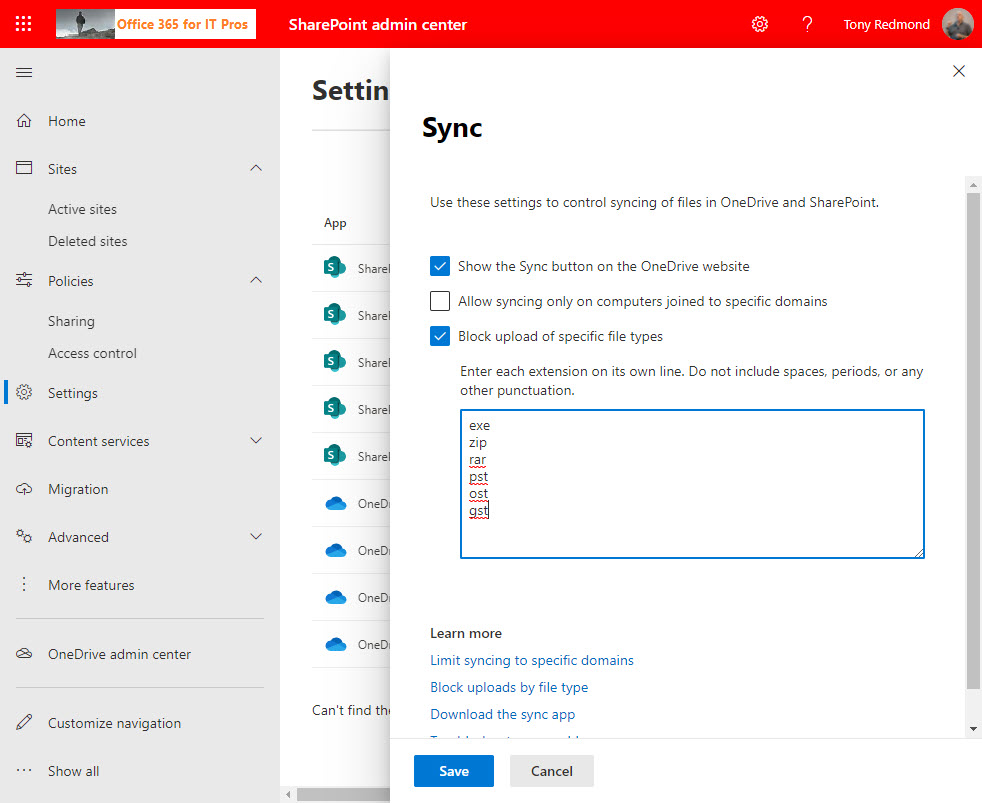
Microsoft will soon impose a limit on the number of PST versions kept by SharePoint Online and OneDrive for Business. PST files have no business being in cloud storage, so this is a reasonable step. People shouldn’t keep PSTs in SharePoint or OneDrive document libraries and organizations shouldn’t let them. In fact, you should block PSTs from OneDrive synchronization and make plans to eradicate these pesky files.
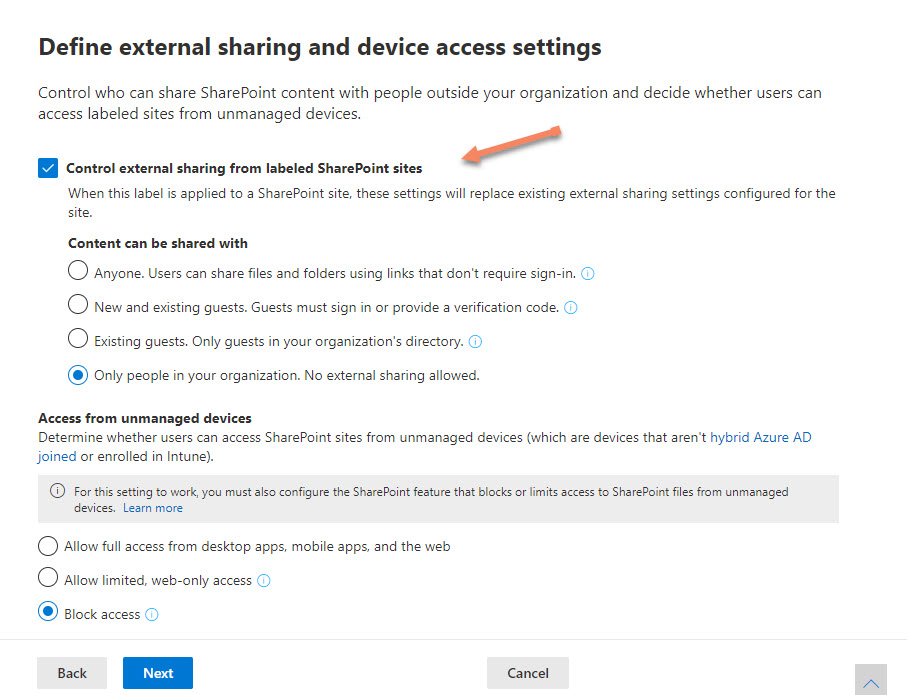
The latest update for sensitivity labels allows them to control the external sharing capability of SharePoint Online sites. It’s a powerful example of policy-based management in action and demonstrates just how useful sensitivity labels will be as Microsoft steadily builds out the set of controls available through labels.
Sensitivity labels are a great way to protect confidential documents stored in SharePoint Online. Sometimes the documents must be decrypted. This article explains how to build a PowerShell script which uses Graph API calls to navigate to a folder in a SharePoint Online document library and decrypt the protected documents found in the folder.
A new preview feature allows the resources available to an Azure AD guest account to be reassigned to another email address. It’s a nice feature, but Teams has some problems with it at present. On the upside, everything works great with SharePoint Online and Planner, and we’re sure that Microsoft will fix the problem with Teams soon.
The OneDrive sync client is an important Microsoft 365 component which underpins features like autosave and coauthoring of Office documents. During the March 15 Azure AD outage, the client had a meltdown and removed all the local copies of files stored in a SharePoint Online folder, seemingly because it couldn’t authenticate. The problem was easily fixed, but it’s a bad example of handling what could be a transient authentication issue.
Audit records are a great way to gain an understanding of what happens inside Office 365. We use PowerShell to report actions taken with sensitivity labels such as protecting files and containers. The latest development is the addition of support in the Microsoft 365 apps for enterprise (Office desktop) to log audit events when users interact with sensitivity labels. Unsurprisingly, more events are often logged by the desktop apps than their online equivalents.
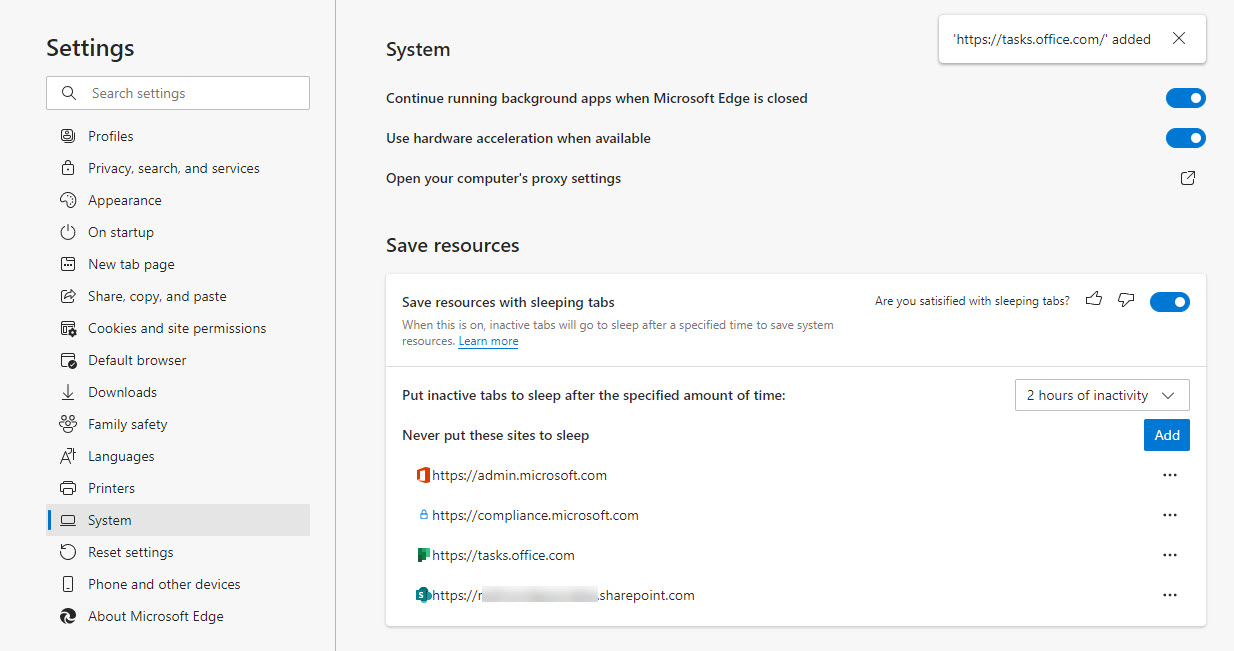
Microsoft’s Edge browser recently introduced sleeping tabs to conserve resources. Although this is a good idea, putting SharePoint Online tabs to sleep stops them reconnecting. I suspect it is because a refresh token times out and isn’t renewed. The solution is to add SharePoint Online sites to the list of sites that don’t sleep. Always-on document management is the best approach.
Microsoft says that SharePoint Online now has 200 million monthly active users. Teams is the major influence driving SharePoint growth with an increasing number of touchpoints between the two Microsoft 365 workloads.
The container management settings of sensitivity labels can now manage the external sharing capability of SharePoint Online team sites. The same settings as available in the SharePoint admin center or PowerShell can be applied through a label. Caching means that new settings in a label might not be picked up by SharePoint Online for up to 24 hours.
Sensitivity labels are spreading across Office 365. Now you can search SharePoint Online to find documents with a specific label. And if you make an extra tweak to the search schema, you can find labeled sites too. All of which seems boring and uninteresting until you actually need to do it.
Support for sensitivity labels is generally available for SharePoint Online. Users can apply labels to classify and protect documents, but a mismatch can happen between labels applied to documents and the sites where the documents are stored. When this happens, SharePoint Online emails site owners to tell them that a mismatch exists.
SharePoint Online generates a lot of events in the Office 365 audit log. You can interrogate the log with PowerShell to create per-user reports of their activities. The Search-UnifiedAuditLog cmdlet finds all the necessary data; after that it’s just a matter of filtering and refining the data and then creating the reports.
Microsoft has published updates for the Exchange Online management and SharePoint Online PowerShell modules. Generally it’s a good idea to install the latest version of PowerShell modules for the different Office 365 products, but beware of some gotchas that await the unwary…
Do you need to find out who updated a SharePoint Online or OneDrive for Business document? Use PowerShell to search the Office 365 audit log for document events and the complete history is available. Well, at least the last 90 days’ history – or 365 days if you have the necessary licenses.
Word users range from casual to professional writers. Those involved in collaborative co-authoring can now @mention others in comments. The feature is available in Word and PowerPoint (click to run) and the Office Online apps now and Excel desktop is due to get it too. Documents must be stored in SharePoint Online or OneDrive for Business to allow @mentioned people access the files.
Large Office 365 tenants with more than 10,000 seats can now use the SharePoint Online site swap feature to replace an old root site with a new communications site. The site swap must be done with PowerShell and needs a new version of the Invoke-SPOSiteSwap cmdlet. Once you prepare your new site for swapping, everything goes smoothly.
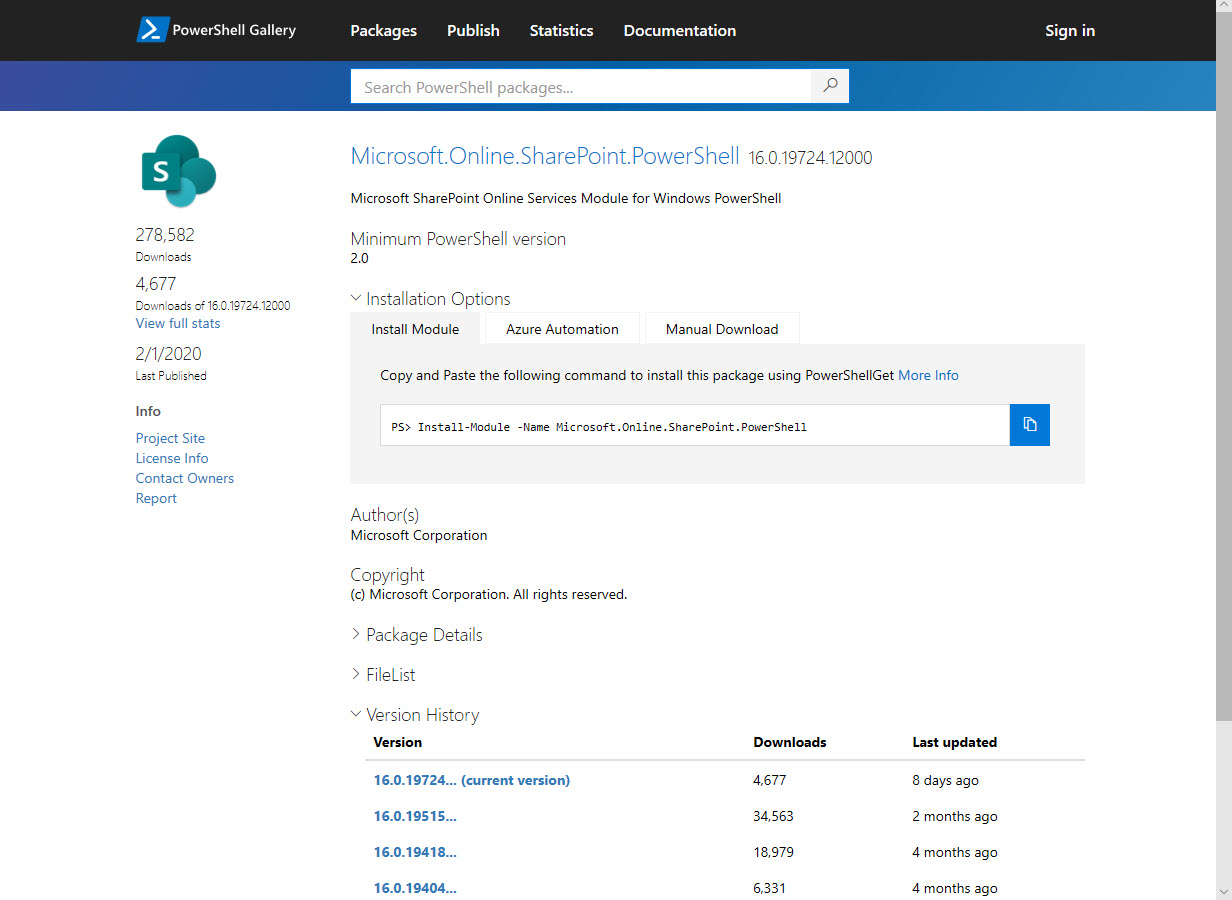
Like many other parts of Microsoft 365, you can manage SharePoint Online with PowerShell. At least, you can manage some aspects of SharePoint Online with PowerShell. Microsoft has made it easier to keep up to date with the latest SharePoint Online module and the PnP module, so there’s lots of cmdlets to help Administrators do a better job of automating different aspects of SharePoint Online.
Now that SharePoint Online supports Office 365 Sensitivity Labels, it’s time to consider how to protect files stored in document libraries. When you compare the two approaches, there’s really only one winner. And there’s no surprise in saying that the winner is Office 365 Sensitivity Labels.
Teams and SharePoint Online share a connection through the Files Channel tab. Unfortunately, if you rename the URL of a SharePoint site, the connection broke. The good news is that Microsoft has now fixed the problem. Some pesky bugs got in the way, one of which stopped the connection being restored. But the developers persisted and the final bug was fixed last week.
Publishing SharePoint Online content to Teams is a great way to make users aware of important information. The standard SharePoint web part makes it easy to publish content from the site belonging to a team. Things are a little more difficult when you want to publish content to a team from a different site. Fortunately the website tab comes to the rescue.
We all store lots of information in the cloud and sometimes it is hard to find work that needs to be resumed or finished. OneDrive for Business and SharePoint Online now boast the ability to mark files and folders for later. The two apps share a common list and make it easy for users to find work that they need to return to.
You can use PowerShell to configure a customized per-site Anyone sharing link period for different sites. Public sites might have a 365 day period while more confidential sites might have a more restricted period. All it takes is the Set-SPOSite cmdlet to set the necessary properties and you have a customized policy.
At the Microsoft Ignite 2019 conference, Microsoft described how SharePoint Online will use Office 365 compliance features such as sensitivity labels and information barrier policies to better protect information stored in SharePoint sites. The Office Online apps also gain support for sensitivity labels. The new features will enter a mixture of public and private previews starting November 20.
If you want to include SharePoint Online and OneDrive for Business locations in an Office 365 content search, you need to know the URLs of the target sites. Finding the URLs can be problematic, but here’s some easy ways to do the job. PowerShell, as usual, comes up trumps…
Microsoft has released new OneDrive file viewers that are turning up in Teams clients. The new viewers are more intelligent and make it easier to work with files, especially Office documents. However, even intelligent viewers can only function when a solid network connection is available and often a local synchronized copy of Teams files is the way to work.
Microsoft announced the roll-out of the Site Swap feature for SharePoint Online. You can only do this with PowerShell, but the process is quick and easy and works well (assuming your new site is ready to go). Who doesn’t like one-line PowerShell commands that do a lot of work with minimum effort!
SharePoint Online and OneDrive for Business support the ability to protected Anyone links with passwords. The idea is good and the feature works well, but some Office 365 tenants have problems with the idea of using Anyone links because, as the name implies, anyone who has the link can use it to open a document.
Sometimes it is difficult to understand exactly who has access to a document in a SharePoint Online site. The Manage Access option helps you understand who has access through group membership and sharing links. And if you need to adjust a sharing link, you can do it quickly and easily.
Have you ever wondered how Microsoft secures SharePoint Online and OneDrive for Business data? Well, a recent article explains it all, and it is fascinating reading. Chunks and keys and blobs and encryption. A must-read article for anyone interested in SharePoint security.
Microsoft is changing how the removal of an Office 365 retention policy affects the data held in the SharePoint Online Preservation Hold Library. Instead of an immediate purge, data will be kept for a period to allow administrators to recover it. Sounds like a good idea and it should help people rescue a situation when someone removes a retention policy in error. That is, if they notice that the policy is no longer in effect for a site.
Microsoft says that the migration of Yammer storage for new files in SharePoint will restart in June and finish worldwide by the end of July. That’s great, but the migration of existing files is a manual process that can only be described as tiresome and error-prone. But it adds to the allure of Yammer and increases its prestige in the ranks of Office 365 apps. Or maybe not.
Microsoft has refreshed the Files channel tab to expose more functionality for Teams users when working with SharePoint Online document libraries.Office 365 commercial tenants should see the new UI in June 2019. The new Files channel tab is almost at feature parity with the functionality available through the SharePoint browser UI, but it still lacks the ability to expose and edit document properties.
Two Office 365 Message Center notifications bring news about an increase in the number of participants for a Teams group chat to 100 and improvements in shareable links for files. Moving the limit from 50 to 100 for a group chat makes these conversations more flexible. Adding permissions to the sharing links used by Teams gives users more control over how they share information with others.
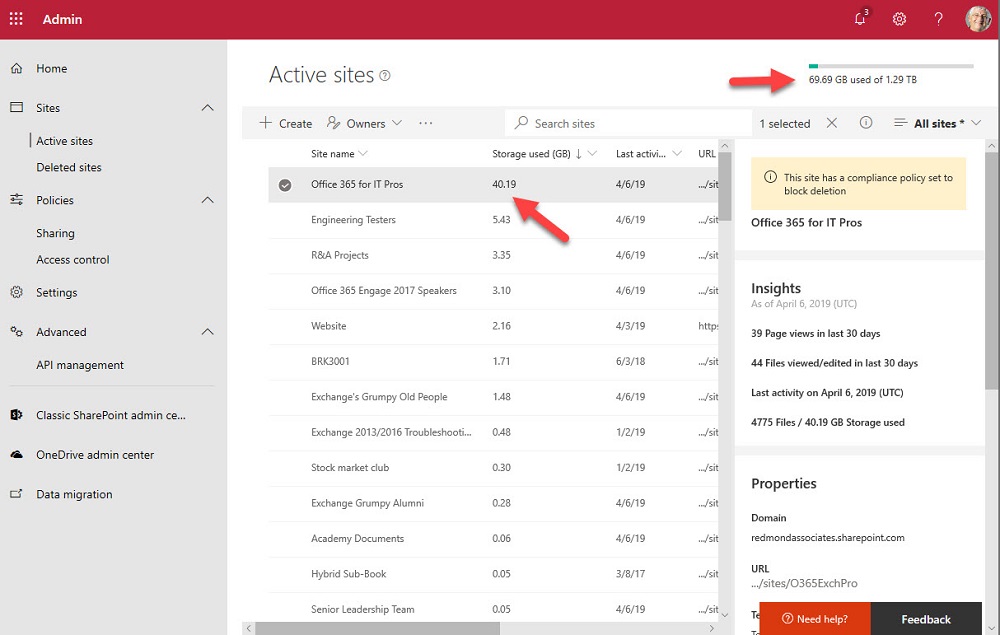
One of the great things about Teams is the way that it orchestrates Office 365 resources like SharePoint Online sites. The downside is that a tenant’s valuable SharePoint storage quota might be absorbed by a profusion of Teams. To offset the problem, you can apply lower limits to sites belonging to Teams and the best approach is to use PowerShell for the job.
The modern SharePoint Admin Center introduces the ability to rename the URLs for SharePoint site names. This responds to a longstanding customer request and makes it possible for site names to reflect what users see elsewhere in Office 365 groups or Teams. It’s a small but welcome change in the fit and finish category.
Sometimes Office 365 can be infuriating. My latest tribulation came in the form of missing retention labels, which disappeared from SharePoint Online without any reason for two weeks. Some labels returned due to auto-label policies, but any applied to documents manually had a vacation somewhere in the bowels of the services. It wasn’t a good experience.
The tabs in a Teams channel can be associated with many different forms of data. When you delete a channel, you only remove the conversations for that channel. Any other data is left intact, including files in the folder in the SharePoint site used by the team. To fully clean up a deleted channel, you must therefore check what tabs exist and what data is accessed through those tabs.
Every Office 365 group (and team) has a SharePoint site. But how to find the URLs of all the sites used by teams in a tenant. One PowerShell answer came from Syskit, but it’s an old technique and we can do better now by fetching a list of teams in the tenant and then retrieving the URL for each team-enabled group.