Microsoft has announced that the AdditionalStorageProvidersAvailable setting in OWA mailbox policies will now control access to both first-party and third-party storage providers. The new setting is now available and becomes active in August. Before then, you might want to adjust some of your OWA mailbox policies.
A question about how best to set auto-replies for Exchange Online shared mailboxes to respond to messages arriving during a public holiday gives another chance for PowerShell to show how useful it is. You could do the work with Flow, but PowerShell is more flexible and capable when dealing with multiple shared mailboxes.
Following a configuration change, the Exchange Online Focused Inbox ran into a problem on July 24 and delivered all messages to the “Other” view. This caused problems for users who didn’t receive notifications of new mail. Software can have bugs, but configuration changes should be tested before getting to production.
Microsoft dropped support for the ExMerge tool in Exchange 2007. An ISV has taken the initiative to create a modern version of the tool, called Super ExMerge. The utility supports both Exchange on-premises and Exchange Online.
Microsoft has announced that the switchover to the new OWA interface will start on July 22 when Office 365 tenants in targeted release will lose the chance to toggle back and forth between the two interfaces. By the end of September, everyone will use the new OWA. Let’s hope that Microsoft has fixed all the functionality gaps by then.
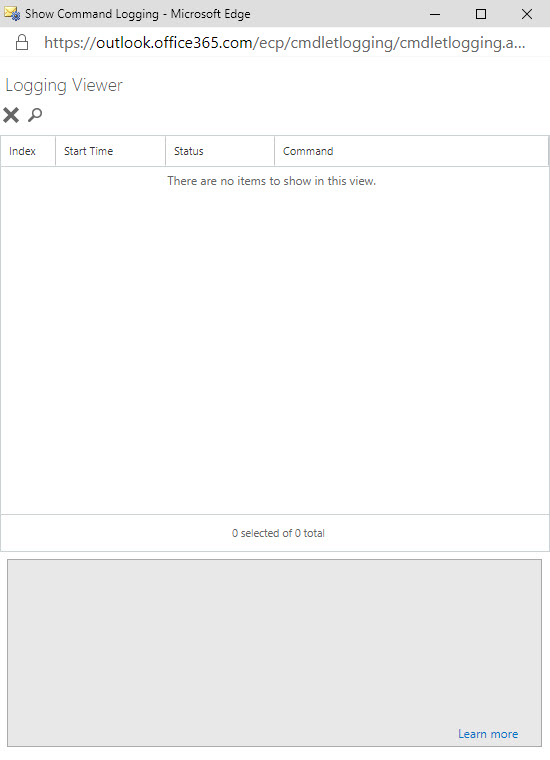
The ability to see the PowerShell commands executed by Exchange administrative centers has existed since Exchange 2007. Now something has changed in Exchange Online and the command log is blank. It’s sad because many administrators learned to use PowerShell by examining how Microsoft used it to manage Exchange. Let’s hope that Microsoft fixes this bug soon.
Microsoft launched the MailItemsAccessed audit event (to capture when email is opened) in January, reversed the roll-out in April, and now might restart sometime in Q3. It’s an odd situation that isn’t really explained by a statement from Microsoft. Are they going to charge extra for this audit event? Will they be analyzing the events? Or does Office 365 capture too many mail items accessed events daily?
Removing Office 365 accounts is easily done through the Admin Center. You can also restore deleted accounts within 30 days, but what if you want to remove accounts in such a way that they can’t be restored? The answer is that it can be done using a two-stage process. And if the mailboxes belonging to those accounts are on hold, they are kept as inactive mailboxes.
Microsoft has announced that it will deploy the ability to add shared mailboxes to Outlook Mobile by the end of July. But if you want to see the feature early, you can join the Testflight program and install the beta version of Outlook mobile. Using Outlook for iOS with Testflight also forces the upgrade of your Office 365 tenant to the Microsoft Sync Technology.
Microsoft has announced that Outlook Mobile (iOS and Android) will include support for Exchange Online shared mailboxes “in the next several weeks,” which probably means early July 2019. The update comes as good news for many people who have been forced to use an IMAP4-based workaround to access shared mailboxes. Microsoft is also making some other changes to improve the Files view and calendar sync in Outlook mobile.
Microsoft has implemented a new synchronization mechanism in Outlook ProPlus to deal more efficiently with shared folders. The new approach increases the limit from 500 to 5,000 folders and is a more elegant and precise solution. Users who manage other peoples’ mailboxes will appreciate the change after they install build 11629.20196 or later.
The new version of OWA boasts new abilities for owners to manage Office 365 Groups. The new UI is pretty slick and a welcome upgrade to the previous capabilities. You’ll still need to revert to PowerShell to manage some aspects of Office 365 Groups, but not as many times as you used to.
Despite the age of the protocols, you can cheerfully connect a wide range of IMAP4 and POP3 clients to Exchange Online. If you do, you might need to consider how to handle calendar appointments, and if you want to use iCAL, you’ll need to make some adjustments with PowerShell.
Exchange Online supports inactive mailboxes as a way to keep mailbox data online after Office 365 accounts are removed. Inactive mailboxes are available as long as a hold exists on them. You can update mailbox properties to exclude all or some org-wide holds. If you exclude holds from a mailbox, you run the risk that Exchange will permanently remove the mailbox. If that’s what you want, all is well, but if it’s not, then you might not be so happy.
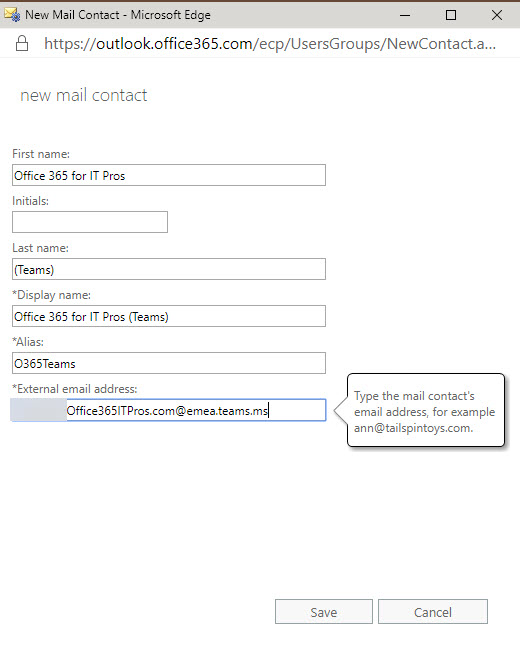
Teams allows users to send email to channels via special email addresses. Those addresses aren’t very user-friendly, but you can add them as mail contacts so that channel addresses show up in the Exchange GAL. It’s easy to do and makes it much easier for people to email Teams channels. That is, until someone removes the channel email address…
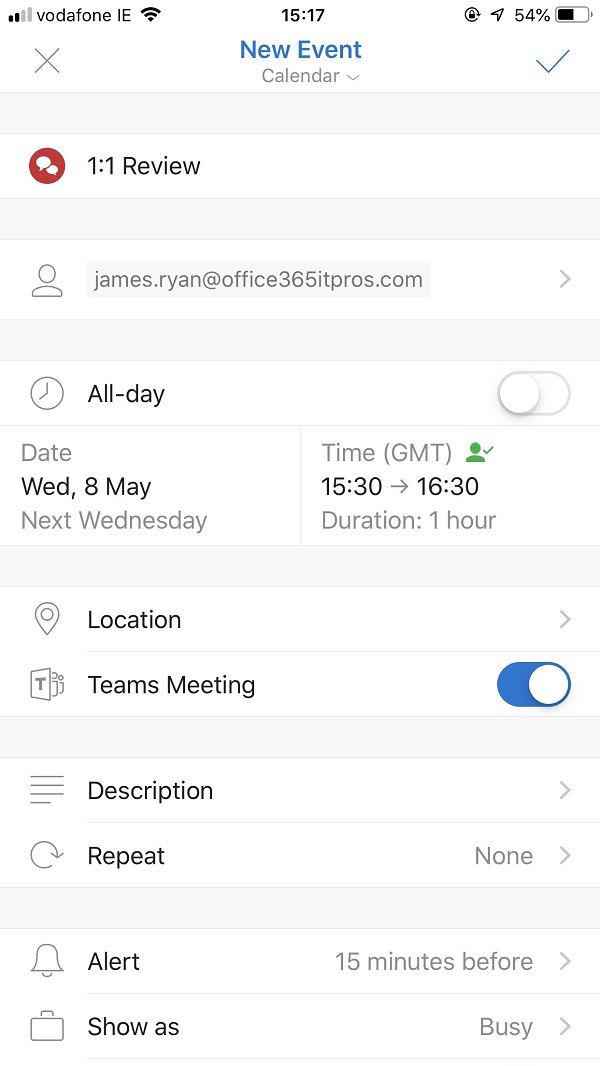
Outlook Mobile clients can now schedule Teams meetings, even if your tenant isn’t using the newer version of Outlook’s mobile connection architecture. The Office 365 tenant setting for Skype for Business Online co-existence mode has to be configured to use Teams, and once everything is in place Outlook is happy to schedule Teams meetings.
You can use Exchange Address Book Policies (ABPs) to limit the ability of Teams users to chat with each other. Everything works as expected until you look for some new teams to join only to find that Teams can’t suggest any teams to you. The problem seems to be with filtering the set of teams returned by the Microsoft Graph to take account of the scope applied to the user. At least, that’s what I think is going on.
At their Q3 FY19 earnings call, Microsoft CEO Satya Nadella said that Office 365 is now used by 180 million monthly active users. Office 365 is now growing at more than 4 million users per month. The earnings call also noted success for Enterprise Mobility and Security and the Outlook mobile client, both of which are now used by more than 100 million people.
Outlook for Windows (ProPlus or click to run) now boasts settings to allow users to schedule meetings and appointments to end some minutes earlier than expected. Brian Reid is very excited by the prospect, but we’re not sure if this qualifies as one of Ståle Hansen’s famous lifehacks. In any case, ending meetings early won’t solve the problem of badly-organized or managed meetings or how people behave during meetings, but it might give you a quiet feeling of satisfaction to have a neater calendar.
Microsoft has released the GA version of the Azure Information Protection client, which reads information about Office 365 sensitivity labels and policies from the Security and Compliance Center. It’s one more step along the path to making it easy for Office 365 tenants to protect their data. Work still has to be done, but at least we can see light at the end of the encryption tunnel.
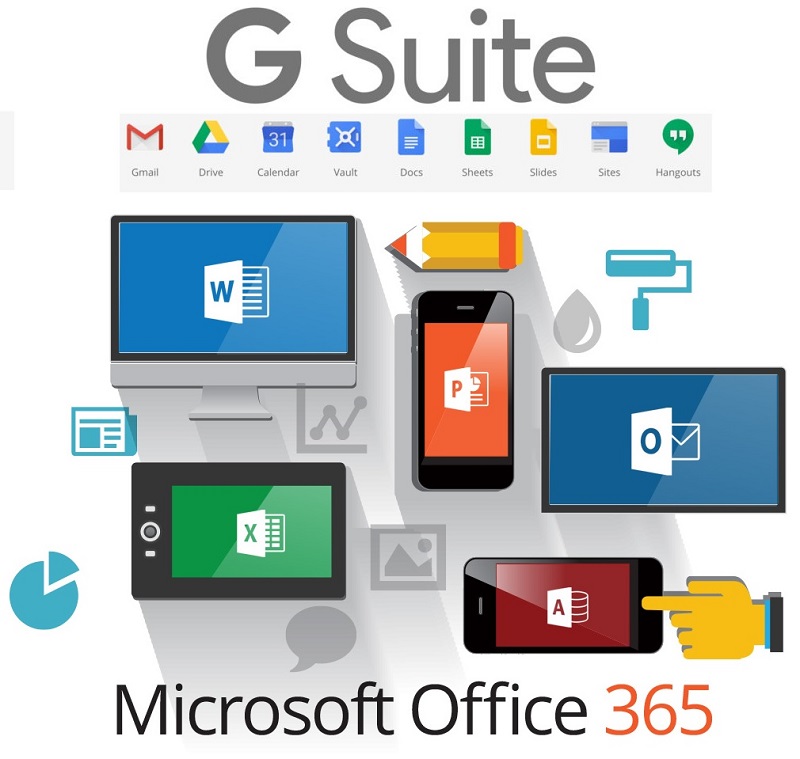
Microsoft announced a new migration experience from Google G Suite yesterday, which is nice. Under the covers, the venerable Mailbox Migration Service (MRS) does the work to extract mailbox data from Gmail using IMAP4 and moves it to Exchange Online. But after the move is done, there’s still lots of work to do to help users make the cultural change to their new mailbox in the cloud.
The ThirdPartyFileProvidersEnabled setting in OWA mailbox policies controls if Exchange Online mailboxes can access services like Drop and Dropbox for attachments. Office 365 tenants need to decide if they want to allow this kind of access. There’s both good and bad in the feature, but it’s easily turned off if you feel the need.
It’s hard for a program that’s been around for 22 years to surprise, but Outlook has done it by introducing background moves. The implementation is good and it closes a gap that’s existed in Outlook for a very long time. So long that most Outlook users probably assumed that the program would never mend its ways. But then again, because people don’t move items between folders like they used to, perhaps no one cared.
Announced in January, paused in March – that’s the fate of the MailItemsAccessed audit record generated by Exchange Online for the Office 365 audit log. Microsoft found some problems that they are fixing, which is good (because you want audit data to be reliable). And when the fixes are available, the deployment of the new audit record will restart.
MailTips are a pretty useful way of drawing the attention of users to potential issues with email. Exchange Online supports several MailTips, but Outlook clients insist on supporting MailTips in different ways. It’s a small but irritating part of Exchange Online that could be done better.
Office 365 content searches now support a hard-delete (permanent deletion) option for the purge action, but only for mailbox items. You can purge up to 10 items at a go. If you have more to purge, you just have to keep on purging until everything is gone. Or use the Search-Mailbox cmdlet, which keeps on proving its usefulness to administrators who need to remove lots of mailbox items quickly.
Helping Exchange Protect Users from Bad Email Given the amount of spam floating around today, it comes as no surprise that many organizations deploy an Exchange transport rule to mark inbound external email with a suitable warning. This is a straightforward rule to configure and it can help stop users being fooled by bad messages …
Read More “Marking External Email with an Exchange Transport Rule”
Microsoft announced that the Office 365 E3 and E5 plans will receive new Information Protection licenses. They’re preparing for the introduction of sensitivity labels and the increased use of encryption to protect access to content in Office 365 apps like SharePoint Online, Exchange Online, OneDrive for Business, and Teams. You don’t have to do anything to prepare for the new licenses, but it’s nice to know what they are and how the licenses are used.
Microsoft will deliver a set of five seminars about Outlook Mobile starting on March 14. It’s always good to gain some knowledge about an important technology. Outlook Mobile is important to Office 365 because it is the most functional email client available. If you don’t believe me, attend some of the seminars and make your own mind up.
Phishing attacks through email happen all the time. A new relatively crude one arrived today. It’s easy for the trained eye to detect phishing, but do your Office 365 admins know how to use the tools available in Exchange Online Protection to suppress malware, and do your users know the signs of bad email? In this case, it’s an invitation to click to get to a PDF document to bring you to digitaloceanspaces.com. Some interesting things might happen afterwards, but I really don’t want to find out what occurs when I click the link.
Office 365 changes all the time, which is good because it keeps the Office 365 for IT Pros writing team busy and happy. Discussions this week included Microsoft’s response to a Dutch DPIA, the effect large Teams have on Yammer, how Exchange Online validated a fix to a security problem, and graphics to help understand the components of the Microsoft 365 E3 and E5 plans.
The January 24-25 Azure Active Directory outage demonstrated once again how important AAD is to Office 365. Microsoft’s Post Incident Report tells us what happened to deprive 1% of the users in Europe of service. That doesn’t sound a lot, but you’d be mad if you were affected.
Some backup vendors think that corruption can lead to data loss within Office 365. The possibility exists, but the page patching mechanism for databases incorporated into Exchange Online DAGs makes corruption a lot less likely, especially when mailboxes are protected by four database copies and Exchange applies many other techniques to ensure the consistency of the databases.
The new version of OWA (sometimes called Outlook on the Web, or Outlook Web Access) is now generally available to all Office 365 tenants. Although the new OWA has some nice features, you might want to turn off the user choice (toggle) to move the new UI until you’ve had time to prepare the help desk, documentation, and that sort of thing.
Microsoft has released details of an Exchange Online transport rule to encrypt outbound email containing sensitive data types like credit card numbers. The rule works (after fixing the PowerShell), but needs to be reviewed and possibly adjusted to meet the needs of Office 365 tenants.
A new report commissioned by Microsoft explains how Exchange Online and the Security and Compliance Center meet the electronic records requirements of regulatory bodies like the SEC and FINRA. Within the report, there’s some news about changes to the way that Office 365 handles Teams compliance records stored in Exchange Online. And after all that, we consider how some backup vendors treat Teams compliance records as equivalent to the data stored in the Teams Azure services.
The internet makes it easy to find material to read about technical topics. Unfortunately, a lot of content is rubbish. In this post, we compare two recent technical articles and explain why we think one marketing post is good and the other isn’t up to scratch.
The new version of OWA is maturing and new features are turning up on a weekly basis. You can now schedule a Teams meeting from OWA and the prospect of joyful animations hang in the air. But only for Office 365 users as there’s no sign that the new OWA will come to Exchange on-premises servers.
A change made to fix a problem in Exchange Online introduced another problem in that service domains started to show up as prefixes in the data returned by PowerShell cmdlets. Microsoft has reversed the change, but the way things happened creates some questions.
Office 365 tenants can use Exchange transport rules to apply autosignatures to outbound email, including messages protected with encryption. You can even include some properties of the sender extracted from Azure Active Directory, and you can add an exception so that the autosignature isn’t applied to replies.