The Planner browser UI now displays a notice to users when someone else has changed tasks in a plan. This is useful, but it would be much better if Microsoft enabled support for the Office 365 audit log so that events happening in Planner flowed into the audit log. There’s no sign of that happening, despite requests for three years or more.
Exchange Online PowerShell is a critical automation tool for many Office 365 tenants. In 2021, Microsoft will remove basic authentication for PowerShell, so it’s time to change over to modern authentication. For scripts that run as batch or background jobs, that means converting to certificate-based authentication. In this post, we explore how to get the self-signed cert to glue everything together.
Exchange Online Protection puts problem messages into quarantine if it suspects that they contain spam, malware, or a phishing attempt. Instead of using the Security and Compliance Center GUI to work with quarantined messages, you can analyze details of quarantined messages with PowerShell to create some basic statistics and find messages that should be released.
Exchange Online Protection (EOP) quarantines suspicious messages to stop spam, malware, and phishing email arriving into Exchange Online inboxes. Administrators can review quarantined messages. Reviewing messages can find some problems, like messages that shouldn’t have been stopped. But reviews take time, and sometimes other stuff gets in the way, which means that quarantined messages expire without anyone ever asking the question “why.”
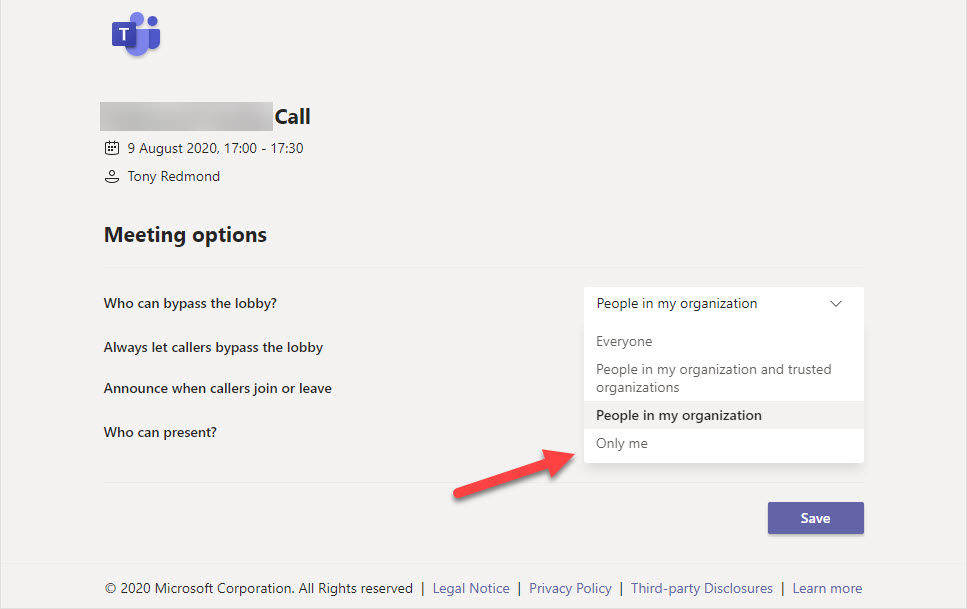
Microsoft has updated the Teams meeting policy to restrict automatic meeting joining (aka lobby bypass) to organizers. This is likely to be most popular with schools, but enterprirse will see value in being able to force participants to pass through the meeting lobby before joining in some circumstances. And remember, a meeting organizer can always change the settings before the meeting begins.
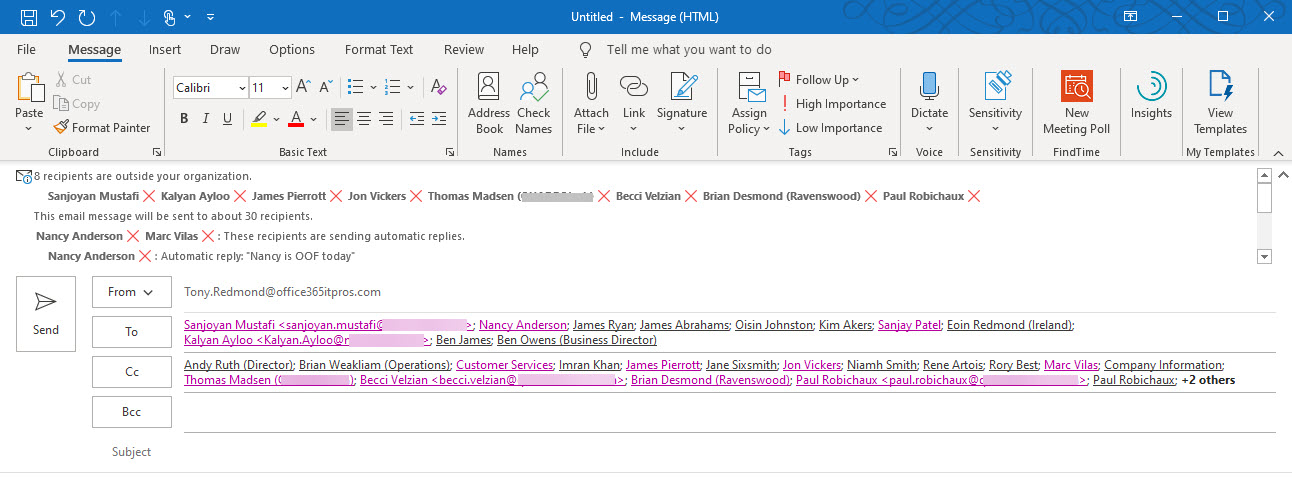
Exchange Online generates automatic MailTips to advise email creators that recipients are out of offce or the message is addressed to too many recipients. Custom MailTips for mailboxes, distribution lists, and other mail-enabled objects, including language-specific translations, give additional guidance to users as they create messages. Overall, MailTips are worth spending some time on to get right within an Office 365 tenant.
The Microsoft Graph collects huge amounts of signals about Office 365 user activity. Some of that data is used to generate insights into information that might be interesting to users. You can already disable insights in Delve, and now Microsoft allows you to disable insights elsewhere in Office 365. The downside is you’ve got to patch the Graph organization settings to limit insights, and that might just be outside the ability of the average tenant administrator. Unless they use the Graph Explorer to do the job.
Microsoft announced that Office 365 tenants can customize the user profile card, which is nice. The only thing is that an update to the Microsoft Graph is done to apply the customization. Most tenant administrations probably aren’t literate with Graph programming, so that presents a problem. Until you realize that the Graph Explorer can be used to do the job without you needing to write a single line of code.
Petri.com is running a free 1-day virtual conference on the topic of Microsoft Teams on August 12. All are welcome to attend. The jokes will be awful, the timing lousy, and the information insightful. That’s a pretty explosive mixture, delivered by experts (well, except me) packed full of knowledge. So much so that their heads swell on an ongoing basis…
Microsoft announced that the Azure AD Sign-in Activity Report for end users is now generally available. Good progress has been made since the preview, but some problems still persist. It’s fair to ask end users to review their sign-in activity, but to have a chance of catching problems, the data you ask people to review must be understandable by them, and sometimes the data in this report isn’t.
The Microsoft 365 admin center includes the ability to manage settings for the default Exchange Online authentication policy. You might have other policies to allow selective access with basic authentication to some protocols; these policies must be managed with PowerShell. Authentication policies are part of the journey to eliminate basic authentication from Exchange Online, now expected to happen in mid-2021.
The August 2020 update for Office 365 for IT Pros (2021 Edition) is now available. Subscribers can download the updated files from Gumroad,com. Kindle buyers can ask Amazon to make the update available to them. The August update includes changes to 18 of the 24 content chapters, which is pretty typical for the kind of change that happens inside Office 365.
Microsoft plans to post notices in OWA to tell end users that their Office 365 licenses include Outlook Mobile. The hope is that more people will use Outlook Mobile instead of EAS or IMAP4-based clients like the default iOS mail client. Notices will appear in OWA and later Outlook desktop, but the good news is that you can disable these notices with a simple change to the tenant’s organization configuration for Exchange Online.
OneDrive for Business accounts belonging to ex-employees can be reassigned to others during the deletion workflow, but orphan accounts can accumulate over time. This post describes a PowerShell script to find orphan OneDrive accounts and add a user to the site so that anything there can be retrieved.
Characterizing backup of Exchange Online mailboxes to PSTs as brain-dead might have been harsh, but it’s an accurate assessment of the worth of this idea. Plenty of cloud-based backup offerings exist that can process Exchange Online data more securely and at scale. If you want to backup Office 365, stay away from PSTs and use a different product, after asking some questions to ensure that the backups deliver the value you expect.
Exchange Online Protection monitors outbound email to pick up signs of potential compromise in Office 365 tenants. This can lead to EOP restricting a tenant’s ability to send outbound email and force the administrators to check for compromised accounts or connectors and other problems before contacting Microsoft Support to ask them to lift the restriction.
Exchange Online Protection monitors email traffic in and out of Office 365 tenants. When a mailbox exceeds limits, it might end up being restricted, such as in the case when the mailbox might be compromised. We tried to find out when Exchange Online Protection restricted mailboxes and what to do afterwards. Here’s what we discovered.
The Microsoft FY20 Q4 results included good news for its cloud segments with increasing activity, numbers, and revenue. Although we didn’t get new user numbers for Office 365 and Teams, Microsoft included some other interesting data about Azure Active Directory and EMS in its narrative.
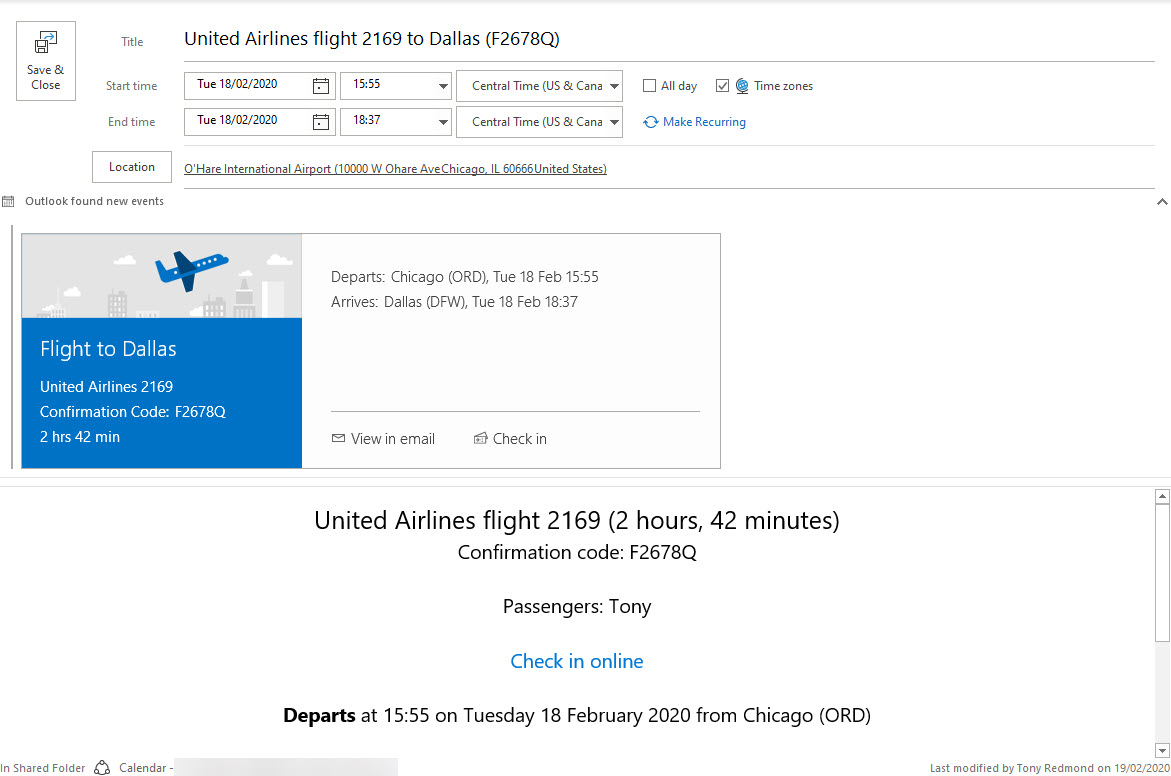
Exchange Online will soon drop processing email to create calendar events for things like restaurant reservations. The good news is that travel details are still supported, meaning that you won’t have to extract and enter details like flight numbers, departure times, and so on. And notifications for your Amazon deliveries continue too.
The Electron-based Microsoft Teams has a reputation of being a memory hog. Does the moniker fit? Well, it all depends on how you view how the Chromium memory model works. Some won’t like the way memory is grabbed to cache data while others will think it quite reasonable to use available memory in this way.
Microsoft posted a reminder that connections from Office 2013 will no longer be supported for Office 365 service from October 13, 2020. Microsoft won’t take any action to block legacy clients, but the writing is on the wall. Office 365 tenants need to decide how to replace Office 2013 by either upgrading to Microsoft 365 apps for enterprise (click to run) or switching to browser clients like OWA.
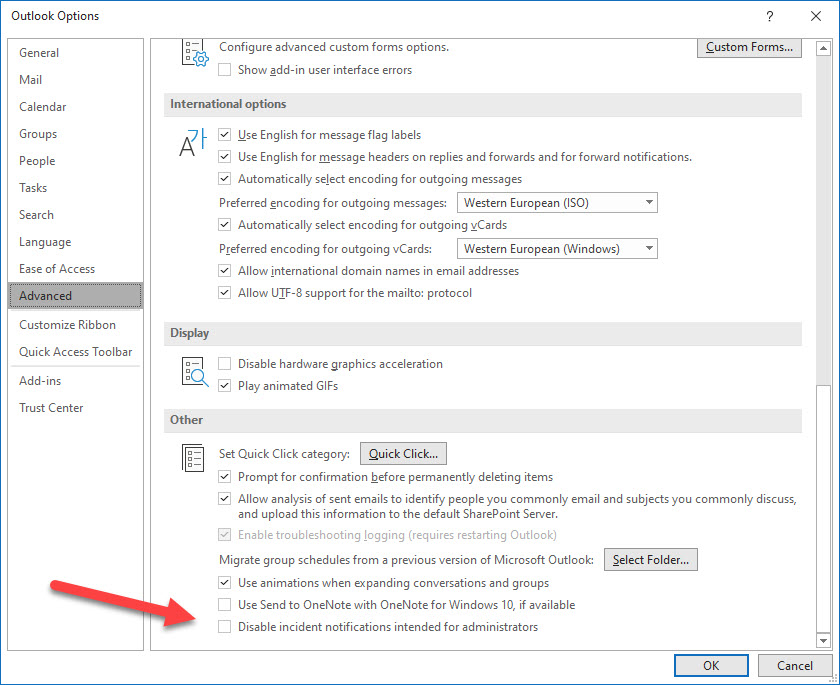
Outlook for Windows boasts a new admin notification panel where incidents affecting the Office 365 tenant show up. It’s an interesting idea, but you wonder if there aren’t more important things for the developers to work on, especially as many other ways exist for administrators to find out when problems happen.
Communications compliance policies scan user messages to detect violations of company or regulatory rules. A change introduces support for hybrid users whose mailboxes are on Exchange on-premises servers. The change might not pick up many new violations, but it does increase the coverage and stops some violations sneaking through, which is always a good thing.
The New Microsoft 365 Security for IT Pros eBook is now available from Gumroad.com. The book is modeled after Office 365 for IT Pros and covers the essential steps tenant administrators should take to secure and defend their organizations. Security is something that everyone involved in tenant administration needs to think about, so it’s good to have some solid advice from the pros.
The latest version of the Edge Chromium browser can read files protected by Office 365 sensitivity labels stored in SharePoint Online and Exchange Online. This might not be the feature that causes you to dump Chrome, but it’s very useful when your tenant uses sensitivity labels.
The Windows desktop client for Teams monitors text as users type chat and channel messages to detect if they switch language. And if they do, Teams can change language for spell checking. The code runs on the client and no data is transmitted back to base. It’s all very intelligent, but you should warn users that it might happen.
OneDrive clients have access to version history for files stored in SharePoint Online and OneDrive (business and consumer). Until they don’t, which is why I am grumpy today. As it turns out, the feature works on one PC but not another, and that’s super-frustrating.
Teams supports the ability to assign policies to up to 5,000 users with background jobs. This makes it much easier to assign new policies to large groups of users. Unless you like writing your own PowerShell scripts to handle Teams policy assignment, this is definitely something that all Teams administrators need to know about.
You can disable Chat for Teams users, but is this a good idea? Chat is an integral part of Teams and disabling it seems like a bad idea for many reasons, not least being compliance as all you’ll do is drive users to find another way to communicate – like WhatsApp.
When you need to block external access to your most sensitive documents, Office 365 Data Loss Prevention policies and sensitivity labels combine to find and protect the documents. A really simple policy is enough to detect and block external access, and is covered by Office 365 E3 licenses. If you have E5 licenses, you can consider auto-label policies to find and protect sensitive documents at scale.
Once Microsoft 365 Groups and Teams reach the end of their useful life, it’s good to archive them so that their data stays online and available for eDiscovery. A recent request looked for help to archive 600 Groups at the end of the academic year. The script described here might help solve the problem.
Microsoft has introduced a new apps usage report in the Teams admin center. The new report helps tenant admins understand how much use Teams apps get. However, if you want to do any detailed analysis, you will have to download the data to Excel and interpret it there.
The 2021 edition of Office 365 for IT Pros, the world’s best book covering management and deployment of Office 365 is now available (July 1, 2020). The book is completely refreshed with material about SharePoint Online, Exchange Online, Teams, Stream, Planner, OneDrive for Business, Yammer, and all the administrative interfaces (portals, PowerShell, and the Graph). It might take you 30 hours or more to read Office 365 for IT Pros (or so SharePoint tells us), but it will be more than worthwhile.
Sensitivity labels are spreading across Office 365. Now you can search SharePoint Online to find documents with a specific label. And if you make an extra tweak to the search schema, you can find labeled sites too. All of which seems boring and uninteresting until you actually need to do it.
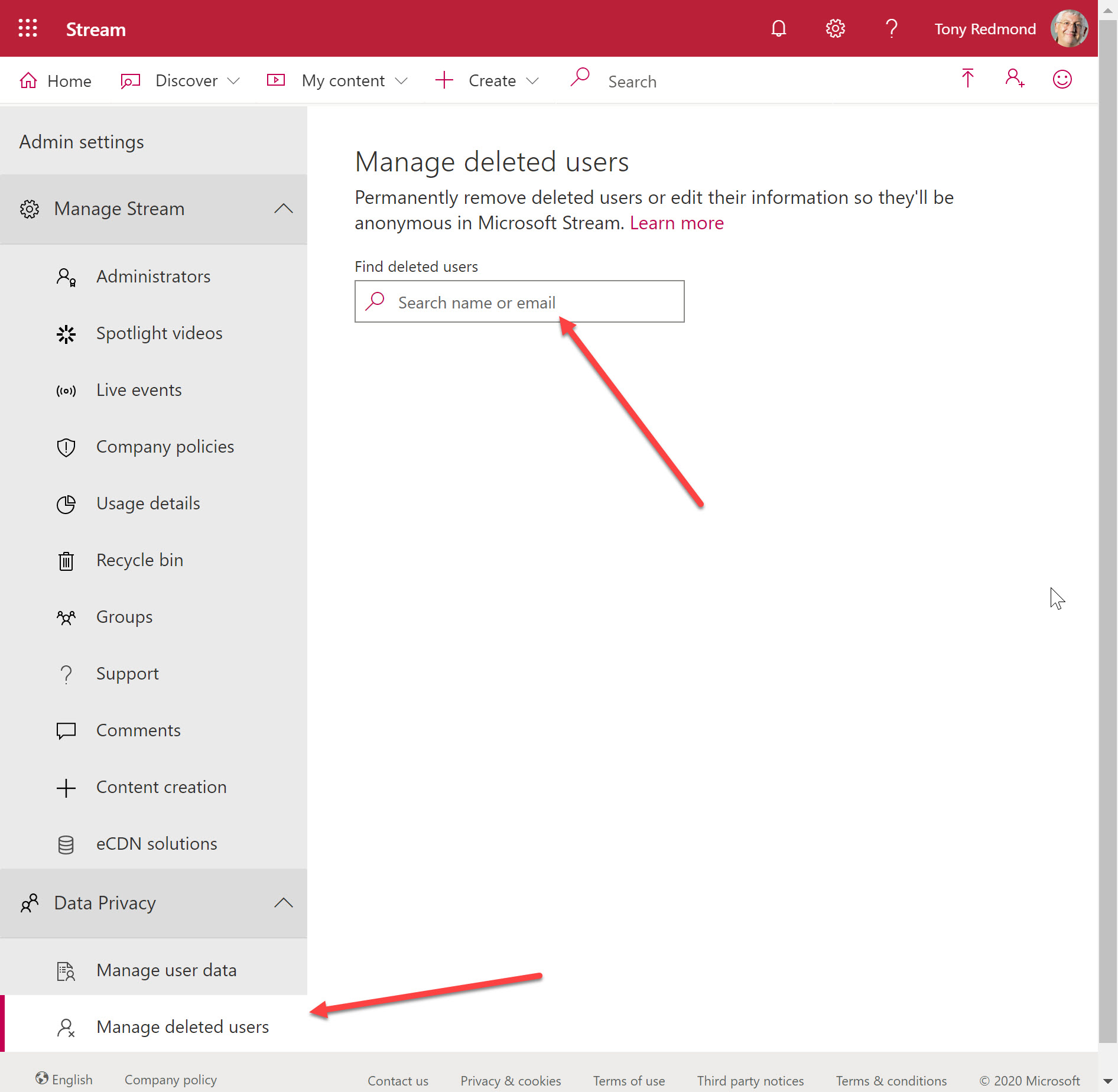
Microsoft Stream administration include a Manage deleted users option. However, you can’t manage a deleted user until all trace of their account has been removed from Azure AD, which means that you usually must wait 30 days for an account to be hard-deleted. It’s logical, but not in a good way.
Microsoft has extended the temporary increase in the limit for Live Events participants from 10,000 to 20,000 until June 30, 2021. The extended limit reflects the popularity of online events during the Covid-19 pandemic. After this point, you’ll need a Teams advanced communications license to organize a live event for more than 10,000 participants.
Among the announcements made by Apple at their annual developers conference is the welcome news that iOS14 will allow you to replace the default mail app and browser. This is great news for people who use Outlook for iOS. And you might even consider Edge as a browser.
Episode 19 of the Office 365 Exposed podcast covers the imminent release of the 2021 edition of the Office 365 for IT Pros eBook. Learn how we put the book together and how we keep track of what’s happening inside Office 365 and the wider Microsoft 365 ecosystem. And how we take this information and incorporate it into the book.
The Planner iOS app now supports the ability to share items like tweets, Facebook posts, and web links and create them as new tasks in plans. It’s a very useful feature announced in the Planner blog, but never highlighted to Office 365 tenants in a Message Center notification.
Power BI support for Office 365 sensitivity labels is now generally available. Inside Power BI, the labels are visual markers. Encryption is applied when Power BI objects are exported. The interesting thing is that the user who exports content doesn’t have the right to change the label.