SharePoint Online generates a lot of events in the Office 365 audit log. You can interrogate the log with PowerShell to create per-user reports of their activities. The Search-UnifiedAuditLog cmdlet finds all the necessary data; after that it’s just a matter of filtering and refining the data and then creating the reports.
Microsoft has published updates for the Exchange Online management and SharePoint Online PowerShell modules. Generally it’s a good idea to install the latest version of PowerShell modules for the different Office 365 products, but beware of some gotchas that await the unwary…
Do you need to find out who updated a SharePoint Online or OneDrive for Business document? Use PowerShell to search the Office 365 audit log for document events and the complete history is available. Well, at least the last 90 days’ history – or 365 days if you have the necessary licenses.
It’s easy to retrieve storage data for SharePoint Online sites with PowerShell, but it’s faster with the Graph. Some disadvantages do exist, but it’s nice to have a choice. TheGraph is faster, especially with large tenants, but the SharePoint Online PowerShell cmdlets can deliver more data.
Word users range from casual to professional writers. Those involved in collaborative co-authoring can now @mention others in comments. The feature is available in Word and PowerPoint (click to run) and the Office Online apps now and Excel desktop is due to get it too. Documents must be stored in SharePoint Online or OneDrive for Business to allow @mentioned people access the files.
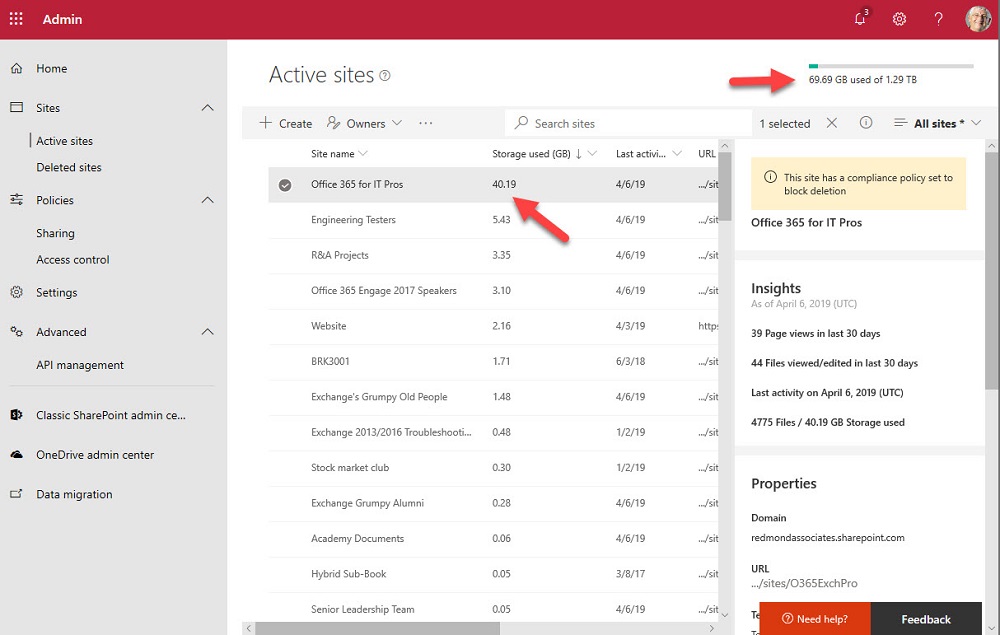
SharePoint Online comes with a reasonable amount of free storage, but it’s surprising how quickly that storage can be consumed, especially if you use Office 365 retention policies. With that thought in mind, it’s a good idea to check what sites are consuming your SharePoint storage. This post covers how to write a PowerShell script to report SharePoint Online site storage, complete with a couple of bells and whistles.
Large Office 365 tenants with more than 10,000 seats can now use the SharePoint Online site swap feature to replace an old root site with a new communications site. The site swap must be done with PowerShell and needs a new version of the Invoke-SPOSiteSwap cmdlet. Once you prepare your new site for swapping, everything goes smoothly.
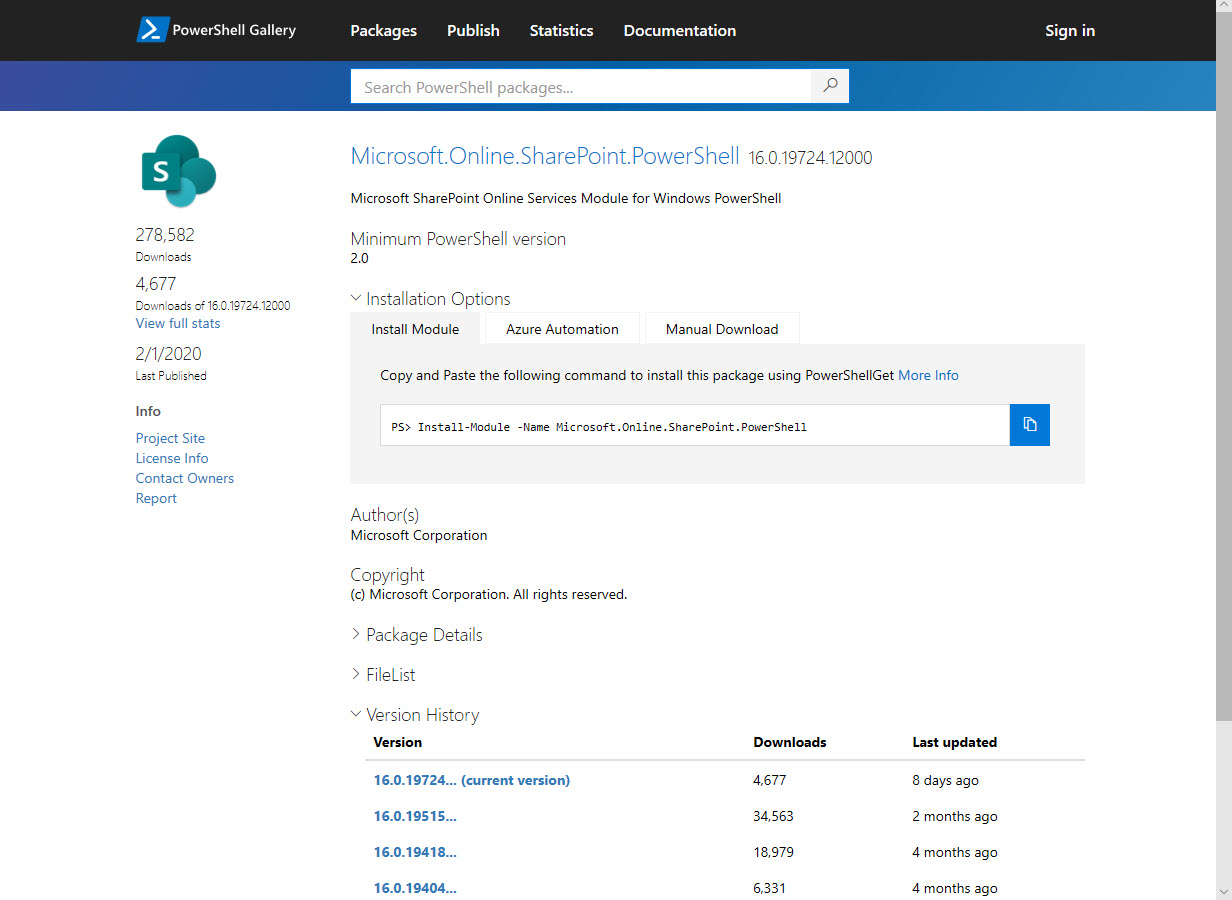
Like many other parts of Microsoft 365, you can manage SharePoint Online with PowerShell. At least, you can manage some aspects of SharePoint Online with PowerShell. Microsoft has made it easier to keep up to date with the latest SharePoint Online module and the PnP module, so there’s lots of cmdlets to help Administrators do a better job of automating different aspects of SharePoint Online.
After a long delay, Microsoft has started to deploy the new Teams Files channel tab experience to Office 365 tenants. The new experience is more functional than the old, even if it doesn’t offer the complete set of features available in the SharePoint Online browser interface. You should see the new tab interface very soon if it’s not already in your tenant.
A recent Teams Live Event hosted by Microsoft’s Information Protection team discussed the automatic assignment of sensitivity labels to SharePoint Online and OneDrive for Business content. A preview is now available and Microsoft hopes to make this functionality available at the end of March 2020. You’ll need Office 365 E5 or Microsoft 365 E5 licenses.
Now that SharePoint Online supports Office 365 Sensitivity Labels, it’s time to consider how to protect files stored in document libraries. When you compare the two approaches, there’s really only one winner. And there’s no surprise in saying that the winner is Office 365 Sensitivity Labels.
The SharePoint Conference 2020 takes place in Las Vegas on 19-21 May 2020. SharePoint is very important to Office 365 and it’s important that tenant administrators understand SharePoint. Tony is going to Vegas to learn and to deliver sessions about Teams and Office 365 Sensitivity Labels. And avoid gambling, vice, and other bad things.
Teams and SharePoint Online share a connection through the Files Channel tab. Unfortunately, if you rename the URL of a SharePoint site, the connection broke. The good news is that Microsoft has now fixed the problem. Some pesky bugs got in the way, one of which stopped the connection being restored. But the developers persisted and the final bug was fixed last week.
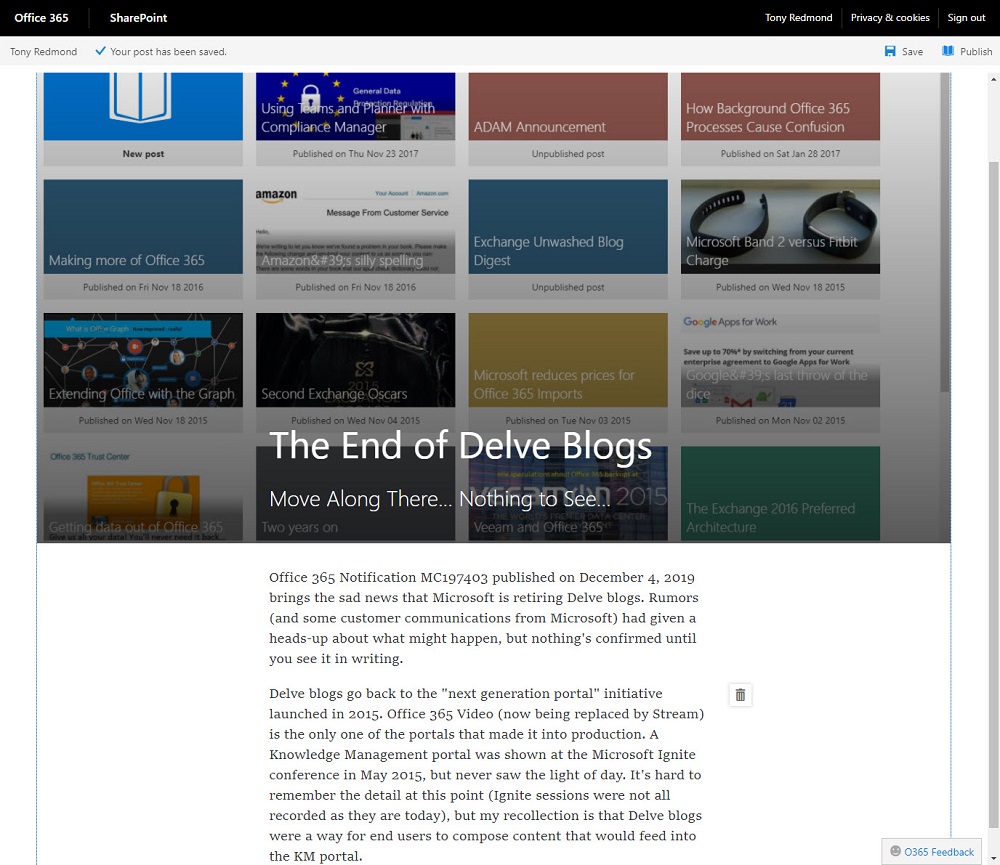
Microsoft has announced that Delve blogs will no longer be supported in 2020. The news is unsurprising because Delve blogs have not been actively developed for several years. Office 365 tenants with content in Delve blogs must figure out where to move the content to. It might be the case that you don’t need to do anything because the content isn’t needed. If you do need to keep it, you could move Delve blog posts to SharePoint news or similar repositories.
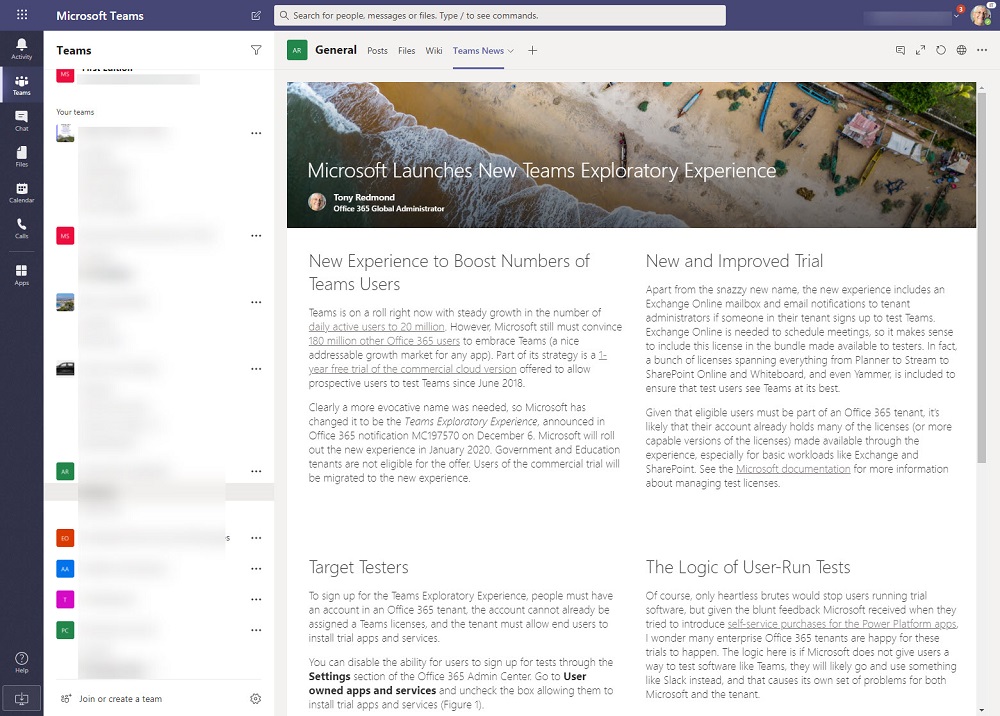
Publishing SharePoint Online content to Teams is a great way to make users aware of important information. The standard SharePoint web part makes it easy to publish content from the site belonging to a team. Things are a little more difficult when you want to publish content to a team from a different site. Fortunately the website tab comes to the rescue.
We all store lots of information in the cloud and sometimes it is hard to find work that needs to be resumed or finished. OneDrive for Business and SharePoint Online now boast the ability to mark files and folders for later. The two apps share a common list and make it easy for users to find work that they need to return to.
The Get-SPOSite PowerShell cmdlet is used to fetch details about SharePoint Online sites. It works well, but some recent functionality upgrades means that script writers need to be more precise about how they use the cmdlet. Most scripts don’t need to process redirect sites or the sites belonging to Teams private channels, so why would you ask Get-SPOSite to fetch these sites?
You can use PowerShell to configure a customized per-site Anyone sharing link period for different sites. Public sites might have a 365 day period while more confidential sites might have a more restricted period. All it takes is the Set-SPOSite cmdlet to set the necessary properties and you have a customized policy.
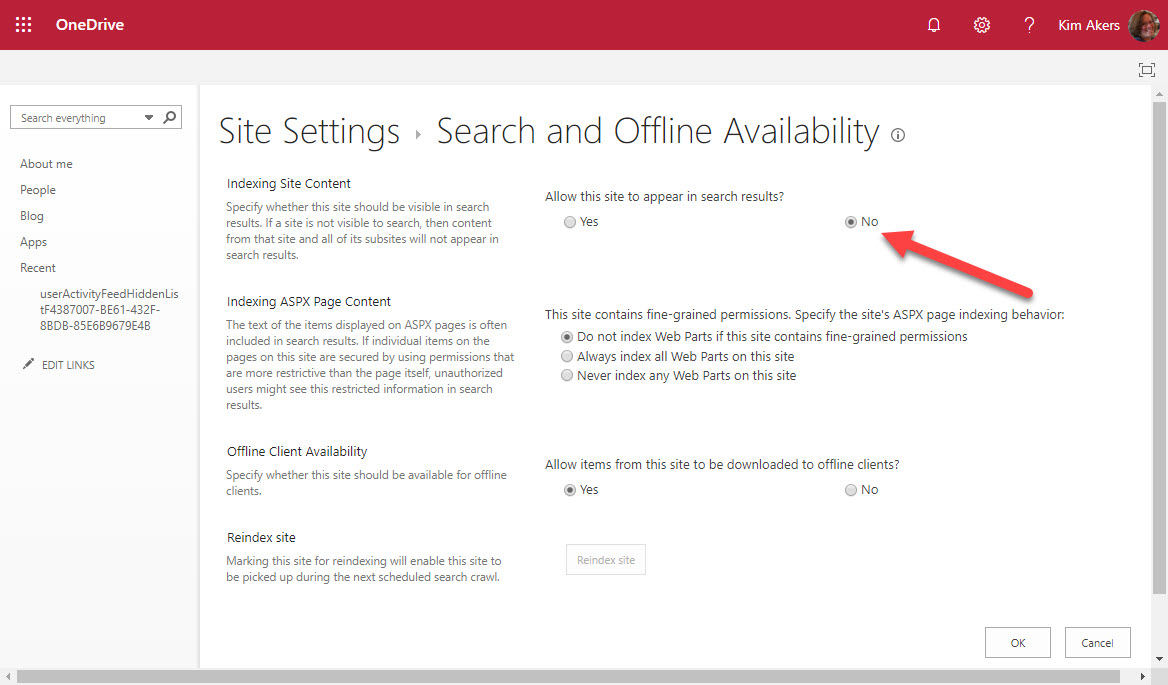
OneDrive for Business owners could exclude their sites from Office 365 searches but they can’t any longer after Microsoft acted to remove the capability from OneDrive site settings. All OneDrive for Business sites are now indexed and available to Office 365 searches.
At the Microsoft Ignite 2019 conference, Microsoft described how SharePoint Online will use Office 365 compliance features such as sensitivity labels and information barrier policies to better protect information stored in SharePoint sites. The Office Online apps also gain support for sensitivity labels. The new features will enter a mixture of public and private previews starting November 20.
It used to be more difficult to generate a report about the storage used by OneDrive for Business sites in an Office 365 tenant. Now it takes just a few lines of PowerShell. Here’s an example of a simple but powerful script to do the job.
If you want to include SharePoint Online and OneDrive for Business locations in an Office 365 content search, you need to know the URLs of the target sites. Finding the URLs can be problematic, but here’s some easy ways to do the job. PowerShell, as usual, comes up trumps…
Users of the Office ProPlus semi-annual channel will soon see that save to cloud locations is now the default. Microsoft hopes that this will result in more files being saved in SharePoint Online and OneDrive for Business. Whether the change will make any difference to a user depends on how they use Office and where they save files. In general, it’s just another step forwards to move everything to the cloud.
Microsoft has released new OneDrive file viewers that are turning up in Teams clients. The new viewers are more intelligent and make it easier to work with files, especially Office documents. However, even intelligent viewers can only function when a solid network connection is available and often a local synchronized copy of Teams files is the way to work.
It’s easy to create a list of group-enabled SharePoint Online sites using the Get-SPOSite cmdlet. But it’s much more interesting to probe a little deeper to uncover extra information about the group using the GroupId property returned if you specify the Detailed parameter. This post explains a PowerShell script written to examine the possibilities, including how to highlight sites belonging to deleted groups that are kept by retention policies.
Microsoft Cloud App Security (MCAS) can integrate with Azure Information Protection to allow automated policy-driven application of Office 365 sensitivity labels to Office documents and PDFs. You can depend on users to apply labels manually as they create documents, but it’s easy for humans to forget to add protection where a computer won’t. You’ll pay extra for MCAS, but it could be worthwhile.
Microsoft announced the roll-out of the Site Swap feature for SharePoint Online. You can only do this with PowerShell, but the process is quick and easy and works well (assuming your new site is ready to go). Who doesn’t like one-line PowerShell commands that do a lot of work with minimum effort!
SharePoint Online and OneDrive for Business support the ability to protected Anyone links with passwords. The idea is good and the feature works well, but some Office 365 tenants have problems with the idea of using Anyone links because, as the name implies, anyone who has the link can use it to open a document.
Sometimes it is difficult to understand exactly who has access to a document in a SharePoint Online site. The Manage Access option helps you understand who has access through group membership and sharing links. And if you need to adjust a sharing link, you can do it quickly and easily.
Have you ever wondered how Microsoft secures SharePoint Online and OneDrive for Business data? Well, a recent article explains it all, and it is fascinating reading. Chunks and keys and blobs and encryption. A must-read article for anyone interested in SharePoint security.
Microsoft is changing how the removal of an Office 365 retention policy affects the data held in the SharePoint Online Preservation Hold Library. Instead of an immediate purge, data will be kept for a period to allow administrators to recover it. Sounds like a good idea and it should help people rescue a situation when someone removes a retention policy in error. That is, if they notice that the policy is no longer in effect for a site.
Microsoft says that the migration of Yammer storage for new files in SharePoint will restart in June and finish worldwide by the end of July. That’s great, but the migration of existing files is a manual process that can only be described as tiresome and error-prone. But it adds to the allure of Yammer and increases its prestige in the ranks of Office 365 apps. Or maybe not.
Microsoft has refreshed the Files channel tab to expose more functionality for Teams users when working with SharePoint Online document libraries.Office 365 commercial tenants should see the new UI in June 2019. The new Files channel tab is almost at feature parity with the functionality available through the SharePoint browser UI, but it still lacks the ability to expose and edit document properties.
Two Office 365 Message Center notifications bring news about an increase in the number of participants for a Teams group chat to 100 and improvements in shareable links for files. Moving the limit from 50 to 100 for a group chat makes these conversations more flexible. Adding permissions to the sharing links used by Teams gives users more control over how they share information with others.
One of the great things about Teams is the way that it orchestrates Office 365 resources like SharePoint Online sites. The downside is that a tenant’s valuable SharePoint storage quota might be absorbed by a profusion of Teams. To offset the problem, you can apply lower limits to sites belonging to Teams and the best approach is to use PowerShell for the job.
The modern SharePoint Admin Center introduces the ability to rename the URLs for SharePoint site names. This responds to a longstanding customer request and makes it possible for site names to reflect what users see elsewhere in Office 365 groups or Teams. It’s a small but welcome change in the fit and finish category.
Microsoft has released the GA version of the Azure Information Protection client, which reads information about Office 365 sensitivity labels and policies from the Security and Compliance Center. It’s one more step along the path to making it easy for Office 365 tenants to protect their data. Work still has to be done, but at least we can see light at the end of the encryption tunnel.
Sometimes Office 365 can be infuriating. My latest tribulation came in the form of missing retention labels, which disappeared from SharePoint Online without any reason for two weeks. Some labels returned due to auto-label policies, but any applied to documents manually had a vacation somewhere in the bowels of the services. It wasn’t a good experience.
The tabs in a Teams channel can be associated with many different forms of data. When you delete a channel, you only remove the conversations for that channel. Any other data is left intact, including files in the folder in the SharePoint site used by the team. To fully clean up a deleted channel, you must therefore check what tabs exist and what data is accessed through those tabs.
Every Office 365 group (and team) has a SharePoint site. But how to find the URLs of all the sites used by teams in a tenant. One PowerShell answer came from Syskit, but it’s an old technique and we can do better now by fetching a list of teams in the tenant and then retrieving the URL for each team-enabled group.