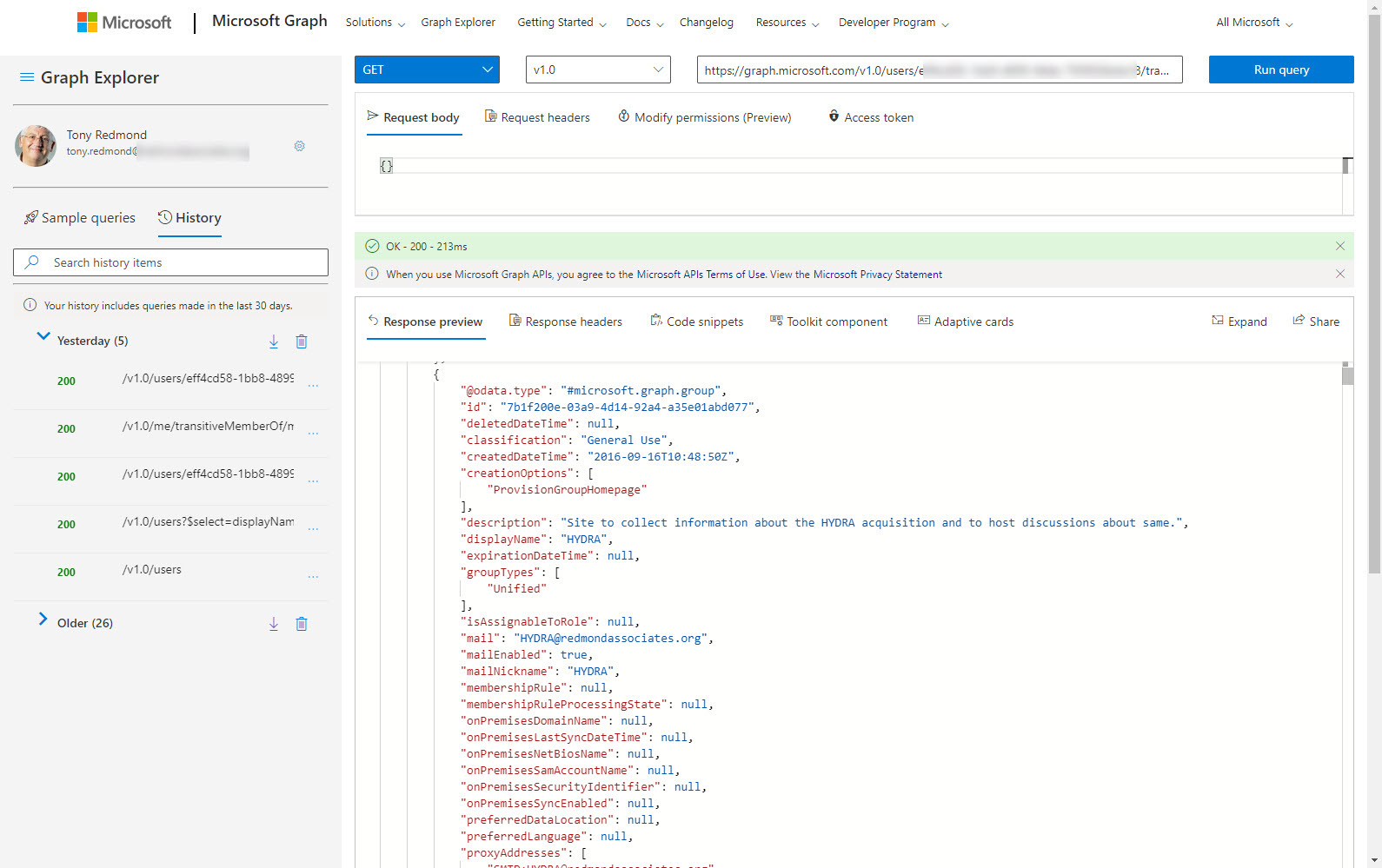
Understanding how to create effective queries using the Microsoft Graph APIs takes some work, especially with some of the more complex filters used to refine the data returned by the Graph. In this article, we look at how filters using lambda qualifiers work and explore some examples of these qualifiers in use.
Microsoft has replaced the controls which disabled document insights in Delve with new Graph-based settings. However, you might still have a bunch of users with the Delve settings who need to migrate to the Graph settings. In this article, we explore how the settings work and how to query the Graph to find the set of users who disabled the setting in Delve. We can then use PowerShell to add those accounts to the group of disabled insights users for the Graph-based settings.
In this post, we describe how to use PowerShell to remove a single service plan from Microsoft 365 licenses using PowerShell. The script can remove any service plan from any SKU (license) in a tenant. You might want to do this to disable access to an obsolete feature (like Sway) or to prevent access to a new feature until the organization is ready to support user activity.
The message center in the Microsoft 365 admin center will soon use a new data privacy tag to highlight specific service updates to tenant administrators. No messages with the new tag have yet appeared, so it’s hard to know how Microsoft plans to use the new tag or what kind of attachments it will make available to administrators to help understand the sensitive data involved in data privacy. While we’re waiting, we took at look at the tags in use today and wrote some PowerShell to report which tag is most popular.
Many PowerShell scripts which access Office 365 data could do with a speed boost. Replacing cmdlets with Microsoft Graph API calls is one way to get extra speed. In this article, we take a PowerShell script to report the memberships users have of Microsoft 365 groups and replace some important cmdlets with Graph API calls. The result is a big speed increase.
Office 365 tenants users will soon be able to execute self-service purchase Windows 365 licenses. That is, unless you stop them by running some PowerShell commands to disable the capability. In this article, we explain the Windows 365 options available for self-service purchase and the PowerShell commands necessary to disable the option, if you think it’s a bad idea (as some do).
The thoughts of using Microsoft Graph API calls with PowerShell might seem to be too much trouble, but used correctly, Graph API calls help scripts speed up and get to some data that is not reachable through a cmdlet. I have a simple four-step approach that I use to figure out if I need to include some Graph API calls. The routine works for me. Feel free to disagree.
How do you create a report of all the Teams in a tenant and their SharePoint Online sites? As it turns out, a two-line script does the job. We make the script slightly prettier, but it’s still simple. And because it’s PowerShell, anyone can change the code to make it work the way they want it to.
Auto-label policies are a good way to assign retention labels to important files stored in SharePoint Online and OneDrive for Business. The big problem is tracking the progress of auto-labeling. In this article, we explore how to use events logged in the Office 365 audit log to figure out what files are labeled and how long it takes the auto-label policies to process the files. The example explored here is an auto-label policy for Teams meeting recordings.
Sometimes it’s wise to give PowerShell scripts a turbo boost. This is certainly true for the Groups and Teams Activity report script, where a large amount of PowerShell processing has been replaced with speedy Microsoft Graph API calls. The result is much faster processing, which means that the script is more useful in large tenants. I still wouldn’t try to run it against 100,000 groups, but anything smaller should be OK. I think!
Finding out which Entra ID accounts have licenses (service plans) for different applications isn’t difficult. You can do it with either PowerShell or the Microsoft Graph API. This article explains how to use PowerShell (and the equivalent Graph API call) to find accounts which have a certain license (service plan) enabled or disabled. Once you know how to navigate license data in user accounts, you can take the code and adapt it for different purposes.
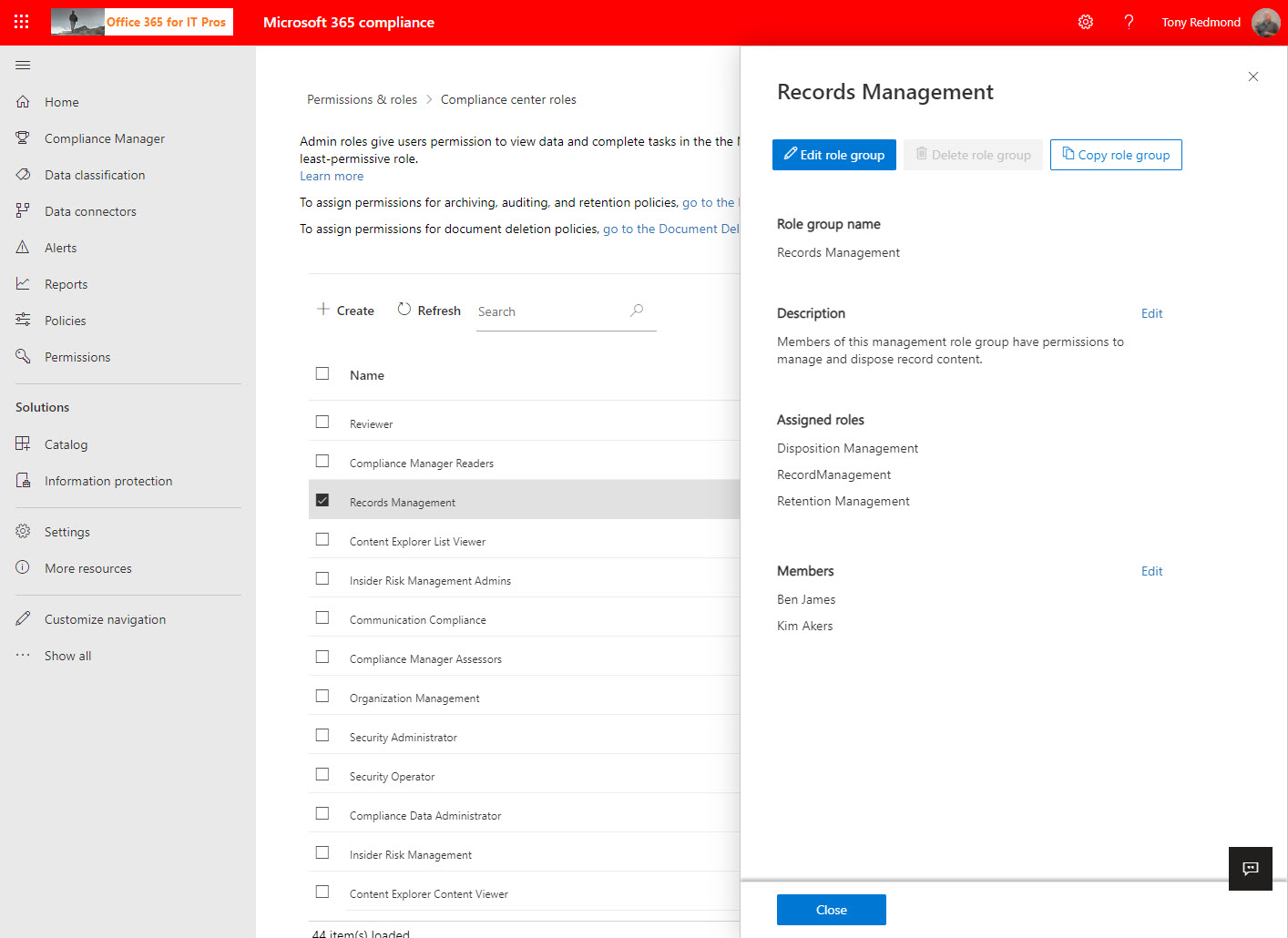
Compliance role groups control access to Microsoft 365 compliance functionality. A new permissions page makes it easier to manage these groups in the Microsoft 365 compliance center, where you can also manage the Entra ID roles used by Microsoft 365 compliance. If you want to generate a report about who holds what role, you’ve got to use PowerShell. The code is easy once you know which roles you want to report.
Blocking domains through the Azure AD B2B collaboration policy stops group owners adding new guest accounts from certain domains. It does nothing about existing guests from those domains. Fortunately, it’s relatively easy to check the guest membership of Groups and Teams to find guests from the blocked domains. And once you know those problem guests, you can decide what to do up to and including removing guest accounts from the tenant.
Without warning (for security reasons), Microsoft stopped the Exchange Online Set-User cmdlet being able to update the work and mobile numbers for Azure AD accounts. We don’t know what kind of security concerns caused Microsoft to take this action, but it might be associated with administrative roles. In any case, this disappointing example of how to communicate with customers might end up with people having to update some PowerShell scripts – and no one likes unexpected work.
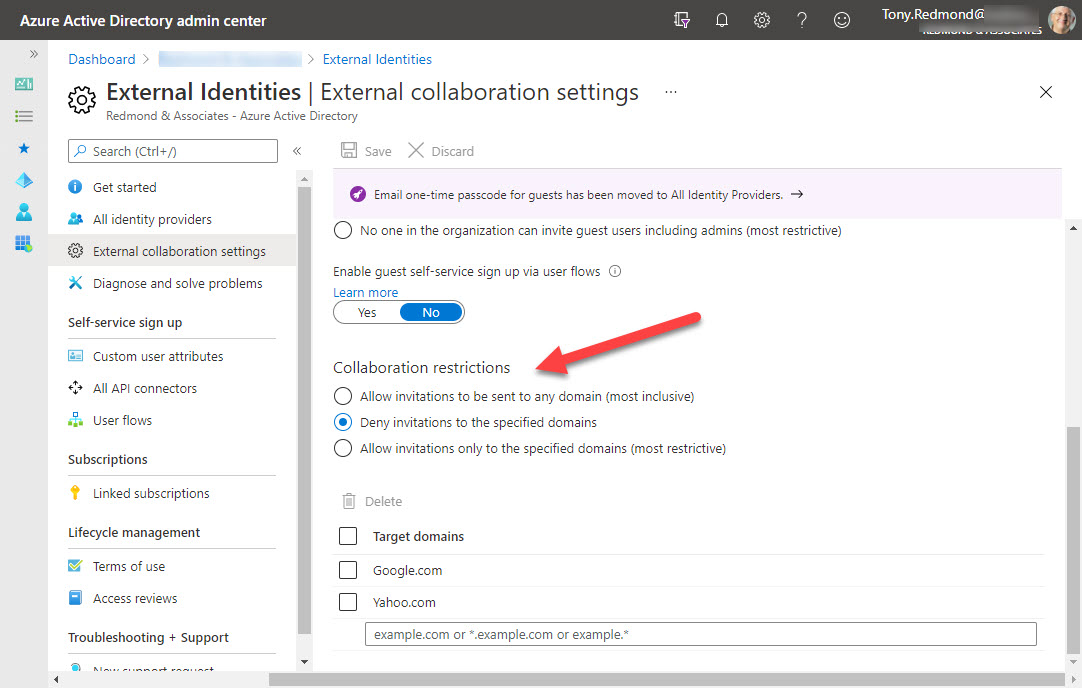
Azure B2B collaboration is used by Microsoft 365 Groups-based apps like Teams, Planner, and Yammer to control the creation of new guest accounts. You can update settings in the Azure AD portal to stop new accounts from specific domains or restrict guests to a list of known domains. But before you go ahead and update the settings, it’s a good idea to know where existing guest accounts come from. It’s easy to create a report with PowerShell. The next step might be to remove guests from offending domains.
Office 365 administrators can update Azure AD guest accounts with photos. Guests can do the job themselves using three PowerShell commands. Other approaches work too, but this is the easiest and quickest method to do the job, especially if you have guest accounts in multiple tenants.
PowerShell pros know the secrets of typed variables and why this matters when cmdlets return data, but some of us have been doing things wrong for years. Which is why I spent a couple of hours contemplating the differences between typed and untyped variables when handling items returned by cmdlets. They say that old dogs can’t learn new tricks. I beg to differ…
Azure AD holds information about managers and their direct reports. It’s easy for that data to go out of date, so we create a report to tell us who are the managers and how many direct reports they have. Azure AD has some cmdlets to retrieve information about managers and direct reports, but as it turns out, the older Get-User cmdlet is the best way to proceed.
Sensitivity labels are a great way to protect confidential documents stored in SharePoint Online. Sometimes the documents must be decrypted. This article explains how to build a PowerShell script which uses Graph API calls to navigate to a folder in a SharePoint Online document library and decrypt the protected documents found in the folder.
Microsoft has released V2.0 of the Teams PowerShell module. It brings some welcome improvements, notably the inclusion of all the management cmdlets, but has a downside too. The new cmdlets for managing teams templates are not easy to use and some authentication issues affect the Connect-MicrosoftTeams cmdlet after a change in authentication libraries. Microsoft has some work to do to improve this version of the module.
There are many examples of PowerShell scripts which create reports about the membership of Microsoft 365 Groups. Most are slow. This version is faster because of its per-user rather than per-group approach to processing. The output is a nice HTML report and two CSV files containing a list of memberships in Microsoft 365 Groups and summary data for each user in the tenant.
Audit records are a great way to gain an understanding of what happens inside Office 365. We use PowerShell to report actions taken with sensitivity labels such as protecting files and containers. The latest development is the addition of support in the Microsoft 365 apps for enterprise (Office desktop) to log audit events when users interact with sensitivity labels. Unsurprisingly, more events are often logged by the desktop apps than their online equivalents.
The inbound webhook connector used by Teams and Microsoft 365 Groups to accept information from external sources is getting a new format. Existing connectors must be updated by April 11, 2021. If not, data will stop flowing into the target channel or group, and that would be a bad thing.
You can create an Azure AD Access Review for all guests in teams and groups in your tenant and then see what’s happening with the Graph API. In this case, we use PowerShell with the API to grab the access review data and create a report about the overall status of the review in a tenant.
Sometimes delegate access for an Exchange Online calendar goes awry due to corrupted items in the mailbox. To help sort out problems, Microsoft has upgraded the Remove-MailboxFolderPermission cmdlet to do the work that used to be done by a multi-phase fix performed using the MFCMAPI or EWS editor utilities. The nice thing is that this method is quick, simple, and works well.
Bing publishes a new image daily in its home page. You can download the images and use them as custom background for Teams meetings. A PowerShell script automates the task and downloads the images for the last seven days and cleans up any Bing images older than 30 days.. It’s a nice way to use some attractive images to liven up Teams meetings.
Microsoft will retire the Skype for Business Online (PowerShell) Connector on February 15, 2021. Office 365 tenants need to check scripts to replace the connector with the Teams PowerShell module, which contains the necessary cmdlets to connect to the policy management endpoint. Once connected, scripts can interact with objects like Teams messaging and meeting policies.
Many Microsoft 365 features depend on accurate user account data in Entra ID (Azure AD). Here’s how to use PowerShell to track down accounts with important missing properties. Once you know which accounts need to be updated, it’s easy to insert the missing properties. Boring, but easy…
Version 3.1 of the Exchange Online Management PowerShell module is now available for download from the PowerShell Gallery. The new release contains many useful enhancements including support for managed identities in Azure Automation.
Microsoft has launched version 1.1.6 of the PowerShell module for Teams (MicrosoftTeams). The new module makes the Skype for Business Online connector unnecessary because it contains the New-CsOnlineSession cmdlet needed to create a new session to use the cmdlets used to manage Teams policies.
PowerShell hash tables are very efficient at retrieving data, which is just what’s needed when thousands of Office 365 accounts need processing. Our script to analyze usage data extracted from the Microsoft Graph was turbo-charged when we replaced list objects with hash tables, all of which makes it much easier to identify underused Office 365 accounts and save some money on licensing spend.
The Office 365 for IT Pros eBook includes many PowerShell examples, and while we mostly concentrate on illustrating the principles of how PowerShell is used to solve problems, we do care about performance. Which is why we’re always interested in finding ways to speed up our code. This this article we explore how to use the Where method to replace the Where-Object cmdlet to filter objects. The good news is that it’s an easy way to get better code performance.
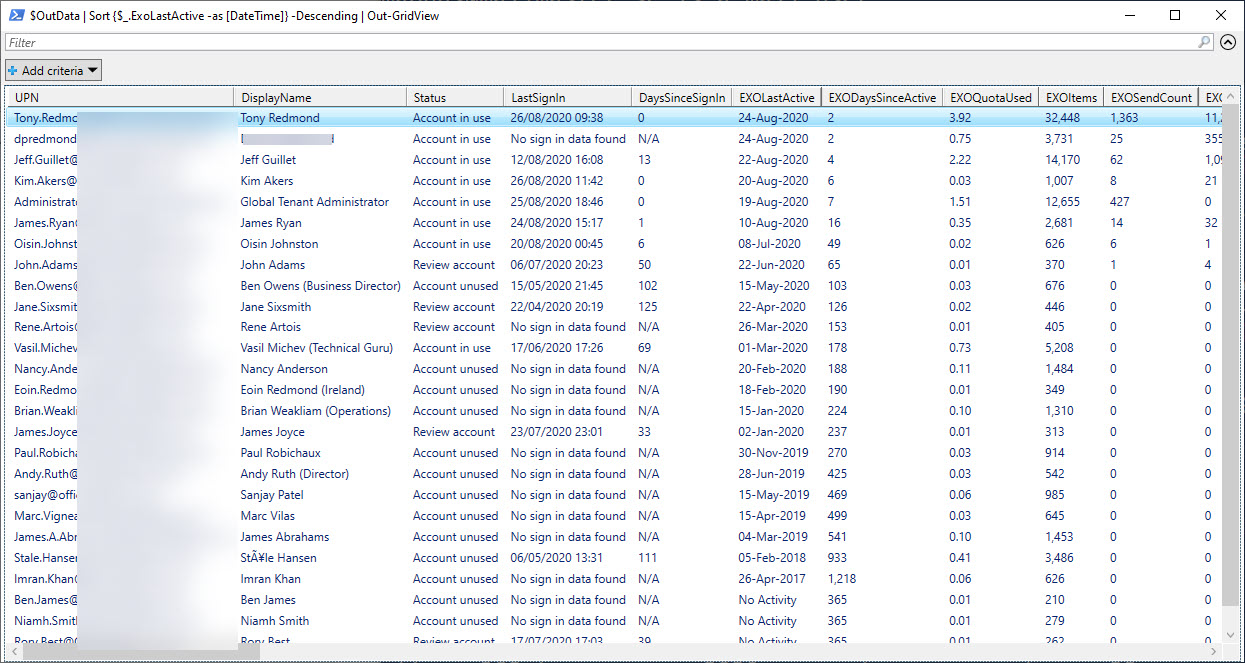
Office 365 usage data for several workloads is available through the Microsoft Graph. A PowerShell script is available to grab Graph data and use it to figure out if accounts are in active use. V1.2 of GetGraphUserStatisticsReport.PS1 is available in GitHub and should be better performing when processing thousands of accounts.
Exchange Online PowerShell is a critical automation tool for many Office 365 tenants. In 2021, Microsoft will remove basic authentication for PowerShell, so it’s time to change over to modern authentication. For scripts that run as batch or background jobs, that means converting to certificate-based authentication. In this post, we explore how to get the self-signed cert to glue everything together.
Exchange Online Protection puts problem messages into quarantine if it suspects that they contain spam, malware, or a phishing attempt. Instead of using the Security and Compliance Center GUI to work with quarantined messages, you can analyze details of quarantined messages with PowerShell to create some basic statistics and find messages that should be released.
Once Microsoft 365 Groups and Teams reach the end of their useful life, it’s good to archive them so that their data stays online and available for eDiscovery. A recent request looked for help to archive 600 Groups at the end of the academic year. The script described here might help solve the problem.
Many PowerShell modules are available for Office 365 applications. Keeping them up to date can be a pain, so here’s a PowerShell script to automate the task. Using the latest modules means that you can access new and updated cmdlets, which might make all the difference to your scripts.
You can apply an Office 365 Sensitivity Label to control different aspects of Groups, Teams, and Sites. One of the settings controls whether guest users are allowed in group membership. We explain how to use PowerShell to search groups assigned a label to block guest access for existing guests, just in case you want to remove them.
The combination of Exchange Online and PowerShell allows Office 365 admins to send messages for all manner of reasons. These scripts depend on SMTP AUTH connections and change is coming in this area with the deprecation of basic authentication. It’s a good idea to take an inventory of scripts that send email, including those that use the .NET classes to do the job.
I’ve written many articles to explain how to use the Office 365 audit log to report different aspects of the platform. But taking action is much better than just reporting. In this post, we explain how to take a report generated from the Office 365 audit log and use it to drive some actions. In this case, removing the SendAs permission from people who aren’t using it.