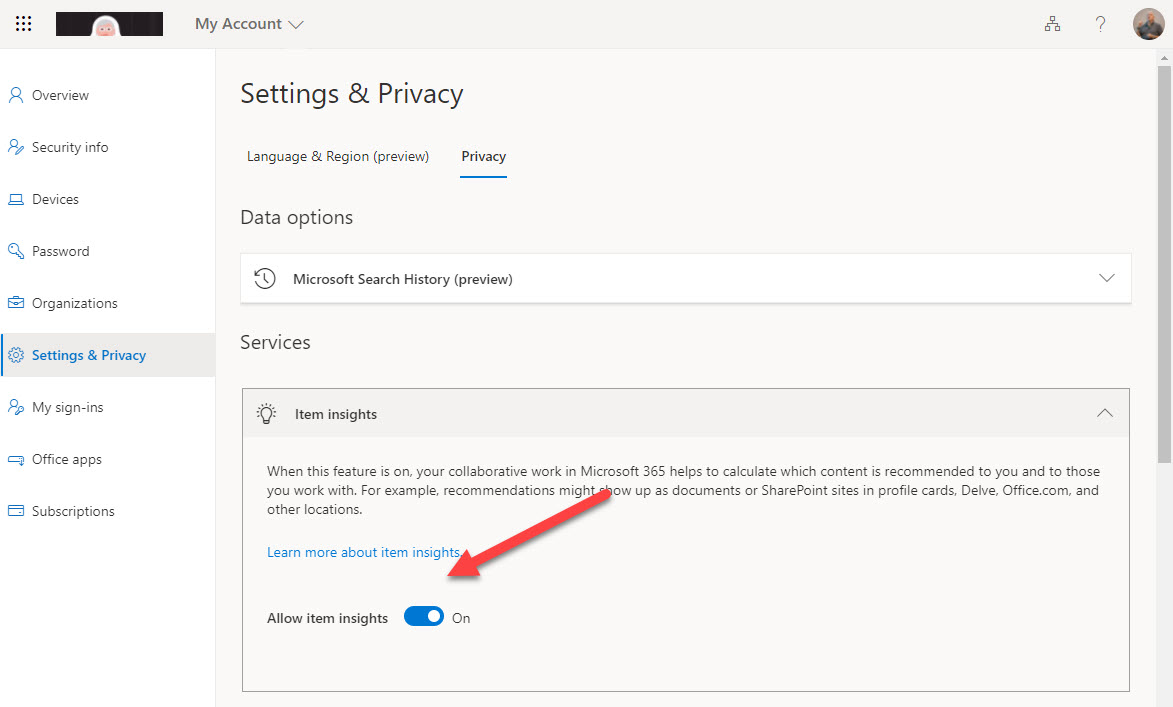
Office 365 will see a batch of delayed features arrive during July 2021 along with two notable retirements and a new Personal Item Insights control. After going through the set of delayed features announced in the Microsoft 365 admin center, we share our list of the most important items here along with the two big retirements in the month and a new personal privacy control.
How do you create a report of all the Teams in a tenant and their SharePoint Online sites? As it turns out, a two-line script does the job. We make the script slightly prettier, but it’s still simple. And because it’s PowerShell, anyone can change the code to make it work the way they want it to.
A change to the Teams update policy allows tenants to connect Teams preview mode for the desktop client with Office Current Channel (Preview) for the Microsoft 365 apps for enterprise. When the change happens in late July, accounts configured to use Office Current Channel (preview) will automatically use Teams preview. It’s kind of logical because Teams is so closely connected to Office. In any case, settings are available in the Teams update policy if you want to move away from the enabled by default status favored by Microsoft.
Office 365 for IT Pros, the only constantly-updated eBook covering Microsoft’s cloud productivity suite, has just released its eighth (2022) edition. The book is available from Gumroad.com. Completely revised after an end-to-end review, the new edition will receive monthly updates over the coming year to keep subscribers fully abreast of new developments within Office 365 and the wider Microsoft 365 ecosystem.
A change being made to SharePoint Online in August will make the deletion process for files with retention labels consistent with OneDrive for Business. The intention is to achieve consistency across the two browser interfaces and to remove a little friction for users who might become confused when they SharePoint Online stops them deleting labeled files. Everything will happen in August. We wonder if anyone will notice?
After writing about auto-label policies for Teams meeting recordings, we were asked about how to track the creation of the recordings. The key to be able to report the data us events in the Office 365 audit log. Once you know where to look, it’s easy to find the audit records and extract data about the creation of Teams meeting recordings.
Microsoft is changing how the “Allow Guest Access in Teams” setting works (from the Microsoft 365 admin center). Because few tenants switch this setting on and off, the change might not be noticeable. However, it’s a good one because it might help change the way Teams deals with disabled accounts. And if you want to control guest access, you should really use an Azure AD B2B Collaboration policy instead of the on-off switch.
Windows 11 will include a consumer version of Teams, which looks as if it will be the first iteration of Teams 2.0, a new architecture which replaces Electron with Edge WebView2 as the basis for the Teams client. Microsoft predicts that the change will reduce the memory footprint by half and make it possible to introduce some new features. There’s no dependency between Windows 11 and Teams 2.0, but given the amount of work needed to make architectural transitions, it’s unlikely that we’ll see an enterprise Teams 2.0 client until sometime in 2022.
Auto-label policies are a good way to assign retention labels to important files stored in SharePoint Online and OneDrive for Business. The big problem is tracking the progress of auto-labeling. In this article, we explore how to use events logged in the Office 365 audit log to figure out what files are labeled and how long it takes the auto-label policies to process the files. The example explored here is an auto-label policy for Teams meeting recordings.
Teams meeting organizers will soon be able to configure an option to start recording when the meeting starts. The option must be set for each meeting and there doesn’t seem to be an available method to preconfigure recordings for all meetings through a policy or programmatically. The new option is useful, if you remember to set it.
Teams meeting recordings are now accumulating as MP4 files in OneDrive for Business and SharePoint Online. If you have Office 365 E5 licenses, you can use an auto-label policy to remove recordings after a set period. If you don’t have those licenses and need to remove recordings, you’ll have to come up with another plan, maybe after tracking the creation of recordings through the Office 365 audit log.
Microsoft is changing the SharePoint document library UI for sites used by Teams private channels to make sensitivity labels read-only and move a link into the command bar. That doesn’t sound so important, but it’s part of the preparation for the introduction of Teams Connect, aka Shared channels. It’s just a pity that the text of message center notification MC261534 was so confusing when it first appeared.
Chat bubbles in Teams meetings are another way to surface information. Using chat bubbles is a personal choice and it doesn’t replace the regular chat window. Microsoft says that chat bubbles make chat more central to a conversation, but it really depends on the type of meeting, the topic being discussed, and the number of participants. In any case, chat bubbles are there to be used if you want to.
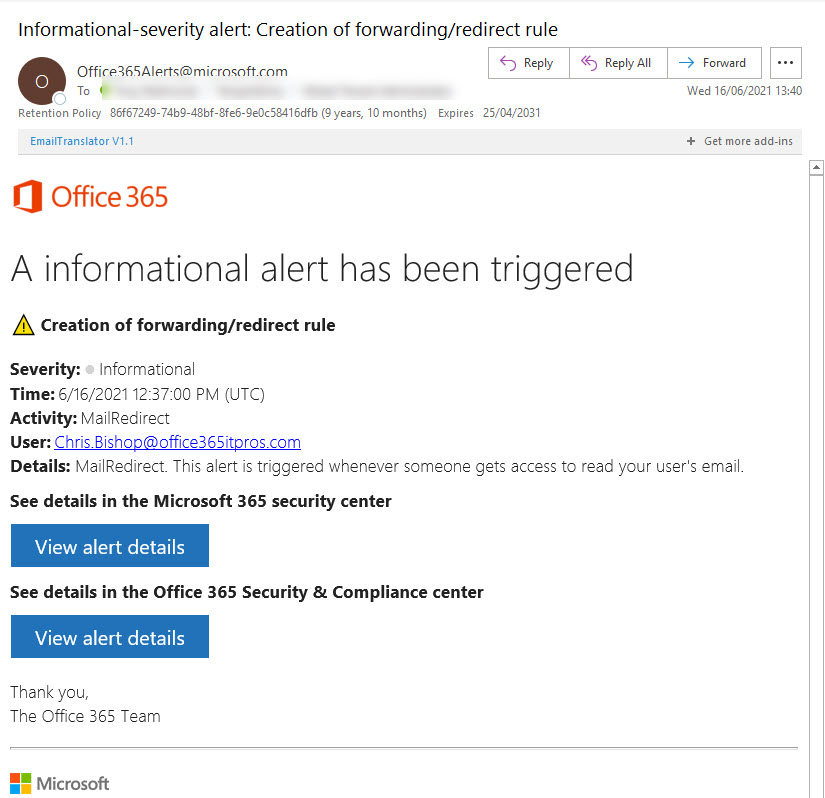
The need to remove basic authentication from Exchange Online is underlined by a June 14 report from the Microsoft Threat Intelligence Center pointing to how attackers compromise mailboxes using antiquated protocols like POP3 and IMAP4 to connect to accounts which don’t use MFA. After accounts are penetrated, the attackers plant inbox rules to forward copies of interesting messages and use the information received to plan and execute business email compromise attacks. Tenant administrators still have some work to do to secure Exchange Online and Azure AD…
A preview Teams feature allows organizations to upload approved corporate images for people to use during Teams meetings. When generally available, this feature will need a Teams advanced communications license. An organization can distribute up to 50 images, which users see ahead of Microsoft curated images and their own custom images (if they’re allowed to upload these images). However, there’s no way for an organization to force people to select one of the corporate images.
Two Microsoft 365 message center notifications covering Progressive Web Apps (PWAs) for OneDrive and Lists are interesting, but the news of the arrival of the new Nucleus synchronization engine within the OneDrive sync client (for Windows) is even more interesting. Together, the combination of PWAs and Nucleus make OneDrive and SharePoint data more accessible to users.
A new feature allows Teams users to create tasks from personal chats and channel conversations. Tasks from chats are personal while those created from channel conversations can be personal or go into a Planner plan. Although you might like the tasks to be populated more fully, the overall implementation is a nice addition to the Microsoft 365 tasks system.
Now rolling out to Office 365 tenants, Teams meeting organizers can review the attendance data for meetings and webinars in a new dashboard. The same data can be downloaded to a CSV file for analysis. Teams stores the attendance report data in the Exchange Online mailbox of the meeting organizer. It’s a good example of the Microsoft 365 substrate in use.
A preview for Sensitivity Labels show how they can use Azure AD authentication contexts and conditional access policies to protect SharePoint Online sites. Although you can link conditional access policies to sites with PowerShell, it’s a lot easier to make the connection through sensitivity labels. Any SharePoint Online site which receives a label configured with an authentication context automatically invokes the associated conditional access policy to protect its contents.
Sometimes it’s wise to give PowerShell scripts a turbo boost. This is certainly true for the Groups and Teams Activity report script, where a large amount of PowerShell processing has been replaced with speedy Microsoft Graph API calls. The result is much faster processing, which means that the script is more useful in large tenants. I still wouldn’t try to run it against 100,000 groups, but anything smaller should be OK. I think!
New PowerShell commands for sensitivity labels can configure default sharing link settings for SharePoint Online sites. Any site assigned a label configured for default sharing links inherits those settings within 24 hours. Also available is the ability to apply default sharing link settings at a per-document basis.
Finding out which Entra ID accounts have licenses (service plans) for different applications isn’t difficult. You can do it with either PowerShell or the Microsoft Graph API. This article explains how to use PowerShell (and the equivalent Graph API call) to find accounts which have a certain license (service plan) enabled or disabled. Once you know how to navigate license data in user accounts, you can take the code and adapt it for different purposes.
Microsoft’s Collaborative Work Model (CWM) tries to paint a picture of how Microsoft 365 apps help people to organize tasks and get things done more efficiently. CWM isn’t a bad thing, as far as it goes, but it’s just not practical because it ignores the critical role played by email as the glue connecting Microsoft 365 apps together. Or more correctly, email and the substrate. Oh well, it’s only a marketing message…
A new control allows organizers of Teams meetings to disable videos for attendees before or during calls. Organizers and presenters can also selectively enable video for specific attendees. It’s probable that this feature will be most interesting to those who want to run webinars through Teams meetings, but other use cases exist too… like when someone turns up with an objectionable background image!
Anyone writing PowerShell code against Azure Active Directory probably uses the Azure AD module. In June 2022, Microsoft will deprecate the API underpinning the Azure AD module. Tenants who want to use PowerShell to create scripts to automate administrative processes will need to move to Graph API calls or use the Microsoft Graph PowerShell SDK. Either way, there’s a bunch of work to do to upgrade scripts.
Teams mobile clients can translate messages into the preferred language of the device owner by sending text to the Microsoft Translator service. This is the same capability that the desktop and browser clients have had for nearly three years. The implementation works well and is very useful when people want to share their thoughts with others in a channel and need to write in their own language.
The June 2021 (and last) update is available for the Office 365 for IT Pros eBook (2021 edition). A new edition is being worked on and will be available next month. The June update spans 19 of 24 chapters. Subscribers to the EPUB/PDF version can download the updated files from Gumroad.com while Kindle buyers must contact Amazon support to ask for their content to be refreshed.
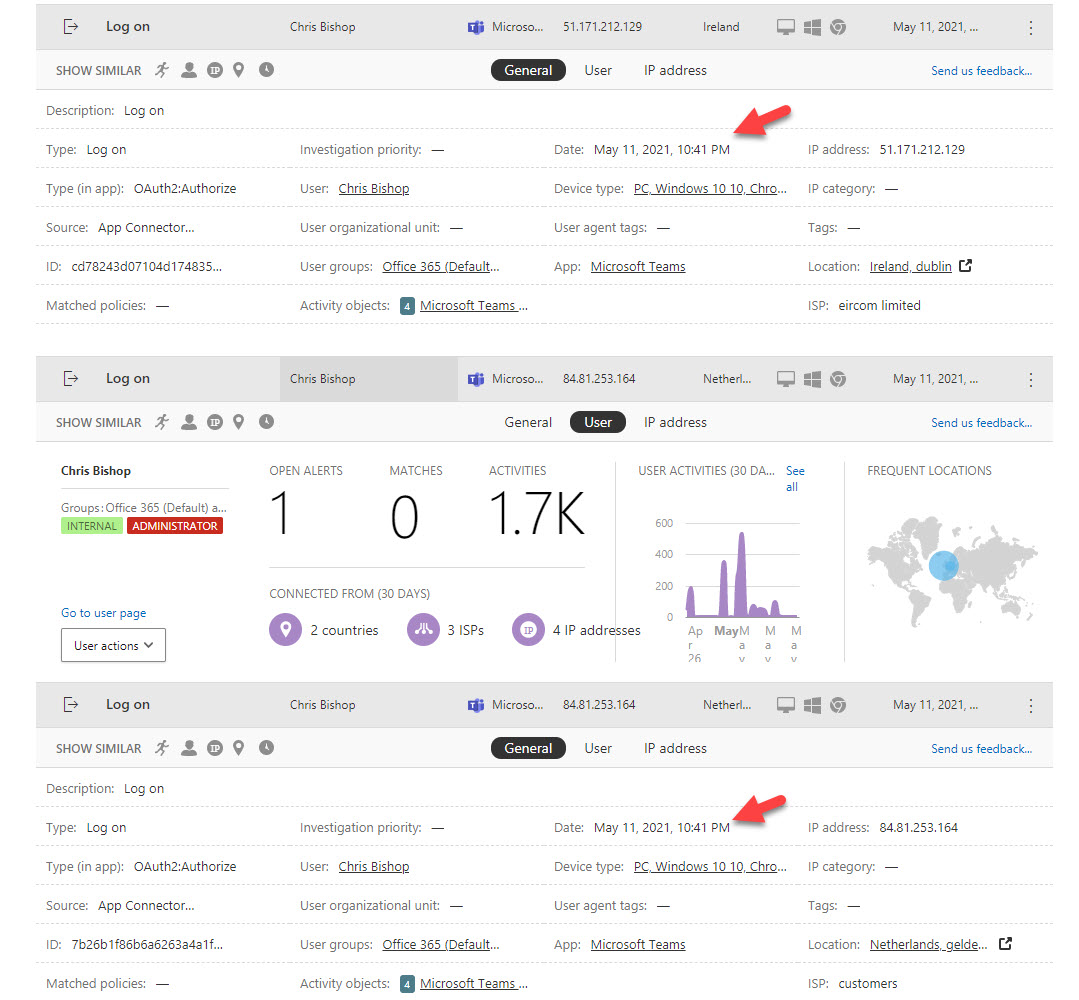
Office 365 Cloud App Security (OCAS) is very good at identifying potential problems for tenant administrators to investigate. But don’t think that it’s always right. Humans are often better at resolving issues than computers are, simply because we can use our wider knowledge of how applications work and the Office 365 datacenter network to understand what might be behind an alert. Humans might be slower than computers, but when it comes to resolving OCAS alerts, we’re always better.
Microsoft says a change to Outlook shared calendaring is arguably the biggest made since 1997. That’s all marketing hyperbole because many other more important technical advances have occurred in that time, including drizzle mode synchronization, Autodiscover, and Outlook Anywhere. What’s your favorite Outlook feature since 1997?
Licensing is everyone’s favorite topic. Combine it with information protection and governance and peoples’ eyes glaze over. Even so, it’s important to know what information protection and compliance features need which licenses as you don’t want to get into a position where something stops working because Microsoft enables some code to enforce licensing requirements. This post covers the basics of licensing and how Microsoft differentiates between manual processing and automated processing when deciding if a feature needs a standard or premium license.
The Microsoft 365 compliance center has a new content search UI. The new UI is prettier than before, but it’s also slower and more buggy. After several years of effort to develop content searches, you’d expect Microsoft to do better. A lot betterr. Unhappily, the beauty of the new interface seems to have distracted the engineers from the problems that become all too apparent when you try to use content searches to do real work. What, if any testing, was done to validate the new UI is unknown.
The value of the Teams Approvals app is much improved when organizations create their own approval templates to meet business needs. It’s easy and quick to do, with the only challenge being the limited set of field types available to build the form. Even so, you can get creative and build some nice approvals templates for use everywhere in an Office 365 tenant, limited to just some users, or in a specific team.
A new feature allows Teams meeting organizers to lock a meeting and stop attendees joining. This isn’t a feature for “normal” meetings. Instead, it’s there to protect the privacy of confidential meetings and is the online meeting equivalent of locking the doors to a conference room. Get everyone you want into the meeting and then set up a barrier to joining. Who wouldn’t like that!
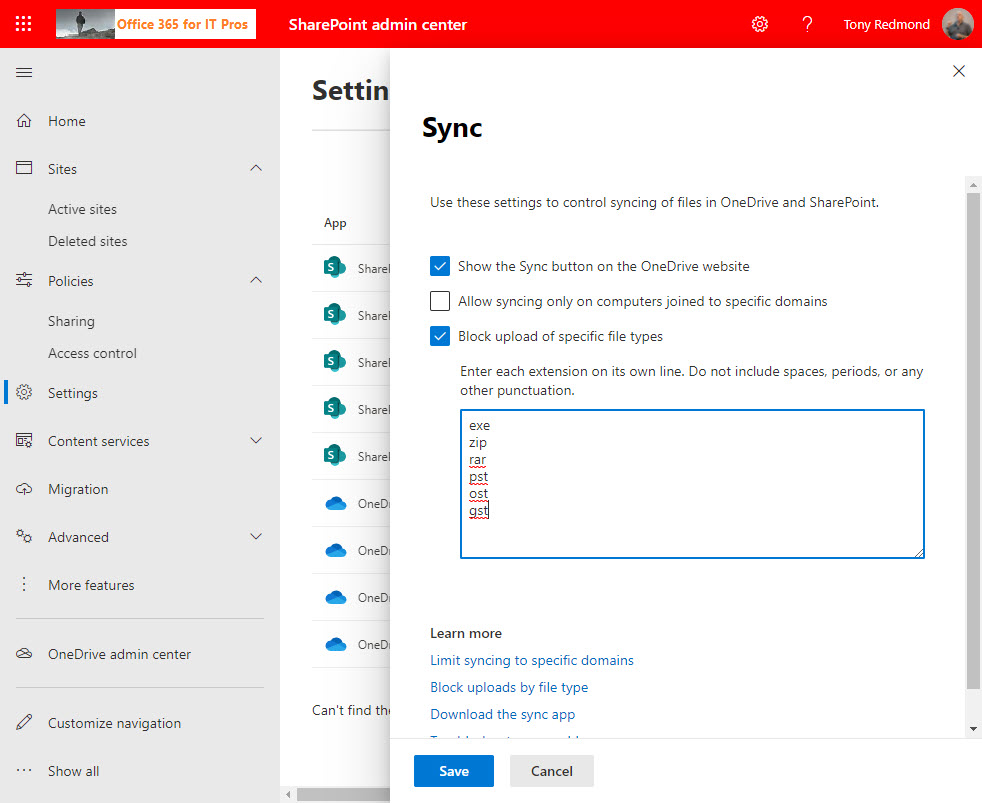
Microsoft will soon impose a limit on the number of PST versions kept by SharePoint Online and OneDrive for Business. PST files have no business being in cloud storage, so this is a reasonable step. People shouldn’t keep PSTs in SharePoint or OneDrive document libraries and organizations shouldn’t let them. In fact, you should block PSTs from OneDrive synchronization and make plans to eradicate these pesky files.
The Word for Windows desktop app in Microsoft 365 apps for enterprise boasts “modern comments.” Some good features are included, like snippet previews in the email notifications sent when reviewers post comments to documents. Word even has its own task management capabilities which aren’t linked to Microsoft 365 tasks. That’s about the only bum note sounded by modern comments.
Outlook Mobile now allows users to create delegates for their mailbox in the app without going near administrators. Sounds good, but Outlook Mobile uses its own delegation model, meaning that its permissions don’t work with OWA or Outlook desktop. Using its own permissions might make Outlook Mobile users happy, but it’s a very strange approach to take when the access doesn’t work in the other clients.
Office 365 tenants can connect eSignature applications to Teams approval requests. It’s a good way of combining cloud services to get the best of both worlds. Teams makes it easy for users to create and send approval requests for eSignature while the eSignature provider takes care of the processing. This article covers how to use Adobe Sign with Teams approvals.
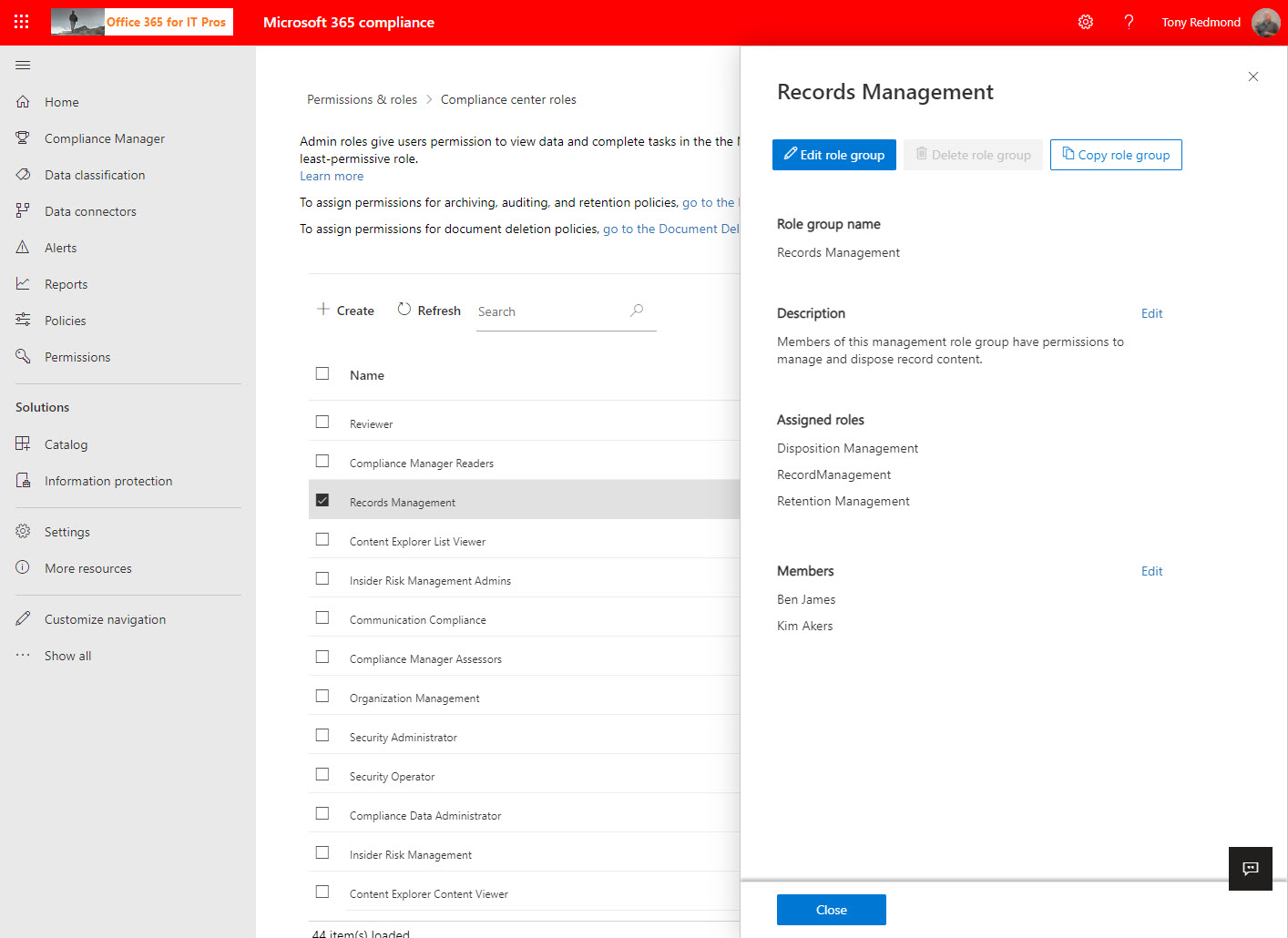
Compliance role groups control access to Microsoft 365 compliance functionality. A new permissions page makes it easier to manage these groups in the Microsoft 365 compliance center, where you can also manage the Entra ID roles used by Microsoft 365 compliance. If you want to generate a report about who holds what role, you’ve got to use PowerShell. The code is easy once you know which roles you want to report.
Blocking domains through the Azure AD B2B collaboration policy stops group owners adding new guest accounts from certain domains. It does nothing about existing guests from those domains. Fortunately, it’s relatively easy to check the guest membership of Groups and Teams to find guests from the blocked domains. And once you know those problem guests, you can decide what to do up to and including removing guest accounts from the tenant.
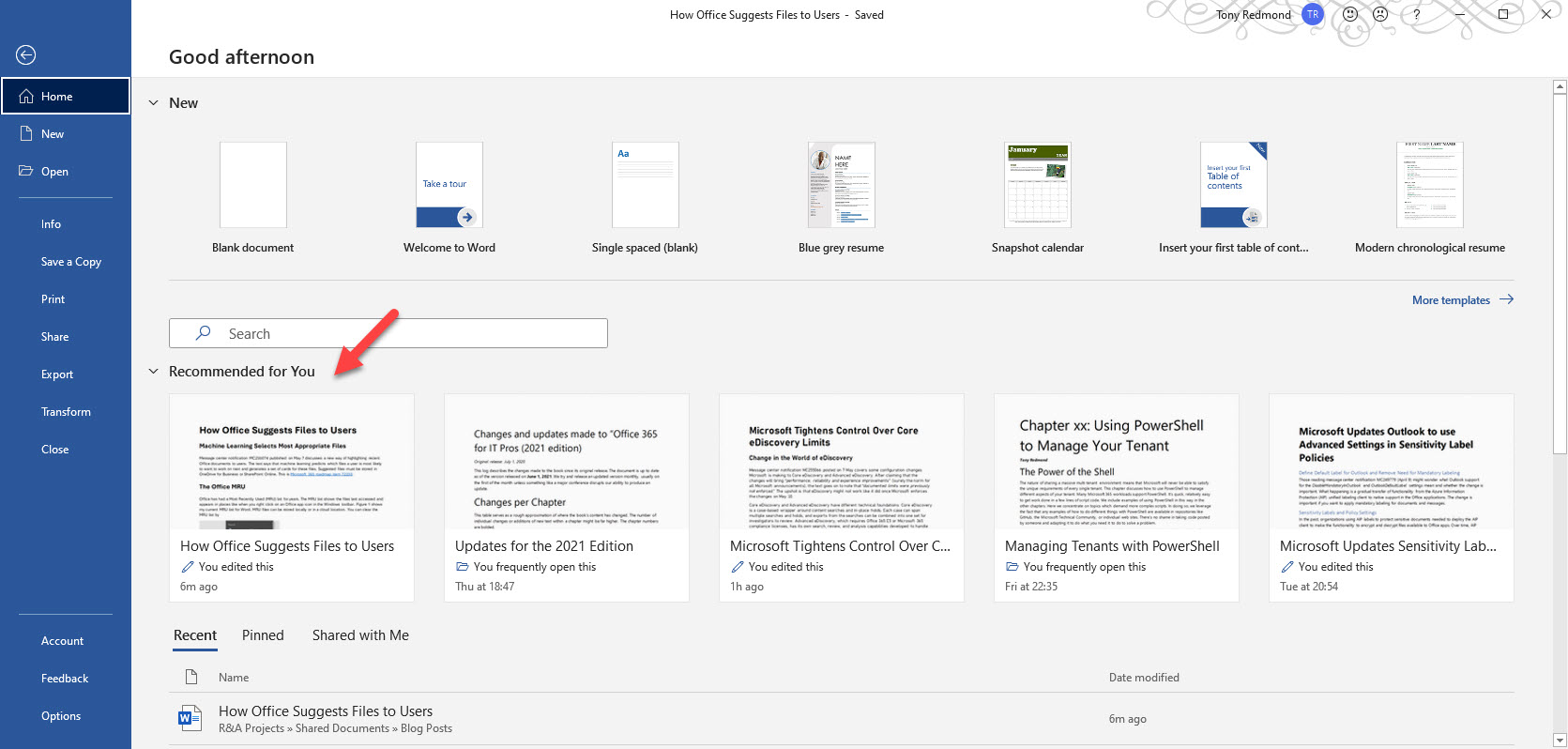
An update to Microsoft 365 apps for enterprise, aka Office Pro Plus, means that Word, Excel, and PowerPoint now suggest files which users might want to open. Although the traditional Most Recently Used (MRU) list isn’t being replaced, the set of suggested files is device independent and based on other activity than just simple file opens.